


Seamless music transitions can completely transform your listening experience. Whether you're hosting a party, working out, or just enjoying a curated playlist, smooth song blending makes everything feel more immersive. That's exactly what Apple Music AutoMix is designed to do. But what happens when Apple Music Automix is not working? For example, Automix is not showing up or is grayed out on Apple Music.
If you're facing any of these problems, this complete guide will walk you through everything you need to know - from understanding how Apple Music Automix works to fixing common errors and even creating a better Automix-style experience using local files with AudFree Apple Music Converter. Let't dive in!
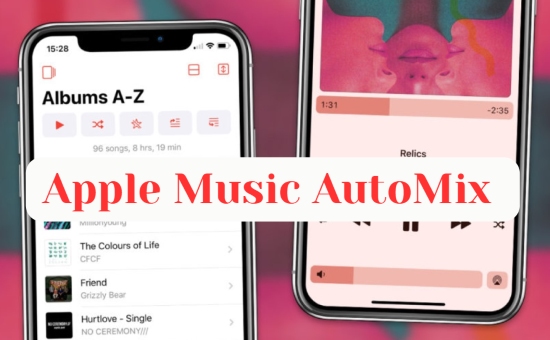

Part 1. What Is Apple Music AutoMix & How Does It Work?
Apple Music AutoMix is a smart playback feature that automatically blends songs together to reduce silence between tracks. Instead of abrupt stops and starts, AutoMix overlaps the end of one song with the beginning of the next - similar to a DJ transition.
Unlike basic crossfade playback, Apple Music AutoMix is more intelligent, which doesn't just eliminate silence between tracks. It attempts to align beats, blend outros with intros, and maintain overall energy flow. When two tracks are considered 'compatible', Apple Music automatically shortens the gap and creates a smooth transition. This makes it particularly useful for workout playlists, party mixes, or electronic and pop music collections where continuity matters.
If two songs differ significantly in tempo or style, the AutoMix Apple Music feature may not activate.
Besides, Apple Music uses metadata and audio analysis to determine how songs should overlap. However, it doesn't always work with every track. Licensing limitations, inconsistent metadata, or incompatible playlist formats can interfere with the feature.
While AutoMix support varies by device, it is available to Apple Music users globally, without the regional restrictions. To access the feature, you must be running iOS 26 or later. On desktop, AutoMix is exclusive to Mac models equipped with Apple Silicon, including the M1, M2, M3, and M4 chips. Besides, there is no option for users to get Apple Music AutoMix on Android. For more flexibility, you can try to an alternative to get there (via AudFree tools in Part 4).
Apple Music AutoMix vs Crossfade: What's the Difference?
Many users confuse Apple Music AutoMix vs Apple Music crossfade. While both aim to smooth playback, they work differently.
Here, you can refer to the table below for a quick breakdown of the key differences between Apple Music AutoMix and Crossfade in Apple Music.
| Feature | Apple Music AutoMix | Apple Music Crossfade |
|---|---|---|
| Smart beat matching | ✅ | ❌ |
| Manual control | ❌ | ✅ |
| Adjustable transition | ❌ | ✅ |
| Works on all songs | ❌ | ✅ |
| AI-based blending | ✅ | ❌ |
In short, if Apple Music AutoMix is not working, enabling Crossfade is often a practical workaround.
Apple Music AutoMix
- Uses AI to detect tempo compatibility
- Only activates when songs are suitable
- Cannot be manually adjusted
Apple Music Crossfade
- Simply overlaps tracks for a fixed duration
- User can set fade time (e.g., 5 seconds)
- Works universally
Part 2. How to Turn On/Off AutoMix Apple Music on iPhone/iPad/Mac
If you have a compatible Apple device running iOS 26 or an M-series chip, enabling AutoMix on Apple Music is incredibly easy.
How to Enable AutoMix on Apple Music on iPhone or iPad:
Please make sure your iOS version is up to date, Automix won't appear otherwise.
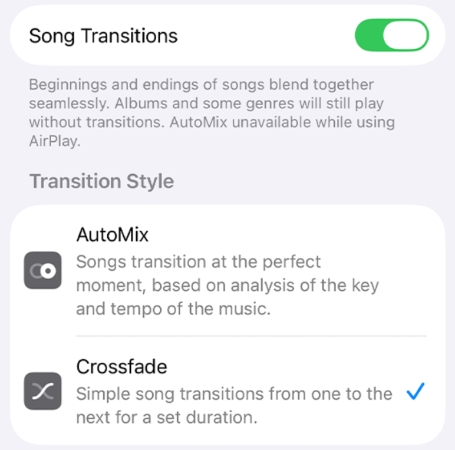
Step 1.Open the Settings app on your iPhone or iPad.
Step 2. Tap App amd scroll down to find Music.
Step 3. Look for Song Transitions, tap it, and toggle on the button at the top.
Step 4. Select AutoMix or Crossfade here.
If you don't want a song transition, whether AutoMix or Crossfade, you can turn Song Transitions off.
How to Use AutoMix on Apple Music on Mac:
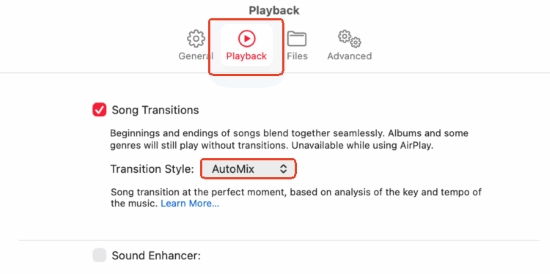
Step 1. Open the Apple Music app on your Mac.
Step 2. Select Music from the menu bar and then tap the Settings.
Step 3. Click the Playback tab and click and select Song Transitions.
Step 4. Under Transition Style, choose AutoMix or Crossfade.
How to Turn Off Automix Apple Music on iPhone/iPad/Mac
Some users disable Apple Music Automix if transitions feel unnatural or clash between genres. To switch off, simply toggle the feature off in the same settings location on different Apple devices.
Part 3. How to Fix AutoMix Apple Music Not Working
When Apple Music AutoMix stops working, the problem typically falls into one of several categories: device compatibility, playlist limitations, subscription status, or software bugs. Now, let's address the most common issue that happened to users.
Fix 1: Update iOS or macOS
Confirm that your device supports AutoMix in 2026. Once verified, updating to the latest system version. It often resolves missing toggle issues.
Go to:
• For iPhone/iPad: Settings > General > Software Update
• For Mac: System Settings > General > Software Update
Fix 2: Check Your Subscription
Second, check your Apple Music subscription. Apple Music AutoMix function generally requires an active paid subscription. If your subscription has expired, the feature may be disabled.
If the AutoMix option is grayed out, sign out of your Apple ID and sign back in. Corrupted account sessions sometimes interfere with playback features.
Fix 3: Switch Playlists
Third, verify that you're streaming supported content. AutoMix may not function properly with certain curated playlists, live recordings, radio stations, classical music playlists, or manually uploaded tracks.
Try testing it with a standard Apple Music playlist, like pop playlists, hip-pop, or electronic genres.
Fix 4: Disable and Re-enable Automix Apple Music
Sometimes toggling the feature off and on refreshes playback behavior.
Fix 5: Restart Apple Music App or Apple Device
Temporary glitches can prevent transition features from activating correctly. Restart your Music app and device, it's simple, but effective.
Fix 6: Toggle Off the Crossfade Feature
Ensure that Crossfade isn't conflicting with AutoMix. Keep it off. In some system versions, enabling one feature may automatically disable the other.
Fix 7: Create Your Own Automix-Style Playback with Local Files
If the AutoMix Apple Music keeps failing on your device, even after all of the solutions above, or if you want full control over transitions, you can consider using Apple Music local files for more customization via AudFree tools, which we'll explain in the next part.
Part 4. How to Create an Apple Music Automix Effect with Local Files
While Apple Music Automix works seamlessly within the Apple ecosystem, it is limited to streaming playback on the Music app and cannot be customized beyond Apple's algorithm.
If you want more control over transitions, offline DJ-style playback, or use your music outside the Apple Music app, tools like AudFree Apple Music Converter allow you to download Apple Music tracks as local MP3, FLAC, or WAV files for flexible playback and mixing.
After downloading Apple Music songs as MP3, FLAC, or WAV files, you can:
✅ Import them into DJ software for auto beat-matching
✅ Enable adjustable crossfade in desktop players
✅ Arrange playlists by BPM for seamless transitions
✅ Create a continuous DJ-style mix
It will give your a full control over your Apple Music playlist with more flexible and professional-level customization. And with it, you can build your own advanced Automix-style playback system on any device as needed.
Why Choose AudFree Apple Music Downloader?

- Offer a option of long-term backup and offline playback on any device
- Convert Apple Music to MP3, FLAC, AIFF, WAV, M4A, M4B, etc.
- Ultra-fast conversion with a speed up to 17X
- Keep original sound quality and all the metadata info
Before getting started, make sure AudFree Apple Music Converter is installed on your computer, both PC and Mac are compatible.
- Step 1. Add Apple Music to AudFree Conversion List

- Launch the AudFree Apple Music Converter and log in. Browse your Apple Music library and select the songs or playlists you want to use for your custom Automix setup. Click the '+' button and tap 'Add to List' to import them into the converter. This prepares your tracks for batch processing.
- Step 2. Optimize Audio Settings for Seamless Automix Transitions

- Click on the 'AudFree Apple Music Converter' icon on the top menu bar and go to 'Preferences > Conversion'. Here you can customize the output parameters to optimize for Automix-style playback, including audio format, bitrate, sample rate, audio channel, and more.
- Maintaining consistent bitrate and sample rate across songs helps produce smoother, more professional-sounding transitions - similar to how Apple Music Automix analyzes track compatibility. Click 'OK' to confirm your settings.
- Step 3. Convert Apple Music Songs for Automix Flexibility

- Click the'Convert' button to begin exporting the selected songs. It converts at up to 17X speed while preserving metadata and original audio quality. Once completed, click the Converted icon to locate your DRM-free Apple Music audio files on your computer.
- Now your songs are no longer restricted to the Apple Music app, which means you can build your own Automix logic outside Apple's ecosystem.
- Step 4. Transfer Files to iOS for Custom Automix Playback
- Now, you are no longer limited by official app requirements. You can achieve a "Universal AutoMix" experience on any device easily. Simply transferring converted Apple Music songs to professional mixing platforms like Virtual DJ or Mixxx, you can utilize advanced transition controls that far outperform the standard mobile features. This setup offers the ultimate flexibility for power users who want a truly seamless, DJ-quality listening experience.
If you're looking for 'AutoMix' functionality on platforms beyond Apple Music, AudFree Streaming Audio Recorder is the perfect bridge. This professional tool captures high-quality audio from 10+ streaming services, including Spotify, Amazon Music, and Tidal. Once your songs are saved locally, you can use third-party mixing apps to enjoy seamless transitions, effectively bringing the AutoMix feature to every service you use.
Part 5. FAQs About AutoMix on Apple Music
How can I 'force' a better Apple Music AutoMix transition?
You can't manually control Apple Music AutoMix timing, but you can improve results by organizing playlists with similar genres, BPM, and energy levels. AutoMix performs best when songs naturally complement each other. If transitions still feel abrupt, switching to Crossfade with a fixed duration may produce more consistent results. Or you can try the AudFree Apple Music Converter for more flexibility than the Apple Music AutoMix feature or the Crossfade offers.
Which devices support AutoMix Apple Music in 2026?
AutoMix availability depends on software version and region. Generally, Apple Vision Pro, recent iPhone, iPad, and Mac models running updated systems support it (iOS 26 or latter). Always ensure your system software is current.
Do I need an Apple Music Premium subscription to use AutoMix?
Yes. Apple Music AutoMix is typically limited to active subscribers of Apple Music. If your subscription lapses, transition features may be disabled until renewal.
Conclusion
Apple Music Automix is a smart feature designed to deliver seamless transitions and a DJ-style listening experience. However, in 2026, it's not stable and keeps failing frequently.
If it's not working consistently, or if you're so sick of it and want more advanced transitions, converting your Apple Music library into local files gives you professional-level flexibility.
Instead of asking how to fix Apple Music Automix repeatedly, you can build your own smarter, more powerful Automix system manually!

James Blair

Staff Editor


