


Volumio is a popular music player for audiophiles who want to organize their music libraries and enjoy high-quality playback through a dedicated streamer, DAC, or home audio system. However, if you use Apple Music, you may notice that it is not available as a built-in streaming service in Volumio.
Fortunately, this doesn't mean you cannot enjoy Apple Music through your Volumio setup. In this guide, we'll walk you through three practical ways to play Apple Music on Volumio, explain how to set up each method, and help you choose the option that best fits your listening habits.
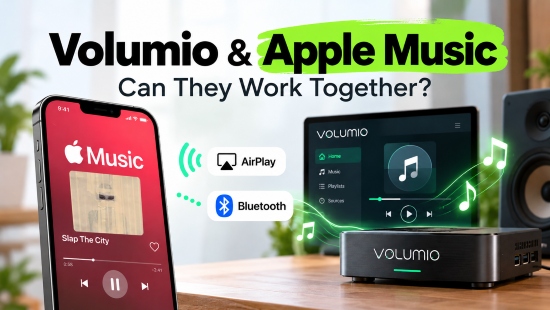

Part 1. Does Volumio Support Apple Music?
Volumio does not currently offer native Apple Music integration as a streaming service. Unlike supported platforms such as TIDAL and Spotify, which allow you to browse their catalogs and control playback directly through the Volumio interface, Apple Music requires an alternative playback method.
Unlike Spotify or TIDAL, which feature dedicated native integration plugins in the Volumio plugin store, Apple Music operates within a tightly locked, proprietary ecosystem. Apple does not provide open streaming APIs or headless playback SDKs for Linux-based audio operating systems, Volumio cannot natively host or render Apple Music streams directly within its interface.
See also:
• How to Stream Tidal to Volumio
• How to Use Spotify on Volumio with or without Premium
The good news is that Volumio supports several ways to receive or play audio from other sources, including AirPlay, Bluetooth input on supported configurations, and converting Apple Music tracks to local DRM-free files for bit-perfect playback (as detailed in Method 2 below). These options make it possible to enjoy music through your Volumio audio system without a dedicated Apple Music plugin.
Here is a quick comparison of the main ways to use Apple Music with a Volumio-based audio system:
| Method | Apple Music Support | Sound Quality | Setup | Key Limitation | Best For |
|---|---|---|---|---|---|
| AirPlay | Yes (Direct Stream) | Up to 16-bit/44.1 kHz | Easy | Wi-Fi dependent; standard CD quality | Apple ecosystem users |
| Bluetooth | Yes (Any App) | Codec Dependent | Easy | Lossy compression & distance limits | Quick & casual wireless streaming |
| Local Files | Offline/Local Only | Source-capped (up to Hi-Res) | Moderate | Requires manual file transfer & storage | High-fidelity local library storage |
Bluetooth input availability depends on your Volumio device, software configuration, and plan. Check your device's supported features before following the Bluetooth method.
Part 2. How to Stream Apple Music to Volumio via AirPlay (Easiest Method)
AirPlay is the most straightforward way to play Apple Music through Volumio. Rather than adding Apple Music directly to Volumio, you use your iPhone, iPad, or Mac to stream audio to a compatible Volumio device.
This method requires no file conversion or separate music library. You can continue browsing your Apple Music catalog, playing playlists, and choosing tracks from the Apple Music app as usual.
But first, make sure your Volumio device is powered on and connected to your home network. Connect your iPhone, iPad, or Mac to the same local network.

Step 1. Open the Volumio interface using the official app or a web browser. If you are using a browser, you can typically access your device through its local address, such as http://volumio.local, provided your network supports local-name resolution.
Step 2. Launch the Apple Music app on your iPhone, iPad, or Mac and start playing the song, album, or playlist you want to hear. Make sure Apple Music is working normally on the source device before trying to route its audio to Volumio.
Step 3. On your iOS device, open the Control Center and tap the audio playback card to expand the controls. Next, tap the AirPlay icon and select your Volumio device from the list of available iOS receivers. Once connected, your audio will route through the equipment wired to your Volumio streamer, while track selection and volume remain controllable directly from your device.

On a Mac, open the audio output selector in Control Center and choose the Volumio device. Depending on your macOS version and available controls, you may also see an output selector in the Apple Music playback interface.

Volumio's official Apple Music instructions specify AirPlay playback at up to 44.1 kHz/16-bit. This is CD-quality resolution, not the full Hi-Res Lossless resolution available for some Apple Music tracks. Actual playback also depends on your source device, network, and audio configuration.
No complex setup required;
Works right out of the box
AirPlay streams are capped at 16-bit/44.1kHz (CD quality);
Drain your mobile device's battery during long listening sessions
Part 3. How to Play Apple Music-Compatible Local Files on Volumio (Best for Offline Playback)
AirPlay is convenient, but it depends on a working connection between your Apple device and Volumio. If you prefer to manage your own music library, play files without relying on the Apple Music app, or access your collection through USB or NAS storage, local playback is another option.
Volumio supports a wide range of common audio formats, including FLAC, WAV, AIFF, ALAC, MP3, M4A, and AAC. You can store compatible files on a USB drive or a network-attached storage device, then scan them into your Volumio music library.
However, having an active Apple Music subscription doesn't mean you can directly extract local audio files. To get permanent local files, you must either purchase tracks individually through iTunes or use a specialized desktop converter like AudFree Apple Music Converter. With AudFree, you can batch-export your entire Apple Music library into unencrypted local formats while retaining original high-resolution audio quality (up to 24-bit/192 kHz).
Key Features of AudFree Apple Music Converter

- Convert Apple Music to MP3, FLAC, WAV, AIFF, M4A, etc.
- Save tracks as local files ready for Volumio, USB drives, or NAS storage
- Download entire playlists and albums at up to 17× speed in batches
- Keep full ID3 tag metadata and retain source fidelity (up to Hi-Res lossless)
- Tailor bitrates, sample rates, and output folders to fit your setup
Stage 1. Prepare Compatible Local Audio Files
Start by gathering or preparing audio files in formats fully supported by Volumio (such as MP3, FLAC, WAV, AAC, or ALAC). If you already own purchased, DRM-free tracks from the iTunes Store, you can use them directly.
If you have an active Apple Music subscription and wish to build a local library using AudFree Apple Music Converter, follow these simple steps below.
Before using any third-party conversion software, ensure your usage complies with local copyright laws and Apple Music's Terms of Service. Converted files should be used strictly for personal backup and private offline listening.
Step 1. Open AudFree Apple Music Converter on your Mac or Windows PC, and sign into your Apple ID inside the embedded Apple Music web player.
Step 2. Click the Menu > Preferences to select your preferred format (e.g., FLAC or MP3), bitrate, and sample rate (up to 24-bit/192 kHz).

See also: How to Download Apple Music to FLAC
Step 3. Browse your library, select the playlists or albums you wish to export, click + > Add to List, and hit Convert to launch it.

Step 4. Once processing finishes, navigate to the Converted (History) tab to access your DRM-free audio files from Apple Music saved locally on your drive.

If you want to expand your Volumio library beyond Apple Music, consider AudFree Streaming Audio Recorder. This versatile tool provides a flexible, universal solution for downloading and converting audio from over 10 major streaming platforms, including Amazon Music, TIDAL, SoundCloud, Spotify, and YouTube Music.
See also: How to Use Amazon Music with Volumio
Stage 2. Transfer the Files to a USB Drive or NAS
Once your local audio files are ready, choose your preferred storage method to make them accessible to Volumio.
Option A: Use a USB Flash Drive or External HDD
Copy your converted Apple Music files onto a USB drive. For easier browsing, organize tracks into folders by Artist / Album / Genre. Plug the drive into an available USB port on your Volumio hardware.
A USB drive is a convenient choice if you want a portable collection that can be moved between compatible devices easily.
See also: How to Transfer Apple Music to USB
Option B: Store Files on a Network-Attached Storage (NAS)
If you manage a large digital library on a home NAS, you can connect its shared folders to Volumio over your home network. Volumio supports common network-sharing protocols, including CIFS/SMB and NFS, depending on the configuration.
A NAS centralizes multi-terabyte Hi-Res libraries without occupying physical ports on your Volumio streamer. It's ideal for large libraries. Just ensure your NAS stays powered on and connected to the local network for uninterrupted playback.
Stage 3. Scan & Index Your Apple Music in Volumio
After connecting your USB drive or configuring your NAS share, add these local Apple Music to your Volumio library.

Step 1. Access the Volumio web UI or mobile app on your phone, tablet, or desktop browser.
Step 2. Navigate to Storage Settings through clicking Settings > Sources.
Step 3. Locate your connected USB drive or configured network mount, then click Update or Rescan.
Step 4. Allow Volumio a few moments to read metadata, cover art, and ID3 tags into its database.
Stage 4. Enjoy High-Fidelity Local Playback on Volumio
Once your music library is ready, open Music Library and browse your collection by artist, album, genre, or folder, depending on the available views. Select a track or album to start playback through your Volumio-connected DAC or amplifier system.
You can now listen to compatible local files without streaming directly from the Apple Music app. Your music will remain available as long as the files are stored on an accessible USB drive or network share.
For the best results, check that your audio files are playable, their metadata is properly organized, and your DAC and playback setup support the formats and sample rates you intend to use.
Delivers uncompromising Hi-Res Audio quality up to 24-bit/192kHz;
Zero phone battery drain;
No wireless buffering or drops
Requires initial preparation and desktop file management
Part 4. How to Play Apple Music via Bluetooth (Alternative Wireless Method)
If you use Apple Music on an Android device or lack a stable local Wi-Fi connection for AirPlay, Bluetooth streaming serves as a reliable alternative to send Apple Music audio to Volumio. Instead of routing the audio over your local network, you pair your phone, tablet, or computer with Volumio and play music from the source device.
Step 1. Open the Volumio web UI or mobile app and locate the Bluetooth input menu (typically under Playback Inputs). Select it to set your Volumio device to discoverable mode.
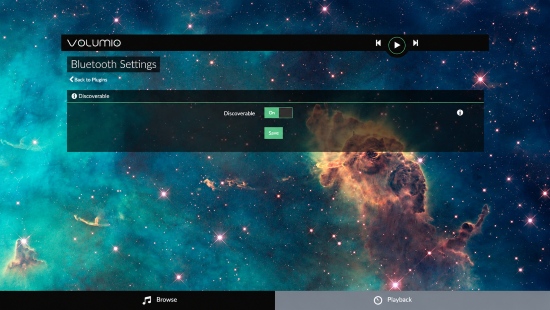
If you don't see a Bluetooth input option, verify that your hardware and Volumio plan (such as Volumio Premium) support Bluetooth audio input.
Step 2. Open Settings > Bluetooth on your phone, tablet, or computer. Search for available devices and select your Volumio streamer from the list. Complete the pairing prompt if required.

Step 3. Launch the Apple Music app on your paired device and hit play. Audio will stream directly through the speakers connected to your Volumio setup, while track metadata and basic playback controls sync to the Volumio display.
What About DLNA/UPnP for Volumio & Apple Music?
Volumio fully supports DLNA/UPnP protocols, allowing it to receive audio from local media servers and UPnP controller apps across your network. While this is a great feature for streaming local music collections, DLNA/UPnP cannot stream directly from the official Apple Music app. Because Apple's streaming service lacks native UPnP casting support, third-party DLNA controllers cannot parse or stream your active Apple Music catalog to Volumio.
If your goal is to stream Apple Music wirelessly, rely on AirPlay or Bluetooth. To integrate Apple Music content into a UPnP/DLNA server setup, you must first convert your tracks into DRM-free local files using a converter like AudFree Apple Music Converter.
Universally compatible across iOS and Android;
Works without relying on a home Wi-Fi network
Audio quality is compressed over Bluetooth codecs (AAC/SBC), falling short of true lossy-to-lossless standards
Part 5. Which Apple Music Volumio Method Should You Choose?
The best way to play Apple Music on Volumio depends on whether you prioritize convenience, offline playback, or a quick wireless connection.
| Method | Recommended for | Key advantage |
|---|---|---|
| AirPlay | Everyday Apple Music streaming | Easy setup and direct playback from Apple devices |
| Local music files | Offline listening and music library management | Independent playback without relying on the Apple Music app |
| Bluetooth | Quick wireless playback | Simple connection when AirPlay is unavailable |
• Choose AirPlay if you want the easiest way to listen to Apple Music through your Volumio audio system. It requires minimal setup and lets you continue using the Apple Music app as usual.
• Choose local music files if you prefer managing your own collection, accessing music from USB or NAS storage, and playing compatible audio files without relying on a live Apple Music stream. If you need to prepare a separate local library, a tool such as AudFree Apple Music Converter may be worth considering, provided your intended use complies with applicable copyright law and service terms.
• Choose Bluetooth if you want a straightforward, universal wireless connection and your Volumio device supports Bluetooth input. Keep in mind that Bluetooth uses lossy compression, so sound quality will depend on your connection stability and supported audio codecs.
Conclusion
Volumio does not currently offer native Apple Music integration, but you can still use Apple Music with a Volumio system. AirPlay is the simplest and officially recommended option, while Bluetooth provides a convenient alternative. If your goal is to build a centralized Volumio library, compatible local audio files stored on USB, SD, or NAS provide another workflow.

Staff Editor


