


Apple Music is convenient for streaming, but you're confined to the Apple Music app and cannot listen to your downloads after your subscription ends. If you want to keep your music as regular local audio files, use it on a wider range of devices, or build a separate offline music library, a dedicated Apple Music converter may be worth considering.
TunePat Apple Music Converter is one such desktop program. It is designed to convert Apple Music songs, albums, and playlists into common formats such as MP3, FLAC, WAV, etc.
But how well does it actually perform in 2026? In this TunePat Apple Music Converter review, we'll look beyond its advertised features and examine its workflow, conversion performance, output quality, pricing, limitations, and overall user experience.

Part 1. What Is TunePat Apple Music Converter?
TunePat Apple Music Converter is a desktop audio conversion tool designed to save Apple Music content as standard local audio files. It is available for both Windows and Mac and can work with Apple's Music/iTunes environment as well as an integrated Apple Music Web Player, depending on the version and workflow you use.
Unlike legacy converters that strictly relied on system audio recording or virtual soundcards, TunePat operates primarily via a dual-engine architecture:
- Embedded Web Player Mode: Integrates an in-app Apple Music web browser, eliminating the requirement to install iTunes or the desktop Apple Music app.
- App/iTunes Mode: Direct interface with the native iTunes or macOS Music application for local library parsing.
TunePat also supports several common output formats, including MP3, AAC, ALAC, WAV, FLAC, and AIFF. It also aims to preserve important metadata such as song titles, artists, albums, artwork, and other ID3 information. Batch conversion and playlist organization are included as well, making the software more suitable for users who want to process a larger music collection rather than just one or two tracks.
| Item | TunePat Apple Music Converter |
|---|---|
| Source | Apple Music |
| Input | Songs, albums, playlists |
| Main workflow | Apple Music Web Player / iTunes App |
| Output | MP3, AAC, FLAC, WAV, AIFF, ALAC |
| Metadata | Full ID3 tags / artwork |
| Batch conversion | ✅ |
| Platform | Windows / Mac |
| Free Trial | Only the first minute per song |
In short, by logging into your active Apple ID within the software, you can select content and batch-export tracks to standard local formats for transfer to USB drives, car stereos, non-Apple MP3 players, or local DJ libraries.
Part 2. Key Features & Hands-on Performance Test of TunePat Apple Music Converter
TunePat Apple Music Converter offers a fairly broad feature set on paper, but the more important question is how these features translate into actual use. Below, we'll look at the main functions and the practical performance behind them.
1. A Range of Output Formats and Audio Quality
One of TunePat's main advantages is its support for a wide range of commonly used audio formats. You can choose from MP3, AAC, ALAC, WAV, FLAC, and AIFF, depending on your playback, storage, or editing needs.
This variety makes TunePat more flexible than tools that only export to MP3. It also means you don't have to use the same output settings for your entire music library. You can choose a format that fits each specific use case.
In our testing, we downloaded songs from Apple Music with TunePat and checked the resulting files to verify whether they matched the selected output settings. For the MP3 files tested, the output was successfully generated at the selected 320 kbps quality, matching the configuration available in TunePat.
However, it is important to note that choosing a higher bitrate does not improve the quality of the original source audio. The final file quality remains limited by the source stream. To access lossless formats such as ALAC, users need to process tracks through TunePat's App mode, as web-based conversion may be restricted by Apple Music's streaming quality limitations (typically up to 256 kbps AAC).
Rating: 9/10
MP3 and AAC are more suitable when you want smaller file sizes and broad device compatibility. FLAC and ALAC are better suited to building a lossless local music library, while WAV and AIFF may be preferable for audio editing and production workflows where uncompressed audio is required.
See also:
• How to Convert Apple Music to MP3
• How to Convert Apple Music to AAC
2. Batch Conversion and Claimed 10× Speed
TunePat Apple Music Converter supports batch conversion, allowing you to add multiple songs, albums, or playlists to the conversion queue instead of processing each track individually. This is particularly useful when you want to move a larger Apple Music collection to local storage.
The software advertises conversion speeds of up to 10×. However, this figure should be understood as a maximum advertised speed rather than a guarantee for every computer or every playlist. Actual performance can depend on the number of tracks, source content, output settings, system resources, and other factors.
In our September 2026 third-party test, 50 tracks took about 22 minutes to process, with 48 of the 50 tracks converted successfully on the first attempt. Two tracks required another try. This suggests that the real-world experience can be more variable than the headline speed figure suggests.
Rating: 8.5/10
3. ID3 Tags & Lyrics Preservation
For a local music library, the audio itself is only part of the equation. Poorly organized files can quickly become difficult to manage, especially when converting entire playlists or albums. TunePat automatically parses and embeds essential metadata - including song title, artist, album, artwork, year, and track number - and also supports .lrc lyrics file export.
During our hands-on testing, metadata retention performed flawlessly across every batch, saving significant time on manual organization. Additionally, the built-in ID3 tag editor makes it easy to apply quick corrections before saving your files.
Rating: 10/10
4. Dual Audio Extraction Modes (App vs Web Player)
TunePat provides two different ways to access Apple Music content: through the installed Apple Music/iTunes desktop app or via its built-in web player mode.
However, both modes still require an active Apple Music account login. During our testing, we found that the Apple Music Web Player mode was faster to set up but not always smooth to navigate. Once songs were added to the conversion queue, returning to the previous browsing page could be inconvenient, resulting in a less seamless workflow.
The iTunes/Apple Music app mode also has certain compatibility restrictions. Take Windows computer as an example, on systems where the Apple Music desktop app is already installed, TunePat may encounter difficulties opening the required app-based conversion environment, which could affect the overall user experience.
Rating: 7.5/10
Overall Test Result
In practical use, TunePat Apple Music Converter delivers a relatively straightforward workflow. After selecting Apple Music content and configuring the desired output settings, the software can begin processing without requiring a complicated setup or multiple external tools.
During our testing, TunePat performed well in several key areas. It successfully preserved the selected output settings, including 320 kbps MP3 conversion and tested lossless output quality in supported modes. The wide range of formats, reliable metadata retention, and built-in lyrics export also make it suitable for users who want to build and organize a local music library.
The batch conversion experience was generally efficient, although real-world processing speeds were more variable than the advertised 10× conversion speed, depending on factors such as playlist size, system performance, and source availability. The Web Player mode also provided a faster setup process compared with relying on the desktop Apple Music / iTunes app, although an active Apple Music account login is still required.
Overall, TunePat is a capable Apple Music converter with strong format flexibility, good file organization features, and a convenient workflow. However, users should keep in mind that output quality ultimately depends on the available source stream and the selected extraction mode, and advertised performance figures may not always reflect every real-world scenario.
Rating: 8/10
Part 3. How to Use TunePat Apple Music Converter
TunePat Apple Music Downloader keeps the basic conversion process relatively simple. The exact interface may vary slightly between Windows and Mac versions, but the overall workflow follows the same pattern.
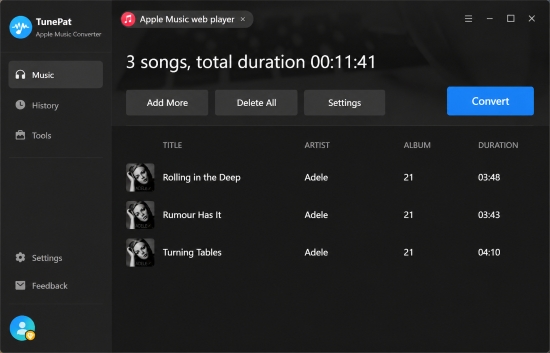
Step 1. Open TunePat on your PC or Mac. Select your preferred extraction mode: Apple Music Web Player (recommended for speed) or iTunes/Music App. Log into your Apple ID inside the embedded window if prompted.
Step 2. Click the Gear icon ("Settings") in the bottom-left corner. Choose your desired Output Format (e.g., MP3 or FLAC), Bit Rate (e.g., 320 kbps), Sample Rate, Output Folder, and file sorting template (e.g., Playlist/Artist/Album).
Step 3. Log in to your Apple ID, browse your library or search for specific playlists/albums inside the built-in web player. Click the floating "+" icon. Check the boxes for the songs you wish to download and click "Add".
Step 4. Review your queue and click the "Convert" button. Once processing finishes, navigate to the "History" tab (clock icon) and click the folder icon to open the local directory containing your DRM-free files. Here, you can check the audio files, metadata, artwork, and folder structure.
Part 4. Pros and Cons of TunePat Apple Music Converter
Below is a detailed breakdown of TunePat Apple Music Converter's primary strengths and critical shortcomings based on our hands-on testing
Gives users the choice between a fast built-in web player or direct integration with the native iTunes/Apple Music app;
Easily exports to 6 universal formats (MP3, AAC, WAV, FLAC, AIFF, ALAC) with customizable bitrates and sample rates;
Accurately retains ID3 tags, cover art, and track organization, saving manual tagging effort;
Supports queuing full albums, playlists, and podcasts in a single operation
Queueing tracks hides the active web player view, making back-navigation disorienting for newcomers;
In real-world testing, processing speeds averaged 5× to 6×, with fluctuating time-remaining estimates;
No Dolby Atmos or Lossless Spatial Audio output;
Limits trial downloads to the first minute per track;
Random interface bugs can freeze page transitions or prevent item selection boxes from rendering properly without a clear cause
Part 5. Pricing and Free Trial Limitations of TunePat Apple Music Converter
TunePat offers a free trial version for both Windows and macOS users. However, it comes with strict limitations:
- 1-Minute Limit: The trial converts only the first 1 minute of each audio track.
- Batch Cap: You can process only 3 full files at a time during evaluation.
To unlock full-length conversions, you must purchase a license. TunePat's pricing structure is divided as follows:
| License Tier | Price | Best For | Features Included |
|---|---|---|---|
| 3-Month License | $29.95 / quarter | Short-term usage | 1 PC/Mac, auto-renews, 5-day money-back guarantee |
| 1-Year License | $44.95 / year | Annual flexibility | 1 PC/Mac, auto-renews, 5-day money-back guarantee |
| Lifetime License | $89.90 (One-time) | Long-term value | 1 PC/Mac, 30-day money-back guarantee, lifetime updates |
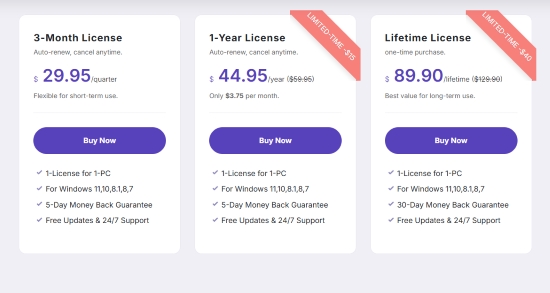
For the pricing, the exact price can vary by operating system, region, and promotional offer, so it is worth checking the current purchase page before subscribing.
See also: How to Get Apple Music Free Forever
Another point to check is the platform coverage of your license. If you use both Windows and Mac, do not assume that one purchase automatically covers both systems. TunePat provides separate Windows and Mac versions and specifies the applicable license terms for each.
Part 6. Bonus Tip: A Flexible Alternative to TunePat for Apple Music
If TunePat's limitations, including semi-embedded interface, occasional navigation glitches, or pricing structure, do not fully match your needs, AudFree Apple Music Converter is another option to consider.
AudFree offers a similar desktop-based workflow for batch converting Apple Music tracks into local formats such as MP3, FLAC, WAV, and AIFF while retaining common metadata and album artwork. The main difference lies in the overall workflow. AudFree uses a more streamlined integrated browser environment, allowing you to browse, search, and queue Apple Music content within the same interface without repeatedly switching between views or dealing with redundant pop-up windows.
Conversion speed is another notable difference. TunePat advertises speeds of up to 10×, while AudFree supports up to 17× batch conversion. In our testing, AudFree typically reached around 10× - 13×, compared to 5x - 6x, although actual speeds can vary depending on the number of tracks, source content, output settings, and computer performance.
AudFree also takes a more conversion-focused approach. If your primary goal is to build a local Apple Music collection with flexible output formats and customized audio settings, it provides a straightforward alternative to TunePat without placing as much emphasis on additional audio utilities.
Workflow of the Top Alternative to TunePat: AudFree Apple Music Converter
The basic workflow is simple: add Apple Music content, customize the output settings, and start the conversion.
Step 1. Download and install AudFree Apple Music Converter on your Mac or Windows computer and sign in. Then click the '+' button in the bottom-right corner to add Apple Music songs, albums, or playlists to the conversion list.

Step 2. Once the songs are loaded, tap the AudFree Apple Music Converter > Preferences toselect the desired output format, such as FLAC, WAV, MP3, or AIFF. You can also customize audio parameters such as the bitrate, sample rate, and audio channels according to your needs.
See also: How to Convert Apple Music to FLAC

Step 3. Click the 'Convert' button to start processing. When the conversion is complete, open the Converted section to access the resulting local audio files. You can then organize them in your preferred music library or transfer them to compatible devices for offline playback.

TunePat Apple Music Converter vs AudFree Apple Music Converter
If you're deciding between the two, the following comparison highlights their main differences.
| Feature | TunePat Apple Music Converter | AudFree Apple Music Downloader |
|---|---|---|
| Supported Content | Apple Music, iTunes music, audiobooks, podcasts, etc. | Tracks, playlists, albums, podcasts, etc. from Apple Music |
| Supported Output Format | MP3, FLAC, AAC, WAV, AIFF, ALAC | MP3, FLAC, M4A, WAV, AIFF, M4B |
| Conversion Speed | Up to 10X (5x - 6x) | Up to 17X (10x - 13x) |
| Sample Rate | Up to 192kHz | Up to 192kHz |
| Bit Depth / Bitrate | Up to 24 bit; up to 320kbps | Up to 24 bit; up to 768kbps |
| ID3 Tags Retained | ✅️ | ✅️ |
| Custom Output Settings | ✅ | ✅️ |
| Batch Conversion | ✅️ | ✅️ |
| Stability | Medium | High |
| iTunes/Apple Music App Required | ❌ | ❌ |
| Additional Audio Tools | ❌ | ❌ |
| Easy to Use | ★★★☆☆ | ★★★★★ |
| Price | Quarter:$29.95; Yearly: $44.95; Lifetime: $89.90 | Monthly: $14.95; Yearly: $44.95; Lifetime: $89.95 |
If you need support for multiple streaming platforms and don’t want to be limited to Apple Music alone, AudFree Streaming Audio Recorder is another option to consider. It works with a wide range of services, including Apple Music, Spotify, Tidal, YouTube Music, SoundCloud, and more. You can use it to batch-process multiple tracks and save them with the original audio quality for flexible offline use.
Part 7. FAQs about TunePat Apple Music Converter
Does TunePat work without an active Apple Music subscription?
No. TunePat Apple Music Converter is not a replacement for an Apple Music subscription. You generally need access to the Apple Music content you want to process through a supported Apple Music account (either a free trial or a paid subscription). In short, the tool is designed to process accessible Apple Music content into local audio files, which does not provide free access to the Apple Music catalog itself.
Is TunePat Apple Music Converter safe to use, and is it legit?
Yes. TunePat is a legitimate desktop software utility that is free from malware, viruses, or bundled adware when downloaded directly from its official website. However, whether you can legally convert or use the downloads depends on factors such as copyright ownership, your intended use, and the applicable Apple Music terms and local laws. TunePat itself states that its software is intended for personal and non-commercial use.
Does TunePat Apple Music Converter preserve Spatial Audio or Dolby Atmos?
No. TunePat extracts audio as standard multi-channel stereo. It cannot preserve spatial audio positioning, Dolby Atmos metadata, or multi-channel surround sound configurations. Extracted MP3, AAC, or FLAC files will render as standard 2-channel stereo.
Can you use your computer normally or listen to Apple Music while TunePat is converting?
No, TunePat Apple Music Converter can also work as a music player, but once the conversion starts, playback will stop. Therefore, it is recommended to avoid using Apple Music playback during the conversion process. You can still use a local player to listen to previously saved music or play content from other streaming services. If you are using App/iTunes Mode, it is also recommended not to play music through the Apple Music app or iTunes during conversion to prevent possible conflicts or interruptions.
Conclusion
TunePat Apple Music Converter offers a simple way to convert Apple Music songs, albums, and playlists into common local formats. Its wide format support, batch conversion, and reliable metadata retention make it a practical choice for users who want to organize a personal music library.
However, its real-world conversion speed may vary, and limitations such as the restricted trial version and lack of Spatial Audio/Dolby Atmos support are worth considering. If you are looking for another option with a similar workflow, AudFree Apple Music Converter is also worth exploring, offering up to 17× batch conversion and flexible output settings for local music management.

Staff Editor


