


Album artwork is more than just a visual element - it's a key part of the music experience. Whether you're organizing your library, creating playlists, or simply enjoying your favorite albums, high-quality cover art makes everything feel complete. However, many users of Apple Music encounter issues when trying to download, manage, or sync artwork across devices.
In this guide, you'll learn how to download Apple Music artwork on iPhone, Android, and Mac, along with practical solutions for fixing artwork issues and managing cover art efficiently.

Part 1. How to Get Apple Music Album Artwork on Apple Music Web Player
One of the simplest and most efficient ways to retrieve Apple Music artwork is directly through the Apple Music Web Player. All you need is an active Apple ID and a standard web browser to access and save high-quality cover art for any track in the catalog.
Step 1. Open the Apple Music Web Player in your browser.
Step 2. After logging in, search for the album or songs you want and click on it.
Step 3. Right-click on the page and select 'View Page Source' (or press Ctrl + U).
Step 4. Use the search function (Ctrl + F) and type keywords like property="og:image".

Step 5. Locate the artwork URL (usually a high-resolution image link) and copy it.
Step 6. Paste the link into a new tab and click Enter.
Step 7. Right-click the image and click 'Save Image As'. The Apple Music artwork will be downloaded to your computer.

To save the Apple Music artwork instantly, right-click the image and select 'Open image in new tab'. From the new page, simply right-click the full-size visual and select 'Save Image As' to download it to your desktop.
Pros and Cons of the Manual Method
Free and requires no additional tools;
Access to high-resolution images;
Works seamlessly across any operating system (Windows, macOS, or Linux) with a standard web browser
Slightly technical for beginners;
Not ideal for batch downloads;
This method only downloads the image file
This method works best if you only need one or two Apple Music album covers quickly.
Part 2. How to Download Apple Music Album Artwork Online (Free Artwork Downloader)
For those seeking a more intuitive workflow, online Apple Music artwork downloaders provide a streamlined alternative. These specialized web tools simplify the extraction process, allowing you to bypass manual browser hacks. Below, we have curated the two best free platforms to meet your high-resolution artwork needs.
Option 1. Ben Dodson's Apple Music Artwork Finder
Highly regarded for its performance, Apple Music Artwork Finder (Ben Dodson) provides a dependable way to source high-fidelity visuals. It supports top-tier resolutions (up to 3000x3000px) while maintaining a clean, distraction-free interface. Its simplicity and technical accuracy make it a go-to platform for anyone looking to curate a high-quality digital Apple Music library.
Website: https://bendodson.com/projects/apple-music-artwork-finder/
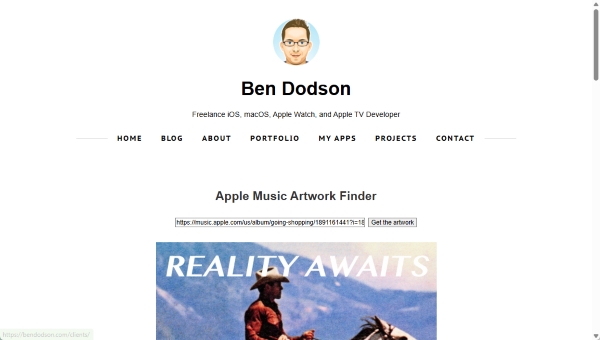
Step 1. Navigate to the Apple Music Artwork Finder using any standard web browser.
Step 2. Input the Apple Music URL for album, playlist, station, artist name, music video, or specific song in the search bar to locate your music.
Step 3. Review the search results and select your preferred quality, ranging from Standard Resolution (600x600) to Uncompressed High Resolution (up to 3000x3000px).
Step 4. Right-click the displayed artwork and choose "Save Image As" to download the high-fidelity file to your Mac or Windows PC.
For even greater control, you can pair the web downloader with a Chrome extension like 'Save Image As Type'. This allows you to bypass default web formats and save your Apple Music artwork directly as a JPG, PNG, or WebP, ensuring the file is perfectly compatible with your specific media player or different device.
Pros and Cons of Ben Dodson's Apple Music Artwork Finder
Access uncompressed images from Apple servers, up to 3000×3000px;
Search by media type (album, video, podcast) and region for precise results;
No cost, no ads, and no account required;
Works with Apple Shortcuts for quick, repeatable downloads (latest update)
Limited to content currently available on Apple Music/iTunes;
Downloads images only;
No playlist downloaded;
Some releases are limited to lower resolution due to licensing
Option 2. AAPL Music Downloader Artwork Tool
After extensive testing, AAPL Music Artwork Downloader has proven to be a reliable alternative for those who prefer using direct URLs. Unlike search-based tools, this utility extracts visuals directly from the Apple Music share link.
Website: https://aaplmusicdownloader.com/apple-music-artwork-downloader/
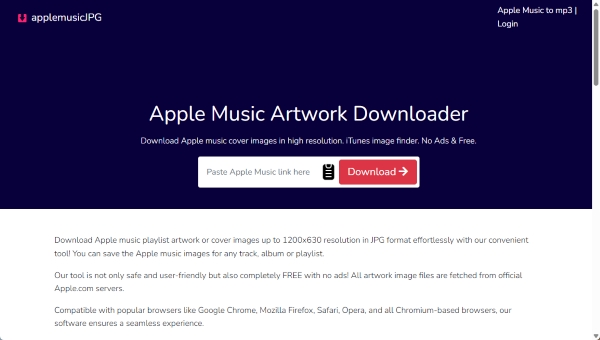
Step 1. Navigate to the AAPL Music Artwork Tool in your web browser.
Step 2. Copy the Share Link of the song or album from Apple Music and paste it into the downloader's search field.
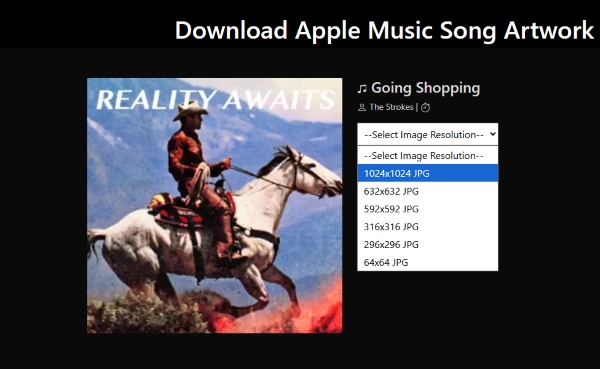
Step 3. Select your desired resolution from the results, ranging from 1024x1024 down to 64x64. Your selection will trigger an instant download of the high-quality cover art.
Pros and Cons of AAPL Music Downloader Artwork Tool
Paste an Apple Music link for precise, no-search downloads;
Auto-starts after resolution selection for a faster workflow;
Up to 1024×1024px, ideal for mobile use and cloud syncing;
Works smoothly on all major browsers without setup
Capped at 1024×1024px (not suitable for ultra-HD needs);
Requires an Apple Music URL, adding an extra step;
May apply additional compression vs. original sources;
Image-only download, requires external tagging tools
These tools are perfect for users who want quick, clean artwork downloads without technical steps.
See also: How to Download Apple Music Free Online
Part 3. How to Download Apple Music Songs with Artwork Losslessly (Music + Cover Art)
While online downloaders are useful for individual tracks, they cannot sync your audio files and visuals in a single step. For a more comprehensive solution, AudFree Apple Music Converter is the definitive choice.
It can download embedded ID3 tags and high-quality cover artwork together with the song. Plus, it works super easily with one of the simplest download workflows. You don't need to operate much; everything is set. Most importantly, it can batch-download your playlist artwork with one click. Best of all? It's incredibly fast. With a 17x conversion speed, you can batch-download your entire collection in a fraction of the usual time and help build a high-fidelity local library.
AudFree Apple Music Converter

- Download Apple Music songs as local files losslessly
- Download Apple Music to MP3, WAV, AIFF, FLAC, and more
- Preserves the original metadata (artist, album, genre)
- Embeds album artwork automatically
How to Get Music and Album Artwork on Apple Music Forever
See also: How to Download Apple Music for Windows
- Step 1. Add Apple Music to AudFree Apple Music Converter

- Download and install AudFree Apple Music Converter on your computer. Launch the program and sign in to your Apple Music account. Browse your library, then click the '+' button to add the songs (with artwork) to the conversion list.
- Step 2. Customize Output Settings

- Click the 'menu icon > Preferences > Conversion' to configure output settings. Choose your preferred format (MP3, AIFF, M4A, FLAC, WAV, Lossless, or M4B), then adjust parameters like bitrate, sample rate, and channels. For optimal quality, set bitrate to 320 kbps and sample rate to 48,000 Hz.
There is no need to manually adjust your artwork settings. The tool intelligently selects the optimal resolution and format to match your specific audio output, ensuring a seamless metadata experience.
- Step 3. Convert Apple Music with Artwork

- Click the 'Convert' button at the bottom-right corner in Converting page. The software will process your files and save them locally with embedded album artwork and full ID3 tags. Once completed, you can play them on any compatible third-party player (e.g., Neutron) with artwork displayed correctly.
- Step 4. Extract Artwork as a Separate File (Optional)

- If you need the album artwork separately, open the converted file in a player that supports metadata editing, such as Foobar2000.
- Right-click the downloaded track > 'Properties' > go to the 'Artwork' section. Then right-click the image and select 'Export to file' to save it as an individual file.
If you need to retrieve artwork from other major streaming services - such as Spotify, Tidal, or SoundCloud - AudFree Streaming Audio Recorder provides a versatile suite of specialized tools. Supporting over 10 leading music platforms, it offers a consistent, high-fidelity experience while ensuring all metadata and cover art remain perfectly intact across your entire library.
Pros and Cons of AudFree Apple Music Converter
Embeds High-Res artwork and complete ID3 tags automatically;
Batch download support;
Supports FLAC, WAV, and other lossless/high-bitrate formats;
Up to 17× speed for efficient large-scale downloads;
Works with all players and devices (e.g., Serato, Neutron, DAPs)
Full features require a license beyond the free trial;
Requires installation on Mac or Windows (no web version)
This method is ideal for users who want a complete offline music library with artwork intact.
Part 4. How to Fix Apple Music Artwork Not Showing (iPhone/Mac/Android)
Metadata and artwork synchronization errors can be frustrating. If your Apple Music library is showing without its visual assets, follow these verified solutions to restore your cover art across all platforms:
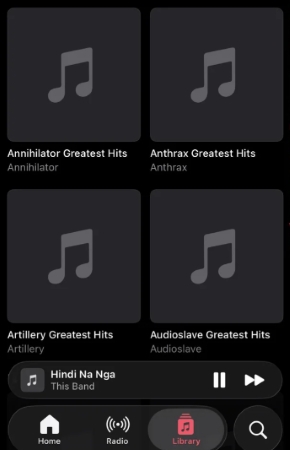
Method 1. Refresh Your Library
Toggling your "Sync Library" settings is often the fastest way to re-establish a connection with Apple's metadata servers.
Method 2. Check Internet Connection
Ensure your device has a stable connection. High-resolution artwork often fails to load on restricted cellular data or unstable public Wi-Fi.
Method 3. Re-download Songs
If a specific file's metadata is corrupted, removing the download and re-adding the track can force the app to fetch a fresh version of the artwork.
Method 4. Update Your Device
Ensure your OS (macOS, iOS, or Android) is running the latest version, as Apple frequently pushes "Music app" patches to fix known caching bugs.
Method 5. Clear Cache (Android)
Android users can resolve visual glitches by clearing the Music app's cache in the system settings - this forces the app to rebuild the image database.
Method 6. Manually Add Artwork (Mac)
For persistent issues on the desktop, you can manually inject a high-res JPEG or PNG into the "Get Info" panel to permanently fix the display for that track.
While these troubleshooting steps typically resolve most display glitches, they often serve as only temporary fixes for cloud-based libraries. For a permanent solution, we recommend utilizing AudFree Apple Music Converter (detailed in Part 3). By embedding high-resolution artwork directly into your local files, you can bypass Apple's caching issues and eliminate missing Apple Music artwork errors forever!
Part 5. Comparison of Best Apple Music Artwork Downloaders
Now that you've explored the methods for downloading Apple Music album artwork and songs, refer to the comparison table below to quickly choose the option that best fits your needs.
| Feature | Web Player (Manual Method) | Ben Dodson Artwork Finder | AAPL Artwork Downloader | AudFree Apple Music Converter |
|---|---|---|---|---|
| Ease of Use | Moderate (requires page source steps) | Easy (search-based) | Very easy (paste link) | Very easy (guided workflow) |
| Technical Skill Required | Medium | Low | Low | Low |
| Max Artwork Resolution | High (varies, often HD) | Up to 3000×3000px | Up to 1024×1024px | High (auto-matched, embedded) |
| Artwork Quality | High | High (original/uncompressed) | Good (may be compressed) | High (preserved with metadata) |
| Batch Download | ❌ | ❌ | ❌ | ✅ |
| Search Method | Manual (inspect page) | Keyword search | Apple Music URL only | Built-in library browsing |
| Speed | Slow (manual steps) | Fast | Very fast | Very fast (up to 17×) |
| Metadata (ID3 Tags) | ❌ Not included | ❌ Not included | ❌ Not included | ✅ Fully embedded |
| Audio + Artwork Together | ❌ | ❌ | ❌ | ✅ |
| Output Format Options | Image only | Image only | Image only | MP3, FLAC, WAV, etc. and image |
| Automation Support | ❌ | ✅ | ❌ | ❌ |
| Platform Compatibility | All browsers/OS | All browsers/OS | All browsers/OS | Windows & macOS only |
| Cost | Free | Free | Free | Paid (free trial available) |
| Best For | Quick one-off downloads | High-res artwork collection | Fast mobile-friendly downloads | Full offline library with artwork |
Part 6. FAQs About Apple Music Artwork Download and Management
Why doesn't Apple Music sync artworks from Mac to iPhone?
Syncing usually fails due to a Cloud Music Library mismatch or cache corruption. Ensure both devices are signed into the same Apple ID with 'Sync Library' enabled. If the issue persists, toggling the sync setting off and back on forces a metadata refresh.
Can I change artwork for songs downloaded from Apple Music?
No, you cannot modify metadata for protected M4P files (subscription downloads). However, you can change the artwork for local, DRM-free files (imported MP3s or converted tracks) via the "Get Info" (Cmd+I) panel in the Mac Music app.
Why does Apple Music keep changing my custom art back to the official version?
Apple's Matching Algorithm prioritizes its database over your local metadata. To prevent this, ensure your custom art is embedded directly into the file's ID3 tags before adding it to the library, or use a third-party player to bypass cloud matching, like Foorbar2000 or VLC.
What image formats are supported when downloading Apple Music cover art?
JPEG and PNG are the industry standards. While Apple Music can display WebP or HEIF in some environments, JPEG is recommended for maximum compatibility across all hardware and third-party players like Serato or Neutron.
How to embed artwork into MP3 files for Apple Music?
On a Mac, right-click the file in the Music app, select Get Info > Artwork, and drag your image into the box. For Windows or batch processing, use a dedicated tag editor like Mp3tag or Foobar2000 to embed the image into the ID3 tag.
Is there a resolution limit for Apple Music album artworks?
There's no strict limit, but 3000×3000px is the standard for high-resolution artwork. Higher resolutions can be compressed automatically. And for better performance and stable metadata display, a resolution between 1000px and 1500px is considered an ideal range to avoid lag.
Conclusion
Downloading and managing Apple Music artwork doesn't have to be complicated. Whether you use the web player method, online downloaders, or a professional tool like AudFree, each approach offers unique benefits depending on your needs.
If you only need a quick album cover, online tools are the easiest choice. For building a high-quality offline music library with embedded artwork, dedicated software provides the best results. And if you encounter issues, simple fixes like refreshing your library or re-syncing devices can restore missing artwork quickly.
By understanding these methods and solutions, you can keep your Apple Music library visually polished and fully organized across all your devices.

Staff Editor


