


Want to listen to Apple Music at school, but find that the website or app is blocked? You're not alone. Many schools, workplaces, and public networks restrict music streaming services to reduce distractions or manage bandwidth. As a result, Apple Music may fail to load, connect, or play songs even when your account and subscription are working normally.
Fortunately, there are several ways to access Apple Music when it's unavailable. Depending on what's causing the restriction, you can switch networks, access Apple Music through a web browser, use a VPN if permitted, or download your favorite tracks for offline listening. In this guide, we'll explain why Apple Music gets blocked and show you six practical ways to unblock Apple Music, with tips for using different devices.

Part 1. Why Is Apple Music Blocked at School or Work?
Before trying to unblock Apple Music, it's helpful to understand why you can't access it. The problem doesn't always come from Apple Music itself. Network administrators, device settings, or even temporary connection issues can prevent the service from working properly. The cause determines which solution is most likely to work.
1. School or Workplace Network Restrictions
Many schools and workplaces use network filters or firewalls to limit access to entertainment websites and streaming services. Since Apple Music is primarily designed for music streaming, administrators may classify it as a non-essential service and restrict access to its website, app connections, or related network traffic.
For example, when you connect your device to school Wi-Fi and open Apple Music, you might encounter a connection error, a blocked webpage, or endless loading. The same thing can happen on office networks or public Wi-Fi in libraries and other shared spaces.
These restrictions are usually applied at the network level, meaning Apple Music may work normally when you switch to another internet connection.
2. Device Restrictions and Parental Controls
Sometimes, Apple Music is blocked by the device itself rather than the network. School-managed Chromebooks, iPads, and computers may have administrator settings that prevent you from installing apps, opening certain websites, or accessing entertainment services like Apple Music.
For example, schools may configure school-owned devices with mobile device management (MDM) profiles to control which apps and websites students can use. Parents can also use Screen Time on an iPhone or iPad to manage app access, content restrictions, and usage schedules. As a result, you might be unable to open or access Apple Music even when your internet connection is working properly. If the restriction is managed by a school, parent, or workplace administrator, you'll need their permission to change it.
3. Apple Music Connection or Account Issues
Not every Apple Music playback problem is caused by intentional management or blocking. A weak internet connection, temporary Apple service outage, outdated app, or account authentication issue can also prevent music from playing.
To narrow down the cause, try opening Apple Music on another network or device and check your Apple Music account. If it works elsewhere, the original network or device settings are more likely responsible. These basic issues may be easier to fix than you expect.
Part 2. How to Unblock Apple Music: 6 Easy Ways
Once you've figured out why Apple Music might be blocked, you can choose a suitable solution. The following five methods cover common situations, from network restrictions to device connection errors.
Method 1. Switch to Another Wi-Fi Network or Mobile Data
One of the easiest ways to unblock Apple Music is to use a different internet connection. If your school or workplace Wi-Fi blocks music streaming services, switching to your personal mobile data or another permitted network may solve the problem immediately. This method works when the block may only apply to the original Wi-Fi network, not your device or Apple Music account.
Step 1. Disconnect your device from the restricted Wi-Fi network.
Step 2. Turn on mobile data or connect to another available Wi-Fi network.
Step 3. Open the Apple Music app or visit its web player, and sign in with your active Apple account.
Step 4. Select a song or playlist and check whether it plays normally.
If you're using a personal device, this is often the first method worth trying. However, always follow your school's or workplace's rules regarding network and mobile device usage.
Simple and quick to try;
Doesn't require additional software;
Easy to try on phones, tablets, and computers;
Works with both the Apple Music app and web player
Requires an alternative internet connection;
Streaming music over mobile data may consume your data allowance;
Won't help if Apple Music is blocked or restricted through device management or account settings
Method 2. Access Apple Music via Its Web Player
If you can't install the Apple Music app on a school computer or Chromebook, the Apple Music web player offers a convenient alternative. Simply visit music.apple.com, and you can sign in with your Apple Music account - no desktop app installation required. As a subscriber, you can access your music library, browse songs and albums, explore playlists, and play music directly in a supported web browser- nothing is different from the app.
However, there's one important limitation: the web player won't bypass school network restrictions. If your school blocks Apple's music website or restricts music-streaming traffic, you may not be able to access Apple Music this way either.
Step 1. Open a web browser such as Chrome, Safari, Firefox, or Microsoft Edge.
Step 2. Visit music.apple.com, click Sign In, and enter your Apple credentials.
Step 3. Browse your library or search for the music you want to hear.
Step 4. Select a song, album, or playlist to start streaming.
No desktop app installation required;
Works across different operating systems;
Convenient for school computers and Chromebooks that allow browser access;
Provides access to your Apple Music library through a web browser
Requires an internet connection;
Still subject to website and network restrictions;
Some school networks block the Apple Music website as well as its app;
Browser compatibility and playback performance may vary;
Some app-specific features may not be available in the browser
Method 3. Use a VPN to Unblock Apple Music (If Permitted)
A VPN (Virtual Private Network) creates an encrypted connection between your device and a VPN server. Depending on how a network filter works, connecting through a VPN may allow you to access websites and services that are restricted based on network traffic or IP addresses.
This can be useful when Apple Music is blocked by network-level filtering. However, a VPN isn't guaranteed to work in every situation, and some schools and workplaces prohibit or block VPN connections. If using a VPN is permitted, follow these steps to get your Apple Music unblocked.
Be careful, and please don't use one to bypass security controls or other restrictions that you're not authorized to change.
Step 1. Choose a reputable VPN service that supports your device, e.g., NordVPN or ExpressVPN. Download and install its official app.
Step 2. Open the app and sign in or create an account.
Step 3. Choose your preferred location and connect to an available server.

Step 4. Open the Apple Music web player or app and see whether you can access your library and stream songs on the device.
Can help with certain network-level blocks or restrictions;
Encrypts traffic between your device and the VPN server;
Can provide additional privacy when using public Wi-Fi;
Works across supported phones, tablets, and computers
Some VPN services require a paid subscription;
School or workplace networks may block VPN connections;
May slow down your internet connection;
It cannot automatically remove device management, parental controls, or Apple account restrictions;
Streaming performance may vary depending on the server and connection
Method 4. Listen to Apple Music via a Proxy Service
Another option is to use a proxy service to unblock Apple Music when it's restricted on your current network. A proxy server acts as an intermediary between your device and the internet, forwarding your requests through another server. Depending on how the network restriction works, this may help you access Apple Music if the original connection or IP address is blocked.
Unlike a VPN, most proxy services don't encrypt all your internet traffic. They generally handle requests through a specific browser or application, depending on the proxy type. This makes them a possible alternative for accessing the Apple Music web player without installing a full VPN app.
Step 1. Choose a reputable and reliable proxy service that supports web browsing.
Step 2. Open the proxy website or configure its settings according to the provider's instructions.
Step 3. Enter the official Apple Music website URL: https://music.apple.com/.
Step 4. Click Connect, Go, or the equivalent button to load the website through the proxy.

Step 5. Sign in with your Apple Music account, then try playing a song or playlist.
Some web proxies can be used directly in a browser without installing additional software;
May help access websites blocked based on IP addresses;
Can be a convenient alternative for occasional web browsing;
Some proxy services offer free access
Free proxy services may have ads, speed limits, or usage restrictions;
Most web proxies don't provide the same level of encryption as VPNs;
Apple Music playback, login, and other interactive features may not work properly through a proxy;
Some school or workplace networks also block proxy websites;
You should avoid entering your Apple Account credentials through an untrusted proxy
Method 5. Troubleshoot Apple Music Connection Problems
If none of the previous methods works, Apple Music may not actually be blocked. There could be a temporary service problem, outdated software, or an account-related issue. You can try the following troubleshooting steps to verify the cause.
1. Check Apple's System Status
Visit Apple System Status to see whether Apple Music is experiencing a service outage. If there's a temporary problem on Apple's side, you'll need to wait for the service to recover.
2. Update the Apple Music App
An outdated app may cause playback errors or connection problems. Check the App Store, Google Play Store, or your computer's software update settings to see whether a newer version is available.
3. Restart Your Device
Close Apple Music completely and restart your phone or computer. This can help resolve temporary software glitches that interfere with playback.
4. Update the Apple Music App
Make sure you're signed in with the correct Apple Music account and that your Apple Music subscription is active. If your subscription has expired or your account needs authentication, you may lose access to streaming and other subscriber features.
If the problem continues, contact Apple Support or ask your school or workplace's IT administrator whether the network or device has specific block or restrictions.
Method 6. Download Apple Music for Offline Listening
If you can't access Apple Music because there's no reliable internet connection, or the school network blocks your Apple Music streaming? In this situation, downloading your favorite songs in advance is a practical solution.
With an active Apple Music subscription, you can add songs, albums, or playlists to your library and download them to a supported device. Once downloaded, you can listen to Apple Music offline without an internet connection, provided the subscription remains active and the content is still available.
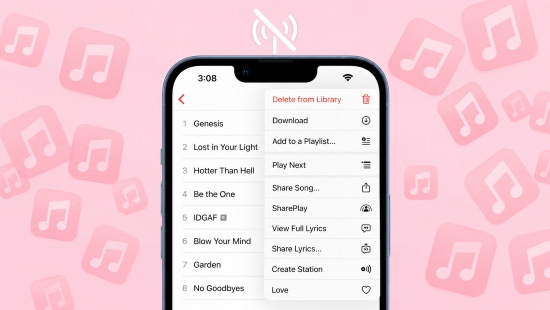
Step 1. Open the Apple Music app on your iPhone, iPad, Android device, or computer.
Step 2. Find the song, album, or playlist you want to listen to. Add it to your library if necessary.
Step 3. Tap or click the Download button. Wait for the download to finish before leaving home or entering a restricted network.
Step 4. Later, open your library and play the downloaded music without connecting to school Wi-Fi.
No streaming connection needed during playback;
Avoids dependence on school or public Wi-Fi;
Convenient for commutes, flights, and other offline situations
Requires an active Apple Music subscription;
Songs must be downloaded before going offline;
Apple Music downloads are protected and can only be played through supported Apple Music apps while your subscription remains valid;
Downloaded tracks are not ordinary MP3 files that you can freely transfer to any music player
Bonus Tip: Keep Apple Music Downloads for Flexible Offline Listening
If you frequently encounter restricted networks or want more flexibility when playing Apple Music on different devices, keeping a separate local music library may be worth considering.
AudFree Apple Music Converter is a desktop tool for Windows and Mac that lets you convert Apple Music tracks into common audio formats, including MP3, FLAC, WAV, AIFF, M4A, and M4B. It also supports batch conversion and preserves important ID3 tags, making it easier to organize your music collection.

This approach is useful if you want to organize your own music library or use compatible playback devices that don't support Apple Music directly. However, please ensure you comply with applicable copyright laws and Apple's Terms of Service. This tool is intended for personal use only.
- Step 1. Download and install AudFree Apple Music Converter on your Windows PC or Mac.
- Step 2. Launch the program and access its built-in Apple Music web player.
- Step 3. Sign in to your Apple Account and find the songs or playlists you want to convert.
- Step 4. Click + to add the selected tracks to the conversion list.
- Step 5. Click Settings, open the output settings to choose your preferred audio format and quality, including bit rate, sample rate, and more.
- Step 6. Start the conversion, wait for a while, and you can locate the resulting files in your output folder of your computer.
Once you have compatible local audio files, you can transfer them to supported devices or media players for offline playback without opening the Apple Music streaming app.
If you want to unblock other streaming services at school or work, like Apple Music above, AudFree Streaming Audio Recorder is one of your best options. It offers broad compatibility with major music platforms, enabling you to capture audio from over ten popular services losslessly, including Spotify, Tidal, YouTube Music, etc. With it, you can enjoy your music freely and flexibly on any device, anywhere you go.
Part 3. How to Access Apple Music on Different Devices
The methods above work in many situations, but the exact steps may vary depending on your device. Here are some additional tips for accessing and unblocking Apple Music on popular platforms.
On iPhone and iPad
On an iPhone or iPad, you can access Apple Music through the official app or Safari. If the app doesn't work on school Wi-Fi, first check whether your mobile data connection is available and permitted.
You should also check Screen Time settings if Apple Music is blocked on your personal device, through Settings < Screen Time < Content & Privacy Restrictions. Here, review the available restrictions related to apps, media, and web access.
If the restriction is controlled by a parent or school administrator, ask them to review it rather than attempting to remove the management settings yourself.
For uninterrupted listening, you can also download songs before leaving home, just like the Bonus Tip in the last section. This is especially useful if you know you'll be using a restricted Wi-Fi network later.
View also: How to Play Apple Music on iPhone
On Android Phones and Tablets
Android users can listen to Apple Music through the official Android app or a compatible web browser. If the app won't connect, try switching between Wi-Fi and mobile data, checking for app updates, or reopening the app. You can also visit music.apple.com through Chrome to see whether the browser version works.
For offline listening, download your favorite albums and playlists in the Apple Music app while you have a stable internet connection. If you're using a school-managed Android device, certain apps, websites, or network settings may be controlled by an administrator. In that case, you'll need to check the device's usage policy. Use a reliable VPN or Proxy when it is necessary and permitted.
View also: How to Play Apple Music on Android
On Windows PC and Mac
On a personal computer, you can also install and open the Apple Music app, sign in, and access your music library. Alternatively, visit music.apple.com in your preferred browser without installing the desktop application. If Apple Music is unavailable on your computer, try these to get Apple Music unblocked.
- Check whether your browser or desktop app is up to date.
- Test the web player to determine whether the issue is limited to the desktop app.
- Check your computer's firewall settings if you have permission to manage them.
- Try connecting to a different allowed network or use your personal hotspot.
- Use a reputable VPN or proxy service (e.g., NordVPN or CroxyProxy) to unblock Apple Music.
- Download music in advance for offline playback.
On Chromebook
There is no dedicated Apple Music desktop application on Chromebook. But Chromebooks are most common in schools, and some are configured with administrator-managed restrictions. If Apple Music is unblocked and available on Chromebooks, things are super simple. Simply open Chrome, head to music.apple.com, and sign in to enjoy your entire music library on your Chromebook.
If the Apple Music website is blocked, consider asking your school administrator whether access can be granted. If that's not possible, downloading your Apple Music library as local audio files with AudFree and transferring them to an MP3 player or USB drive can be a convenient alternative for enjoying music at school, without depending on the school's internet connection.
View also: How to Play Apple Music on Chromebook
Part 4. FAQs About Apple Music Unblocked
Why Is Apple Music Still Blocked After Using a VPN?
A VPN doesn't guarantee access to every restricted service. Your school or workplace may block VPN connections themselves, apply restrictions through device management, or prevent access through account-level settings. Try identifying the source of the restriction first.
Is There a Free Apple Music Unblocked Website?
There is no official free Apple Music unblocked website separate from Apple's own service. The official web player is available at music.apple.com, but accessing the full Apple Music catalog generally requires a subscription or an eligible trial. Be careful with third-party websites claiming to offer free, unrestricted Apple Music access, as they may contain misleading links, intrusive ads, or security risks.
Can I Use Apple Music Without a VPN?
Yes. You don't need a VPN to use Apple Music if your network allows access to the service. You can listen through the official app or web player using a normal internet connection. If your school blocks Apple Music, switching to another permitted network or downloading music in advance may be more practical alternatives.
Does Apple Music Unblocked Work Without a Subscription?
No special Apple Music Unblocked service provides free access to the full Apple Music catalog. A valid subscription is generally required to stream the complete catalog and download songs for offline listening. However, you can still access certain free content and previews where available, without subscribing.
Is It Safe to Use a VPN to Unblock Apple Music?
Using a reputable and reliable VPN can improve connection privacy by encrypting traffic between your device and the VPN server. However, safety also depends on the VPN provider, its privacy practices, and how you use the service. Avoid unknown free VPN apps that request unnecessary permissions or collect excessive personal data.
Part 5. Conclusion
If Apple Music is blocked at school, work, or on a public Wi-Fi network, the right solution depends on the type of restriction. Switching to another permitted network is the simplest option, while a VPN may help with certain network-level blocks. You can also use the Apple Music web player or download songs in advance for offline listening.
If you want more flexibility across devices, keeping compatible local audio files with a tool like AudFree Apple Music Converter is another option worth considering. With the right approach, you can enjoy your music without depending entirely on a restricted streaming connection.

Staff Editor


