


YouTube Music is an easy way to access songs, playlists, mixes, and music videos online, but the service may be unavailable on some school, work, or public networks. In many cases, the problem is not with YouTube Music itself but with network restrictions, DNS filtering, regional availability, or device-level policies.
If you are looking for YouTube Music unblocked access, there are several ways to troubleshoot the restriction. Some are quick browser-based fixes, while others involve a VPN, proxy, DNS change, or a separate way to access your music offline.
This guide explains how to unblock YouTube Music in different situations and what to do when the usual solutions do not work. If streaming remains unavailable, Part 3 also covers an offline approach for listening to music without relying on the school or work network.
Always follow the acceptable-use rules of your school, workplace, or network administrator. The methods below are intended for legitimate access and troubleshooting, not for bypassing security controls or restrictions that you are not permitted to circumvent.

Part 1. Why Is YouTube Music Blocked?
Before trying to get unblocked YouTube Music, it helps to understand why the service is inaccessible in the first place. Different types of restrictions require different solutions, so there is no single method that works in every situation.
1. School or Workplace Network Restrictions
Schools, universities, offices, libraries, and other organizations often use network filters to restrict access to streaming, social media, gaming, or other entertainment services. YouTube Music may be blocked because it is categorized as a video or music streaming platform.
In this situation, you may see messages such as "This site is blocked", or the page may simply fail to load. The restriction can apply to youtube.com, music.youtube.com, or both.
2. DNS or Firewall Filtering
Some networks block a service at the DNS level, while others use firewalls, domain filtering, or IP-based rules. This is why entering a different YouTube Music URL does not always make music.youtube.com unblocked.
A DNS-based restriction can sometimes be resolved by changing DNS providers, but a firewall or more advanced network filter usually requires a different approach.
3. Regional Restrictions
YouTube Music availability and certain content can vary by country or region. A song, album, or feature that works normally in one location may be unavailable somewhere else. This is different from a school or workplace block. If the website opens normally but specific content cannot be played, changing browsers or DNS settings may not solve the problem.
4. Device or Browser Restrictions
The network may not be the only source of the problem. Managed Chromebooks, browser extensions, parental controls, security software, or outdated browser settings can also interfere with YouTube Music.
This is particularly important when trying to get YouTube Music unblocked at school on a managed device. Even if the network itself allows the service, administrator policies may still prevent access.
5. Temporary Connection or Service Problems
Sometimes YouTube Music is not actually blocked. A poor connection, DNS error, browser cache issue, or temporary service problem can produce similar symptoms. Therefore, check whether other websites work normally before assuming that you need a VPN or another workaround.
While different scenarios may call for specific workarounds, the first method in Part 3 offers the most dependable solution. By using a specialized converter to save your YouTube Music library locally, you can enjoy your favorite playlists offline in high quality - anytime, anywhere.
Part 2. How to Get YouTube Music Unblocked at School or Work
Once you know what may be causing the restriction, you can choose the most appropriate solution. The key is to match the solution to the type of restriction. Start with the simplest options and move to more advanced ones if necessary.
Method 1. Try Quick Browser Fixes (No Installation Required)
If the problem is caused by a temporary browser issue rather than a network-level block, you may be able to access unblocked music on YouTube with a few simple checks.
Step 1. Enter music.youtube.com in your browser instead of accessing it through a bookmark, search result, or third-party page. This helps rule out a broken redirect or outdated bookmark.
Step 2. Open a private browsing window and visit YouTube Music again. This temporarily avoids many existing cookies and cached browsing sessions and can help identify whether your normal browser profile is causing the problem.
Step 3. Ad blockers, privacy extensions, scripts, and other browser add-ons can sometimes interfere with media players. Temporarily disabling them can help determine whether an extension is preventing YouTube Music from loading correctly.
Step 4. If the YouTube Music web player worked previously but suddenly stopped loading, clearing its cached data may help. After doing so, reopen the site and sign in again if necessary.
Step 5. Switching between Chrome, Edge, Firefox, or another supported browser is a quick way to determine whether the issue is browser-specific.
These steps are useful for distinguishing a browser problem from a network restriction. They can solve many cases where users mistakenly assume that YouTube Music is blocked. For example, if YouTube Music works normally on a personal mobile connection but not on the school Wi-Fi, the network is more likely to be responsible.
However, browser tricks cannot normally overcome a deliberate school or workplace firewall. If the domain itself is blocked, repeatedly refreshing the page will not make music.youtube.com unblocked.
Method 2. Use a Reliable VPN (Most Effective & Secure)
A VPN creates an encrypted connection between your device and a VPN server, which can prevent a local network from directly seeing and filtering the websites you access. This makes a VPN one of the more practical options when YouTube Music is blocked or restricted by the network rather than by your account or device.

Step 1. Choose a reputable VPN service that supports your device (such as ExpressVPN or NordVPN).
Step 2. Install the official app and connect to a server in an unrestricted region.
Step 3. Launch YouTube Music and sign in to your account.
Step 4. Check playback to confirm the player is working normally.
A VPN can be useful for some network-based restrictions, but it isn't a universal solution. It may not resolve licensing restrictions on individual songs, and school or workplace networks may prohibit VPN use. Always follow the rules that apply to the network and device you're using.
For privacy, avoid choosing an unknown free VPN simply because it claims to provide YouTube Music free unblocked access. A service that handles all of your internet traffic should be evaluated for its privacy practices, security features, and reputation.
Method 3. Access YouTube Music via a Web Proxy
A web proxy works as an intermediary between your browser and the website you are trying to access. Instead of connecting directly to YouTube Music, the request is sent through the proxy first.
This can sometimes help with simple domain-level restrictions and does not necessarily require installing dedicated software. It is therefore another possible way to access unblocked YouTube Music from a browser.
The general process is simple:

Step 1. Navigate to a web proxy service (such as CroxyProxy).
Step 2. Enter the YouTube Music URL (music.youtube.com) into the proxy address bar.
Step 3. Connect to the site via the proxy.
Step 4. Test playback to verify that the music player and content load properly.
However, proxies are often less reliable than a dedicated VPN for streaming. Free proxy servers may have limited bandwidth, resulting in slow loading, buffering, or failed playback. Some may also inject advertisements or redirects.
This is especially important when searching for unblocked YouTube Music through random proxy websites. Avoid entering your Google credentials into an unfamiliar third-party page. If a proxy does not support the YouTube Music player properly, switching to another solution is usually more practical than repeatedly trying different proxy sites.
Method 4. Try Alternative Privacy Frontends or Mirror Platforms
Another option is to access YouTube content through third-party privacy-oriented frontends or mirror platforms. These services can provide an alternative interface for accessing publicly available YouTube content without using the standard YouTube website directly.
Piped is one of the better-known options. Its web frontend is designed to provide a lightweight YouTube experience with features such as ad-free playback and audio-only listening. You can open Piped, search for the content you want, and try playing it through the alternative interface.
CloudTube is another alternative frontend that can provide a different way to access YouTube content. It may be worth trying if one frontend is unavailable, although its functionality and availability can vary.
However, these services should be treated as backup options rather than reliable solutions for unblocked YouTube Music. Third-party frontends can stop working, change domains, experience server-side problems, or provide incomplete support for playlists and music playback. They may also be blocked by the same school or workplace network. For privacy and security, please also avoid entering your Google account credentials into unofficial third-party sites.
Method 5. Change DNS Settings
Switching to a reputable public DNS provider can help when YouTube Music is blocked because your current DNS server refuses to resolve the relevant domain.
The exact location of DNS settings varies by device and operating system, but the general process is:
This method can be useful for DNS-level restrictions, but its effectiveness is limited. If your school or workplace uses firewall rules, traffic inspection, or other network-level controls, changing DNS alone will not make YouTube unblocked music available.

Step 1. Open your device's network settings.
Step 2. Select the active Wi-Fi or network connection and locate its DNS settings.
Step 3. Replace the existing DNS servers with a reputable public DNS provider, such as:
- Google Public DNS: 8.8.8.8 and 8.8.4.4
- Cloudflare DNS: 1.1.1.1 and, where supported, 1.0.0.1
Step 4. Save the changes and reconnect to the network if necessary.
Step 5. Open music.youtube.com again and check whether the access problem has been resolved.
It is also worth remembering that managed school Chromebooks, workplace computers, and other administrator-controlled devices may prevent users from changing network settings. In that case, you may need administrator access or an unrestricted personal connection instead.
Part 3. How to Fix If YouTube Music Is Still Blocked
If none of the methods above works, the restriction may be stronger than a simple browser or DNS problem. Rather than repeatedly trying different proxies or VPN servers, consider whether you actually need to stream from YouTube Music at that moment.
For users who have legitimate access to music and want a more dependable listening experience, an offline local library can remove the dependence on the restricted network altogether.
Option 1. Listen to YouTube Music Offline with a Converter and Local Player
If you need to listen without an internet connection, one practical approach is to convert eligible YouTube Music content that you are authorized to use into local audio files and play those files with a regular media player.
A desktop YouTube Music converter can provide a more stable workflow than browser-based streaming. For example, AudFree YouTube Music Converter is designed to work with YouTube Music through a desktop interface and save supported music as common local audio files. Depending on the selected format, local files can then be transferred to a computer, USB drive, phone, or other compatible player for offline listening.
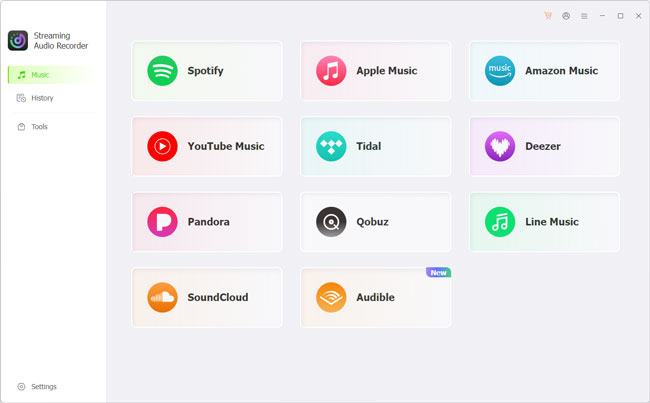
This approach is especially useful when you are dealing with YouTube Music unblocked problems at school or work because playback no longer depends on whether the current Wi-Fi network allows YouTube Music. Once the files are stored locally, a standard music player can play them without accessing the service.
Why Choose AudFree YouTube Music Converter?

- Download YouTube Music tracks on Windows and Mac at up to 30× speed
- Supports batch conversions across YouTube Music and 10+ major streaming platforms
- Convert YouTube Music to MP3, FLAC, WAV, AIFF, M4A, or M4B without quality loss
- Automatically retain ID3 tags and album art for effortless library organization
- Tailor bitrates, sample rates, audio channels, and output paths to your liking
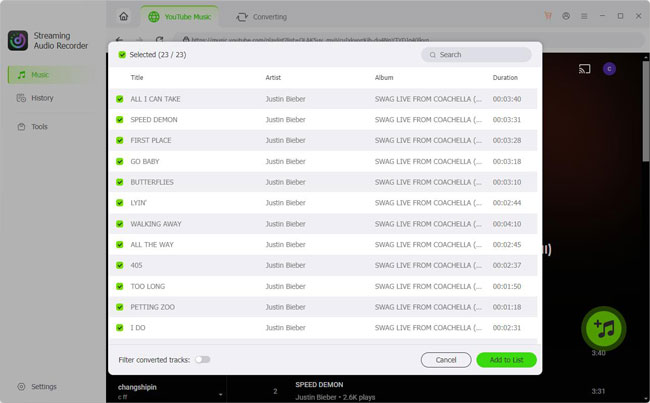
Step 1. Open AudFree YouTube Music Converter on a Windows or Mac computer. Browse or select the YouTube Music content you wish to convert.
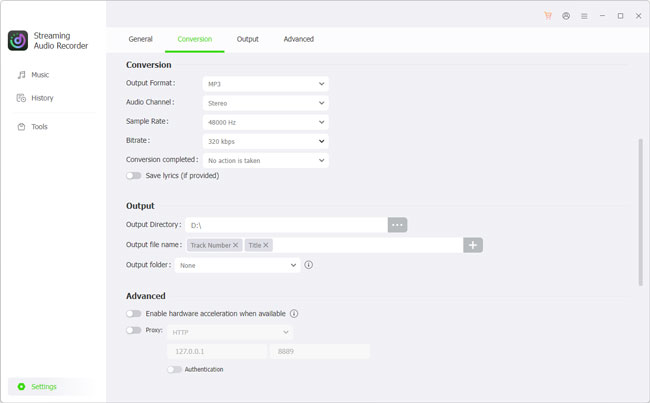
Step 2. Under 'Settings', choose an output format such as MP3 or FLAC, depending on your needs. Here, you can also configure the available audio and metadata settings.
See also: How to Convert YouTube Music to FLAC
Step 3. Start the batch conversion to generate local DRM-free audio files from YouTube Music.
Step 4. Transfer your saved files to any device or media player for seamless offline listening.
See also: How to Transfer YouTube Music to USB
Keep in mind that downloading or converting copyrighted music may be subject to copyright law and the terms that apply to the content and service. Only use this workflow where you have the necessary rights or permission.
Option 2. Use Alternative Unblocked Free Music Platforms
If YouTube Music remains unavailable and you do not need access to its specific catalog, switching to another legitimate music platform may be the simplest solution. Instead of trying to bypass the restriction, you can use a service that is already accessible on your current network.
Several platforms offer free music through ad-supported streaming, independent artists, or openly available audio. For example, SoundCloud is useful for discovering independent tracks, remixes, and user-uploaded music, while Audiomack offers a mix of mainstream and independent music with a free listening option. For more openly licensed content, platforms such as Jamendo and Free Music Archive can be worth checking.

Step 1. Open one of the supported music platforms in your browser or its official app.
Step 2. Search for the artist, song, genre, or playlist you want to hear.
Step 3. Check whether the track is available for free streaming in your region.
Step 4. Start playback directly from the platform, or use its official offline feature if one is available for your account.
The available catalog and features vary between services. Some focus more on independent artists, while others may have fewer mainstream releases than YouTube Music. You may therefore need to search across more than one platform if you are looking for a specific song.
If you need a specific YouTube Music collection rather than general music streaming, however, an offline local music library may be a more practical option. You can prepare authorized local audio files in advance and play them with a standard music player without depending on whether YouTube Music is accessible on the current network.
Part 4. FAQs About Unblocking YouTube Music
Can I unblock YouTube Music on a school Chromebook without admin rights?
It depends on how the Chromebook and school network are managed. If the restriction comes from a browser issue, you may be able to fix it without administrator access. However, if the device is managed by the school or the network uses centralized filtering, you generally cannot change those settings yourself. In that case, use an approved network or device, or ask the school administrator for access.
Why are web proxies slow or buffering when playing YouTube Music?
Web proxies can become slow because your traffic is routed through an additional server, often one shared by many users. Free proxies may also have limited bandwidth, overloaded servers, or poor support for continuous audio and video streaming. As a result, buffering and playback interruptions are common. For simple browsing, a proxy may be sufficient, but it is usually less reliable for long YouTube Music sessions.
Is using a VPN to stream YouTube Music illegal at school or work?
Using a VPN is not inherently illegal in many places, but that does not mean it is permitted on every school or workplace network. An organization may have its own rules against VPNs or bypassing network restrictions. Therefore, check and follow the applicable acceptable-use policy before using a VPN. A VPN should not be treated as a way to override security controls that you are not authorized to bypass.
What is the safest way to unblock and listen to YouTube Music offline?
The safest approach is to use legitimate music sources and official offline features where available. If you have the necessary rights to use specific audio content locally, you can also prepare compatible local files in advance and play them with a trusted media player. This avoids relying on unofficial YouTube Music downloader unblocked websites, which may contain excessive advertising, misleading download buttons, or other privacy and security risks.
Conclusion
Ultimately, the best solution to unblock YouTube Music depends on the type of restriction. A browser problem may only require a quick fix, while DNS filtering may respond to a DNS change. For stronger network restrictions, a permitted VPN or an alternative connection may be more appropriate. And when reliable playback matters more than live streaming, preparing an offline local library can be the most straightforward option.

Staff Editor


