


What is Apple Music Classical? It's Apple's dedicated classical music app, built on the Apple Music catalog but optimized for classical listeners. Instead of focusing on artists and albums alone, it lets you explore music by composer, work, conductor, orchestra, catalog number, recording, and more.
While the Apple Music Classical app offers a rich listening experience, many users soon realize that it comes with certain limitations. For example, you won't find a 'Download' feature anywhere within the Apple Music Classical app itself.
Fortunately, there are ways to enjoy Apple Music Classical offline. In this guide, we'll explain how to download music from Apple Music Classical using the official method, as well as how to save tracks as local audio files for more flexible offline listening.

Part 1. Can You Download Music from Apple Music Classical?
Yes, you can download music associated with Apple Music Classical, but not directly within the Apple Music Classical app itself.
Unlike the standard Apple Music app, Apple Music Classical is primarily designed for discovering and organizing classical recordings. It offers advanced search tools, composer-focused browsing, detailed metadata, editorial notes, and work-based cataloging that make finding the right recording much easier.
Apple Music Classical vs Apple Music
Many users assume Apple Music Classical is a standalone streaming service. In reality, it is an extension of your Apple Music subscription that provides a dedicated experience for classical music listeners. Both apps access the same music catalog, but they are optimized for different listening needs.
In short, Apple Music Classical helps you discover music more easily, while Apple Music handles downloading and playback. So to take your Apple Music Classical tracks offline, you actually have to trigger the download from within the standard Apple Music app.
Even if you successfully download a symphony for offline listening via the Apple Music app, the file itself is still encrypted and tied to Apple's ecosystem. This means you can't copy it to a USB drive, transfer it to a portable media player, or open it with unauthorized software. To unlock absolute playback freedom, you will need a specialized tool to download DRM-free classical tracks - a solution we cover in full detail in Part 4.
See also: How to Download Apple Music to USB Stick
Apple Music Classical vs Apple Music
| Feature | Apple Music Classical | Apple Music |
|---|---|---|
| Primary Purpose | Classical music discovery and exploration | General music streaming and playback |
| Browsing Method | Composer, work, conductor, orchestra, catalog number, and more | Artist, album, playlist, genre |
| Metadata | Extensive classical metadata and credits | Standard music metadata |
| Offline Downloads | No standalone download function | Handles downloads and offline playback |
| Music Catalog | Apple Music catalog | Apple Music catalog |
| Maximum Audio Quality | Up to 24-bit/192 kHz Hi-Res Lossless | Up to 24-bit/192 kHz Hi-Res Lossless |
| Additional Fees | $0 Extra | Standard Subscription |
What Audio Quality Does Apple Music Classical Support?
Because Apple Music Classical uses the same catalog as Apple Music, it also supports Apple's highest-quality audio formats. Depending on the recording, you may have access to:
- 256kbps AAC (standard streaming quality)
- Lossless Audio (16-bit / 44.1kHz ALAC)
- Hi-Res Lossless Audio (up to 24-bit/192kHz)
- Dolby Atmos Spatial Audio
This is particularly appealing to classical music enthusiasts, for whom subtle orchestral details, dynamic range, and recording quality can significantly impact the listening experience. Many prestigious recordings from major orchestras and labels are available in Lossless or Hi-Res Lossless quality.
What Do You Need for Apple Classical Music Offline Listening?
To download Apple Music Classical tracks using Apple's official method, you'll need:
- An active Apple Music subscription
- The Apple Music Classical app installed on your device
- The Apple Music app installed and signed in with the same account
- An internet connection for the initial download process
Once downloaded through the Apple Music app, your music can be played offline. However, access to those downloads is tied to your subscription status. If your subscription expires or is canceled, the tracks you have downloaded will no longer be available for playback.
In the next section, we'll show you exactly how to download Apple Music Classical recordings for offline listening using Apple's official method.
Part 2. How to Download Apple Music Classical for Offline Listening Officially
Now that you understand how Apple Music Classical works, it's time to download your favorite recordings for offline listening.
As mentioned earlier, Apple Music Classical does not include its own download engine. Instead, it relies on the standard Apple Music app to handle downloads and offline playback. This means you'll need to use both apps together to save classical albums, symphonies, concertos, and other recordings to your device.
Follow the steps below to download Apple Music Classical tracks using Apple's official method.
Step 1. Open the Apple Music Classical app and find the specific recording you want to save. Instead of looking for a download arrow (which doesn't exist here), tap the 'Collect' (five-star) icon in the top right corner.
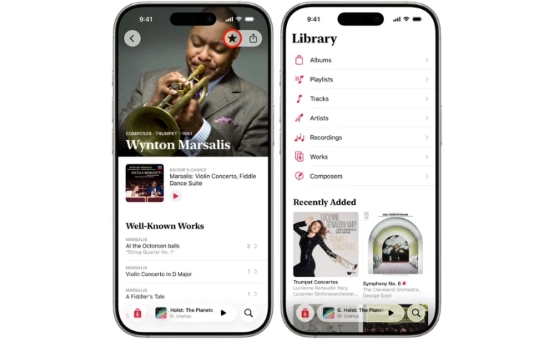
Step 2. Close the Classical app and launch your standard, everyday Apple Music app. Navigate straight to your Library tab at the bottom.
Step 3. You will see the album or work you just added sitting at the top of your 'Recently Added' section. Tap the 'Downward Arrow' (Download) icon next to it. Once the progress circle fills up, the tracks are officially cached to your device for offline use.

Where Can You Play Apple Music Classical Offline Downloads?
- iPhone and iPad
- Android phones and tablets
- Mac
- Windows PC
- Apple Watch
Because Apple Music Classical and the standard Apple Music app share the same iCloud Music Library, your changes will sync across both. However, the standalone Classical app cannot be used offline. If you lose your internet connection, you must open the standard Apple Music app to access and play your downloaded recordings.
See also: How to Download Apple Music Offline
Part 3. Limitations of Apple Music Classical Offline Downloads
While Apple's official offline workaround keeps the music playing when you're disconnected, it comes with a heavy dose of platform restrictions. Most classical listeners don't discover these frustrating limitations until they are already offline.
Before relying on this method, here are the four major drawbacks you need to know:
1. Classical Downloads Stop Working When Your Subscription Ends
The biggest limitation is that downloaded recordings are tied directly to your Apple Music subscription.
Even though albums and works are stored locally on your device, they remain protected by Apple's DRM system. If you cancel your subscription, fail to renew it, or lose access to your Apple ID account, all downloaded Apple Music Classical content becomes unplayable.
In other words, you never actually own the Apple Music Classical files you download. You're downloading access to the music, not the music files themselves. This can be frustrating for listeners who spend years building carefully curated collections of symphonies, operas, chamber music, and historical recordings.
2. Classical Downloads Remain Locked Inside the Apple Ecosystem
Official downloads can only be played through Apple Music-supported apps and devices.
Apple wraps all cached audio in a digital straitjacket (DRM protection). You cannot extract the audio to a USB flash drive, transfer a symphony to a high-end portable digital audio player (DAP), or play your music through open-source home audio servers.
For many classical music listeners who prefer high-end audio players and dedicated listening setups, this restriction can be a major drawback.
3. Downloads Are Temporary Caches, Not Permanent Files
Streaming downloads are transient by nature. If your device remains offline for more than 30 days, or if Apple loses the licensing rights to a specific historical recording, those downloaded tracks will quietly vanish from your local storage without warning.
4. Apple Music Classical Metadata Doesn't Travel with You
Apple Music Classical's crowning achievement is its sophisticated, multi-layered metadata engine. Unlike generic streaming services, it untangles massive classical catalogs by cleanly indexing every recording across hyper-specific fields: Composer, Work, Movement, Conductor, Orchestra, and Soloist.
However, the moment you force these tracks into the standard Apple Music app for offline listening, this elegant structure completely collapses. The main app's pop-centric layout simply cannot handle classical hierarchies, leading to severed movement titles and chaotic sorting. For serious collectors with extensive libraries, this creates a frustrating reality: you are completely dependent on Apple's ecosystem for offline playback, yet the platform breaks the very organization you need to enjoy it.
Official Downloads vs Local Music Files
The differences become even clearer when comparing Apple's offline downloads with locally stored audio files.
| Feature | Apple Music Official Downloads | Local Music Files |
|---|---|---|
| Offline Playback | ✅ | ✅ |
| Subscription Required | ✅ | ❌ |
| Permanent Access | ❌ | ✅ |
| Transfer to USB Drive | ❌ | ✅ |
| Play on MP3 Players / DAP | ❌ | ✅ |
| Add to Plex or NAS | ❌ | ✅ |
| File Ownership | ❌ | ✅ |
| Full Correct Metadata | ❌ | ✅ |
If your goal is simply to listen offline on your phone, Apple's built-in download feature may be sufficient. However, if you want permanent access, broader device compatibility, or greater control over your classical music collection, you'll need a way to save Apple Music Classical recordings as real local audio files.
In the next section, we'll show you how to do exactly that.
Part 4. How to Download Apple Music Classical as FLAC/WAV for Permanent Offline Playback
If the official download method meets your needs, you can stop there. If you want to break free from Apple's subscription restrictions and enjoy your music on your own terms, the best solution is converting your classical tracks into universal audio formats like FLAC or WAV.
By shifting your library to these open, high-fidelity formats, you gain absolute freedom. These files are universally supported across premium audio equipment and software, including:
- High-End DAPs: Portable digital audio players from FiiO, Astell&Kern, and Sony Walkman
- Audiophile Hardware: External USB DACs, dedicated headphone amplifiers, and standalone Hi-Fi network streamers (like Eversolo or Marantz).
- Local Media Ecosystems: Home media servers like Roon or Plex, local NAS drives, and professional audio playback applications.
To archive this, you need a specialized utility designed to handle Apple's encrypted streams. AudFree Apple Music Downloader is widely regarded as one of the best tools for this task. It strips away DRM restrictions while preserving 100% of the original 24-bit/192kHz Hi-Res Lossless quality, ensuring that every delicate nuance of an orchestral performance remains intact.
Best of all, AudFree Apple Music Downloader solves the two biggest headaches of classical listeners: it copies over the complete, complex ID3 metadata tags (keeping your conductors, orchestras, and movements organized), and it operates at a lightning-fast 17x conversion speed to remove the device limitation.
AudFree Apple Music Converter

- Remove DRM protection from Apple Music songs, albums, and playlists
- Convert Apple Music M4P to WAV, MP3, FLAC, and more
- Preserve original audio quality and metadata
- Batch conversion at up to 17X faster speed
How to Download Apple Classical Music to FLAC/WAV
Before you begin, ensure you have installed the AudFree Apple Music Converter and the desktop Apple Music application on your Mac or Windows PC. Also, make sure the classical recordings you want to convert have already been added to your iCloud Music Library.
- Step 1. Import Apple Music Classical Tracks to AudFree

- Install and launch AudFree Apple Music Converter on your computer. After signing in with your Apple Music account, the software will automatically connect to your Apple Music library. Select the classical recordings you want to download and click the '+' button in the lower-right corner to load them into the conversion list.
- Step 2. Customize Output Settings for Apple Music Classical Downloads

- Tap the Menu icon to open the 'Preferences' settings. Here, you can customize the advanced output parameters. For classical music, we highly recommend selecting FLAC or WAV. Make sure to set the bit depth to 24-bit and match the sample rate (up to 192kHz) to duplicate Apple's master quality stream perfectly. Scroll down to toggle on full ID3 tag archiving, ensuring your tracks stay cleanly organized by composer, conductor, and movement.
- Step 3. Download Apple Classical Music to FLAC or WAV

- Click the 'Convert' button in the bottom-right corner of Converting section. AudFree will begin processing your queue at 17x speed. Once the progress bars finish, click the Converted icon (History tab) to open your local destination folder and view your clean, unprotected audio files.
- Step 4. Transfer Downloads to Anywhere
- Now that your files are completely DRM-free, you can copy them onto a USB flash drive, load them onto an external SD card for your portable DAP, or import them straight into Roon for bit-perfect home playback.
See also: How to Use Apple Music with Roon
- Video Guide. How to Download Apple Music Classical Recordings
FLAC vs WAV: Which Format Is Better for Apple Classical Music?
Both FLAC and WAV are excellent choices for classical music listeners because they preserve far more detail than compressed formats like MP3.
Choose FLAC If You Want:
- Lossless audio quality
- Smaller file sizes
- Better storage efficiency
- Broad support across modern music players
Choose WAV If You Prefer:
- Uncompressed audio
- Maximum compatibility with professional audio equipment
- Studio workflows and audio production use (DJ mix)
The Benefits of True Ownership
✅ Permanent Access: Your files will never vanish due to licensing disputes, regional streaming blackouts, or corporate catalog changes.
✅ Zero Subscription Restriction: You can pause or cancel your Apple Music subscription at any time without losing a single bar of your favorite symphonies.
✅ Unmatched Compatibility: Play your music natively through high-end Hi-Fi systems and network streamers without dealing with AirPlay glitches or system audio downsampling.
Looking to source classical tracks outside of Apple Music? AudFree Streaming Audio Recorder lets you easily capture audio from over ten major music services, from TIDAL to Qobuz.
Part 5. Pro Tip: How to Manage and Play Your Local Classical Library on Audiophile Hardware
Downloading your favorite symphonies as raw, unprotected FLAC or WAV files is only half the battle. The real magic happens when you move these files out of a standard smartphone environment and feed them into dedicated, high-end audio gear.
Because classical music features massive dynamic ranges, from the quietest solo violin whisper to the explosive roar of a full-scale orchestral crescendo, proper hardware playback configuration is essential. Here is how to map, manage, and stream your new local classical library like a pro.
1. Organize Your Classical Library with Proper Metadata
Unlike pop music, classical recordings often involve multiple layers of information, including composer, work title, movement, conductor, Orchestra, soloist, and recording year. Without proper organization, even a small collection can quickly become difficult to navigate.
Before importing your converted files via AudFree into a music library manager or player, consider reviewing and editing metadata using tools such as Mp3tag. Accurate metadata makes it much easier to browse large collections and locate specific performances later.
For example, instead of seeing dozens of tracks named Symphony No. 5, you'll be able to distinguish recordings by conductor, orchestra, and recording date.
2. Build a Better Classical Library with Roon or foobar2000
If you manage your music through a local media server, you already know that standard media players treat classical music like a second-class citizen. Specialized audiophile players like Roon and foobar2000, however, thrive on local FLAC files because they are explicitly engineered to handle complex, multi-layered ID3 tags.
Roon is widely considered the gold standard for serious classical collectors. It completely transforms your local files by automatically fetching rich, external metadata and embedding it into your listening experience. Instead of looking at sterile filenames, Roon enriches your library with:
- In-depth composer biographies and historical timelines.
- Comprehensive recording credits (including soloists, conductors, and production dates).
- Professional album reviews and curated editorial insights.
- Intelligent work-and-movement mapping that keeps multi-part symphonies perfectly grouped.
- Cross-performance links that let you instantly compare different historical recordings of the same composition side by side.
This deep contextual framework turns music exploration into an interactive, immersive journey rather than a tedious scroll through nested folders.
Conversely, if you prefer a lightweight and highly modular desktop solution, foobar2000 is an unmatched powerhouse. It offers granular library-sorting scripts, total interface customization, and an incredibly robust playback engine optimized for bit-perfect output.
Ultimately, both platforms excel at parsing and displaying the rich, multi-layered metadata embedded within local FLAC files, delivering the precise organization and structural depth that standard streaming apps simply cannot match.
See also: How to Play Apple Music on Foobar2000
3. Unlocking Apple Classical Music Bit-Perfect Playback on High-End DAPs
If you listen on a premium Digital Audio Player (DAP) such as a FiiO, Sony Walkman, HiBy, or Astell&Kern device, relying on standard Android audio playback may prevent you from getting the best possible sound quality. Most Android devices route audio through the system mixer, which can resample audio to a fixed output rate before it reaches the DAC - a process often referred to as the Android SRC (Sample Rate Conversion) bottleneck.
To preserve the original quality of your Apple Music Classical recordings, store your converted FLAC files on a high-speed microSD card and play them using audiophile-focused apps such as FiiO Music, UAPP (USB Audio Player Pro), HiBy Music, or Sony's native music player. These applications can bypass Android's audio mixer and send a bit-perfect audio stream directly to the device's DAC.
For classical music in particular, bit-perfect playback can reveal finer details in large orchestral works, improve instrument separation, and deliver a more natural sense of space and dynamics.
4. Stream Local FLAC/WAV Files to Your Home Hi-Fi System (Bypassing Lossy AirPlay)
Many music lovers resort to streaming music from their phones to their home stereos via AirPlay or Bluetooth. Unfortunately, AirPlay caps audio at 16-bit/44.1kHz and frequently suffers from network jitter, while Bluetooth compresses the data heavily.
For the best listening experience, consider storing your converted FLAC or WAV library on a NAS (Network Attached Storage) device or a shared folder on your PC. You can then access the files directly over your local network using SMB, UPnP, or other supported protocols.
Most modern network streamers - including models from Eversolo, Marantz, Cambridge Audio, WiiM, and Bluesound - can browse and play music directly from network storage through their companion apps. This approach eliminates the need to continuously stream from a phone and allows your streamer to access the original lossless files directly, providing a more stable and convenient playback experience for large classical music collections.
By building a local network music library, you gain faster access to your recordings, better organization, and seamless playback across multiple Hi-Fi systems throughout your home.
By letting the streamer fetch the raw file directly via your local network, your phone acts purely as a remote control. The hardware decodes the raw 24-bit/192kHz audio natively, giving your amplifier and speakers the cleanest possible signal without a single drop in fidelity.
Part 6. FAQs About Apple Music Classical
Do I Have to Pay Extra for Apple Music Classical?
No. Apple Music Classical is included at no additional cost with a standard Apple Music subscription (including Individual, Family, and Student plans). As long as you have an active main subscription, you can access the full classical catalog and app for free.
Is FLAC Better Than ALAC for Apple Music Classical?
Not necessarily. Both FLAC and ALAC are lossless audio formats, meaning they preserve the original sound quality without compression loss. ALAC is Apple's native lossless format and works seamlessly within the Apple ecosystem, while FLAC offers broader compatibility with Hi-Fi players, DAPs, streamers, and third-party audio software. For most listeners, audio quality is identical; the better choice depends on your playback device.
Can I Transfer Apple Music Classical Downloads to a DAP or Hi-Fi Streamer?
No. Official Apple Music Classical downloads are DRM-protected and can only be played through the Apple Music app with an active subscription. They cannot be copied to a portable DAP, USB drive, NAS, SD card, or home Hi-Fi streamer. To use Apple Music Classical tracks on external devices, you must first convert them into unprotected, local formats like FLAC or WAV using a specialized utility like AudFree.
Can I Download and Keep Dolby Atmos or Spatial Audio from Apple Music Classical?
Only within the official app. You can officially download and listen to immersive Dolby Atmos and Spatial Audio tracks offline, provided your playback device supports it.
However, these multi-channel, spatial files are tightly locked inside Apple's ecosystem. If you use a conversion tool to export your music for permanent local backup, the audio engine will downmix the tracks into standard, high-resolution stereo (2-channel) FLAC or WAV files rather than preserving the multi-channel spatial mix.
Conclusion
Apple Music Classical makes discovering and enjoying classical recordings easier than ever, but its official offline downloads come with limitations. While downloaded tracks can be played without an internet connection, they remain tied to your Apple Music subscription and cannot be freely transferred, backed up, or used on most dedicated audio devices.
If you're looking to build a permanent classical music library, preserve lossless audio quality, or enjoy your collection on devices such as Sony Walkman, FiiO players, NAS servers, and Hi-Fi systems, converting your recordings to local audio files offers much greater flexibility.
With the right tools and setup, you can take full control of your favorite performances and enjoy them anywhere, without being limited by streaming restrictions.

Staff Editor


