


For years, Audible has reigned as the gold standard for audiobook enthusiasts, boasting an expansive library of millions of titles across every imaginable genre. However, navigating the ecosystem on a desktop has become increasingly complex.
The transition reached a turning point in March 2025, when Audible officially completed the phase-out of its classic Windows Audible app. This shift has left many listeners, particularly those who prefer local file management over browser streaming, searching for a reliable way to download and sync their collections. Consequently, AudibleSync has taken on renewed importance as Audible's primary official desktop downloader for Windows users.
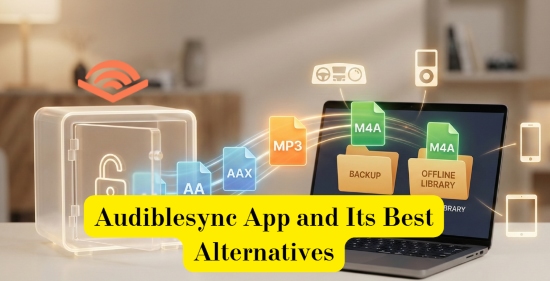
In this comprehensive AudibleSync 2026 guide, we'll explain how AudibleSync works, walk you through common problems and fixes, compare it with the Audible app, and introduce the best AudibleSync alternatives for users who want more flexibility, especially those looking to back up or convert Audible audiobooks for offline playback on any device.

Part 1. What Is AudibleSync and Is It Still Supported?
Launched in October 2020, AudibleSync originally debuted as a modern successor to the aging "Audible Download Manager". For years, it occupied a niche corner of the ecosystem, but it surged in relevance following March 2025. This date marked a major turning point: Microsoft ended support for the Amazon Appstore on Windows 11, effectively killing the last official way to run a "full" Audible app on a PC. Today, AudibleSync remains one of the final official methods for downloading Audible titles directly to a Windows computer.
In short, AudibleSync is a minimalist desktop utility designed by Audible to facilitate two primary tasks: downloading audiobooks to a local drive and syncing them with authorized hardware. Unlike the Audible mobile apps or the cloud player, AudibleSync is not built for playback. It does not feature a "Listen" button or a browsing interface; instead, it acts as a digital bridge, transferring encrypted files to specialized external devices like SanDisk MP3 players or accessibility tools such as the Victor Reader Stream.
Is AudibleSync Still Supported in 2026?
As of 2026, AudibleSync remains accessible to users, but it functions primarily as a legacy tool. Audible appears to maintain it for compatibility purposes rather than ongoing development, with infrequent updates and limited promotion.
Moreover, many newer Audible features - such as cloud-based syncing, enhanced DRM, and the newer .aaxc file format - are primarily designed for the Audible app rather than AudibleSync app.
Drawbacks of Current AudibleSync App for Windows 10 / Windows 11
• Inconsistent Windows 11 Compatibility: Although AudibleSync officially supports Windows 10 and 11, users on the latest versions of Windows 11 frequently report stability issues. Modern security updates and driver changes often lead to "Device Not Detected" errors that were less common on older operating systems.
• Stagnant Feature Set: Audible has moved its latest innovations, such as the high-quality .aaxc format and advanced cloud-syncing features, almost exclusively to its mobile and web platforms. AudibleSync receives infrequent updates and remains tethered to older DRM protocols.
• A "Niche" Solution: Because the app is no longer actively promoted, many users only discover it when their primary listening methods fail. This lack of active support is exactly why users often struggle with account activation loops or hardware detection bugs.
While AudibleSync still serves a vital purpose for a specific group of hardware users, it is clear that it is no longer a future-proof solution. For those seeking a more robust or modern way to manage their libraries on a PC, exploring third-party alternatives has become a necessity rather than an option. We'll provide a flexible alternative in the Part 5 for your references.
Part 2. How to Use AudibleSync to Download and Sync Audiobooks
Despite its limitations, AudibleSync can still be useful if your setup matches its supported scenarios. Below is a step-by-step guide on how to use AudibleSync to download audiobooks to your computer and sync them with compatible devices.
Step 1. Install and Launch AudibleSync
Download AudibleSync from Audible's official website (or use the official download link provided). Install the program on your Windows PC and launch it. You'll then be prompted to sign in with your Amazon or Audible account.
Step 2. Activate AudibleSync
AudibleSync relies on an internal browser to activate your account. After signing in, the software authorizes your computer to access your Audible library. If activation fails, the issue is often related to browser components, network restrictions, or VPN settings (solutions are covered in the next section).
Step 3. Download Audiobooks
Go to 'Library' > 'My Audiobooks', select the title you want, and click the Download button on the right side of the audiobook entry. AudibleSync will download the audiobook to your computer, usually storing it in the default Audible content folder.

All downloaded Audible files remain DRM-protected.
Step 4. Sync Audiobooks to a Supported Device
To transfer audiobooks to a compatible device, connect it to your computer using a USB cable. Click the Device icon in the left sidebar, then select Activate Device in the upper-right corner. Once activated, choose the audiobooks you want and click Copy to Device to begin syncing.

AudibleSync supports only a limited range of devices, such as SanDisk players, Sony Walkman models, and some older iPod Nano or iPod Touch devices. Most modern MP3 players and smart devices are no longer compatible.
Pros and Cons of Audiblesync App
Official Audible tool for Windows users;
Allows direct downloads from your Audible library;
Supports syncing to select legacy MP3 players;
No need for third-party software
Windows-only, no macOS support;
Very limited device compatibility;
Cannot remove DRM or convert audiobooks to MP3;
Frequent activation, download, and device detection issues;
Poor support for newer .aaxc Audible formats
Part 3. AudibleSync Not Working? Common Problems and Fixes
Frequent user reports of 'AudibleSync not working' have surfaced across online forums, often citing recurring errors such as login loops, activation failures, and hardware recognition issues. Even in 2026, AudibleSync is still known for its stability and compatibility issues, largely due to limited updates and aging system components. Below are the most common problems users face, along with practical fixes you can try. Below are the most common problems and how to troubleshoot them.
Device Not Detected
If AudibleSync fails to recognize your connected device, try the following steps:
• Check the USB cable and switch to a different USB port. Make sure you are using a data-capable cable, not a charging-only cable.
• Update or reinstall device drivers. Open Windows Device Manager, locate your MP3 player, right-click it, select Uninstall device, then unplug and reconnect the device to allow Windows to reinstall the driver automatically.
• Some MP3 players must be set to MSC (Mass Storage Class) mode in their internal settings to be detected by AudibleSync.
Keep in mind that older devices may require legacy drivers, which are no longer installed by default on Windows 10 or Windows 11.
Activation Failed
Activation failures usually occur when AudibleSync's built-in browser cannot properly communicate with Amazon's authentication servers. To resolve this:
• Temporarily disable VPNs, proxies, or third-party firewalls.
• Ensure your system date, time, and region settings are correct.
• Try signing in to your account through the Audible app first, then relaunch AudibleSync and attempt activation again.
Book Not Showing Up in Library
If a purchased audiobook does not appear in AudibleSync:
• Refresh your Audible library within the app.
• Confirm that the title is fully purchased (not borrowed, shared, or pre-ordered).
• Check whether the audiobook uses the newer .aaxc format, which may not sync properly with AudibleSync.
Download Error: .AAXC vs Older Formats
Newer Audible titles are often delivered in the .aaxc format, which is more tightly bound to the Audible app and enhanced DRM protections. As a result, AudibleSync may fail to download or sync these files correctly, leading to download errors or incomplete transfers.
In many cases, this limitation is not user-related but stems from AudibleSync's lack of full support for newer Audible formats, making alternative tools a more reliable option for managing modern audiobook libraries.
Part 4. AudibleSync App vs Audible App: What's the Difference?
While both applications are developed by Audible, they are built for entirely different user groups. The most important distinction to remember is that AudibleSync is a management utility, whereas the Audible App is a media player. Below is a breakdown of the key differences to help you decide which one you actually need:
| Feature | AudibleSync App | Audible App (Mobile/Mac) |
|---|---|---|
| Platform | Windows 10/11 Only | iOS, Android, macOS, Apple Watch |
| Primary Function | Downloading & Transferring | Streaming & Listening |
| In-App Playback | ❌ (Transfer Only) | ✅ (Full Player) |
| Offline Use | Download for Transfer | Download for Local Play |
| Format Handling | AA / AAX | AAX / AAXC |
| Device Syncing | SanDisk & Accessibility Tools | Phones & tablets |
| Format Conversion | ❌ | ❌ |
| DRM-free Playback | ❌ Encrypted | ❌ Encrypted |
In short, the Audible app is designed for everyday listening, while AudibleSync is a legacy utility for device syncing. Most users today rely on the Audible app, leaving AudibleSync relevant only for niche use cases.
Part 5. Best AudibleSync Alternative for Mac and Windows
Because AudibleSync is Windows-only and offers very limited functionality, many users turn to third-party solutions for greater control over their audiobook libraries. More importantly, audiobooks downloaded via AudibleSync are saved in AA or AAX formats with DRM protection, which makes them difficult to play outside of Audible's ecosystem. At present, there is no full-featured official Audible desktop player for Windows, apart from the cloud-based Audible web player.
You can use iTunes to play Audible AA or AAX files after authorizing your Audible account. However, playback features are limited, and periodic re-authorization with your Audible credentials is required. While offline playback is possible, iTunes is not an ideal solution for long-term audiobook management or device compatibility.
To overcome these limitations and enjoy flexible playback on any device, many users choose a dedicated Audible audiobook converter. Among the available tools, AudFree Audible Converter is one of the most popular AudibleSync alternatives for both Windows and macOS.
AudFree Audible Converter allows you to remove DRM from Audible AA/AAX files and convert them to standard formats such as MP3, M4A, FLAC, or M4B, while preserving original audio quality, chapter structure, and metadata.
Key Features of AudFree Audible Converter

- Converts Audible AA/AAX audiobooks to MP3, M4A, and M4B losslessly
- Enables Audible audiobook playback on any MP3 player or device
- Supports batch conversion at speeds of up to 100× faster
- Splits large audiobooks by chapters while retaining full ID3 tags
- Ideal for long-term backups and unrestricted offline listening
- Fully compatible with Windows and macOS
How to Remove DRM from Audible Audiobooks via AudFree Audible Converter
With just a few clicks, AudFree Audible Converter lets you create DRM-free copies of your Audible audiobooks and store them permanently in standard audio formats on your computer. To access your Audible library, you'll need to sign in with your Audible account and activate the converter.
- Step 1. Launch AudFree Audible Converter and Log In

- Launch AudFree Audible Converter on your Windows or macOS computer and activate the full version using your license key. Select your region, then sign in with your Audible account credentials to access the built-in Audible Cloud Player.
- Step 2. Add Audible Books to the Conversion List

- Browse your Audible library directly within the built-in player. Select the audiobooks you want, then click + > Add to List to import them into the conversion list. You can also add your entire library at once, as batch conversion is fully supported.
- Step 3. Customize Output Format and Audio Settings

- Click the Menu icon in the top-right corner and open Preferences. Under the Conversion tab, choose your preferred output format (MP3 is recommended for maximum compatibility). You can also adjust bitrate, sample rate, and audio channels. To better manage long audiobooks, hover over a title and click the Split icon to divide it by chapters or time intervals.
- Step 4. Convert and Download Audible Books to Your Computer

- Click the Convert button to begin downloading and converting your Audible audiobooks. Once the process is complete, open the Converted section to locate your files. You can now transfer the DRM-free audiobooks to any device or media player for unrestricted and flexible playback.
Pros and Cons of AudFree Audible Converter
Works perfectly on both Windows and macOS (unlike AudibleSync);
Breaks the lock on your files, allowing for lifetime offline storage;
Keeps chapters intact, which is vital for long 20+ hour audiobooks;
Offers a "Lossless" output option that perfectly mirrors the original Audible source
While a free trial is available, the full version requires a license
Part 6. Comparison Table: AudibleSync App vs AudFree Audible Converter
After reviewing how AudibleSync works and why many users turn to third-party solutions, it's helpful to compare AudibleSync and AudFree Audible Converter side by side. While both tools allow you to download Audible audiobooks to a computer, they are designed for very different purposes and user needs.
The table below highlights the key differences in functionality, compatibility, and flexibility, helping you decide which option better fits your listening and library management goals.
| Feature | AudibleSync App | AudFree Audible Converter |
|---|---|---|
| Developer | Audible (Official) | Third-party |
| Supported OS | Windows 10 and 11 only | Windows & macOS |
| Primary Purpose | Download and sync to supported devices | Remove DRM and convert Audible audiobooks |
| Supported Formats | AA / AAX (DRM-protected) | MP3, M4A, M4B, FLAC, WAV, AIFF (DRM-free) |
| DRM Removal | ❌ | ✅ |
| Batch Processing | ❌ | ✅ (100x Speed) |
| Device Compatibility | Very limited (legacy MP3 players, older iPods) | Any MP3 player, phone, tablet, car system |
| Playback Flexibility | Restricted to Audible-supported devices | Play anywhere, anytime |
| Chapter & Metadata Retention | No | Full chapter and ID3 tag support |
| Stability | Inconsistent, infrequently updated | Stable, actively maintained |
| Paid/Free | Free (After purchase) | Paid |
| Best For | Basic syncing with legacy devices | Long-term backup and flexible playback |
| Star Rating | ⭐️⭐️ | ⭐️⭐️⭐️⭐️ |
It's obvious that for most modern users, especially those using macOS, MP3 players, car systems, or multiple devices, AudFree Audible Converter offers far greater flexibility and long-term value than AudibleSync.
Part 7. FAQs About AudibleSync App
Where does AudibleSync download audiobooks to?
AudibleSync stores downloaded audiobooks in a default system directory on your Windows PC, usually within the Audible content folder: C:\Users\[YourUsername]\AppData\Roaming\AudibleSync\downloads. The exact path may vary slightly depending on your Windows version and user profile.
See also: Where Are Audible Books Stored on Android/iPhone/PC/Mac/Kindle
Can I use AudibleSync to transfer books to an Apple Watch or an iPod?
No. AudibleSync does not support Apple Watch, iOS devices, or most modern iPods. It can only sync audiobooks to a small number of legacy MP3 players that are compatible with Audible's DRM system.
Why can't I sign in to AudibleSync even though my password is correct?
This issue is usually caused by AudibleSync's embedded login browser, not by incorrect account credentials. Cached login data, outdated authentication components, network restrictions, or region-based account checks can all prevent successful sign-in even when the password is correct.
Is AudibleSync the only official desktop download tool left on Windows?
Yes. As of now, AudibleSync is the only officially supported desktop downloader for Audible on Windows, following the retirement of earlier tools such as Audible Manager and the Windows Audible app.
Can AudibleSync convert audiobooks to MP3?
No. AudibleSync does not support format conversion or DRM removal. All audiobooks downloaded through AudibleSync remain in Audible's protected formats and cannot be converted to MP3 or other formats using the app itself. To make it, you need a converter like AudFree Audible Converter.
Conclusion
AudibleSync still exists in 2026, but it is no longer a comprehensive solution for managing Audible audiobooks. With limited support, frequent errors, and poor compatibility with modern devices and formats like AAXC, many users quickly outgrow its capabilities.
For those who need greater flexibility, such as converting Audible audiobooks to MP3, backing up their library, or listening on any device, AudFree Audible Converter provide far more reliable alternatives. Ultimately, choosing the right tool depends on whether you value official syncing or long-term ownership and control over your audiobooks.

Staff Editor


