


Tidal has been cooperating with a lot of other companies by providing a free Tidal subscription to attract more subscribers. Boost Mobile is one of them, which is a mobile virtual network operator.
Boost Mobile customers who use the budget-friendly monthly plan can enjoy different entertainment add-ons. Previously, Boost Mobile Tidal allowed users to get 6 months of Tidal free trial.
However, you can't find this deal now. But no worries. This guide will explain the current status of the Boost Mobile Tidal offer and show you how to get Tidal free Boost Mobile. Also, we will show you how to keep your Tidal music forever before your Tidal Boost Mobile trial ends.


Part 1. Does Boost Mobile Still Offer Free Tidal?
Yes, now you can get a 30-day Tidal Boost Mobile free trial offer. But you can't get it directly from the Boost Mobile website or app. As of early 2026, Boost Mobile has quietly removed Tidal from its standard list of "Available Add-ons" for most new and existing plans. The current entertainment add-ons primarily feature services like "airG" and "Boost Protect". Tidal is noticeably absent from the main menu. It appears the official integration, where you could manage your Tidal subscription directly inside the Boost app, has been paused or discontinued for new activations.
Part 2. How to Activate Tidal on Boost Mobile
Now, let's see how to activate the Tidal plan with Boost Mobile for 30 days. Before doing this, please turn on the Boost Mobile 5G/LTE network rather than a WiFi network on your phone.
This works for some users, but not all. It depends on your specific plan eligibility.
Step 1. Open the web browser on your mobile phone.
Step 2. Visit Tidal Boost Mobile offer webpage. This is a link that directs to Tidal's Select Your Plan page for Boost users.
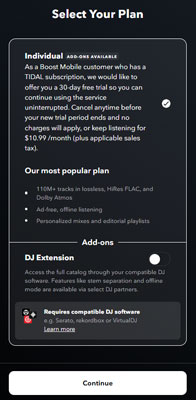
Step 3. Tap Continue to get the Tidal free trial for 30 days.
Before it expires, you need to cancel this plan from Tidal. Otherwise, you will be charged $10.99 per month.
Part 3. How to Keep Tidal Music Before Boost Mobile Free Tidal Expired
You can get Tidal 30-day free trial with Boost Mobile via the above steps. Yet you can't access Tidal anymore once the trial expires. Also, your downloaded Tidal tracks will disappear.
Fortunately, there is a way to make up for this drawback as long as we have AudFree Tidal Music Converter in hand. It's a professional Tidal music assistant to control Tidal playback in flexible ways. With the help of this tool, you can download music and playlists from Tidal with HiRes FLAC quality locally.
Besides, it's able to convert Tidal to MP3, FLAC, WAV, and others. With such, you can play Tidal music on all devices offline and forever without the Tidal app. Nice listening experience to listen to Tidal songs and playlists on portable devices.
After you download and convert Tidal songs as your own files, no need to worry about when the Tidal subscription will expire. You can directly cancel it. Amazing thing is that you can keep Tidal music even without the Boost Mobile Tidal free trial.
AudFree Tidal Music Converter

- Download music from Tidal as local files at 37X speed
- Convert Tidal music to plain formats, like MP3, WAV, FLAC, etc.
- Keep 100% HiRes quality music and ID3 tags
- Keep Tidal music forever for playback even without Boost Mobile
How to Download and Keep Tidal Music Forever without Boost Mobile
The following tutorial is to guide you on how to keep Tidal music forever before you cancel the Boost Mobile free Tidal. AudFree Tidal Music Converter offers two tiers for users to download music from Tidal. The free trial one can download 30-seconds of each song. The paid one can download the full songs as you like.
- Step 1. Load Tidal songs to AudFree Software for download

- Now, install and launch the AudFree Tidal Music Converter from the computer desktop. Find the songs that you'd like to keep forever and open them. Then press the '+' > 'Add to list' button to load them.
- Step 2. Modify Tidal output audio parameters to download

- The next step is to customize the output settings for download. Navigate to the top-right menu bar on Windows computer or Apple menu bar on Mac to choose the 'Preferences' option. It will pop up the setting window. Tap the Conversion section and you can customize output format as MP3, FLAC, or any other format for better playback. Other audio parameters like bit rate and sample rate aim to enhance audio quality. You can decide whether to modify it or not.
- Step 3. Download and keep Tidal music free

-
When everything is right, please click the 'OK' to confirm them. Please press the big 'Convert' button to download Tidal songs to target audio files. You can find offline Tidal tracks by clicking the 'Converted' > 'folder' icon. Now, you get Tidal music locally. Even though your Tidal free trial with Boost Mobile expired, you can still listen to Tidal songs on all devices offline.
Besides using this tool, you can give AudFree Streaming Audio Recorder a try. It also supports to download music from Tidal in HiRes quality and full ID3 tags. What's more, it can download music from Spotify, YouTube Music, SoundCloud, Qobuz, Apple Music, Amazon Music, etc. as local audio files for offline playback.
Part 4. Troubleshooting and FAQs about Boost Mobile and Tidal
Why Do I Get a 'User Not Authorized' Error When Getting the Boost Mobile Tidal 30-Day Free Trial?
This error happens if you try to apply a new trial offer to an existing Tidal account. You must create a new Tidal account (with a new email address) to claim the offer.
Can I Use the Boost Mobile Offer to Get a Free Tidal Family Plan?
No. The Boost Mobile Tidal offer is strictly limited to Tidal Individual plan. If you want a Family Plan, you must subscribe directly through Tidal ($16.99/month).
View also: How to Get Tidal Family Plan
Does the Boost Mobile Tidal Offer Include the DJ Integrations?
Yes, usually. Tidal plan now includes access to DJ extensions. However, if your subscription shows as 'Trial', some third-party apps may block access until it converts to a paid subscription.
View also: How to DJ with Tidal
How to Cancel Boost Mobile Tidal?
Go to account.tidal.com and log in. Click on 'Subscription' and select 'Cancel My Subscription'. Then confirm the cancellation. You will keep access until the end of your 30-day billing cycle.
View also: How to Cancel Tidal

Staff Editor


