


Want to convert YouTube videos to M4A for offline listening? M4A is a popular audio format that offers good sound quality while keeping file sizes relatively small. Whether you want to save music, podcasts, interviews, or other audio content, a YouTube to M4A converter can help you extract audio and enjoy it in a more flexible format.
There are two main ways to do this: use a free online converter for quick, occasional downloads or choose desktop software for more control over audio quality, batch conversion, and file management. In this guide, we'll introduce three online YouTube to M4A converters and a desktop alternative, AudFree YouTube Music Converter. We'll also compare their features to help you decide which option best suits your needs.

Part 1. Can You Convert YouTube Videos to M4A?
Yes. You can convert YouTube videos to M4A using online conversion websites or desktop software. These tools extract the audio from a video and save it in an M4A file, allowing you to play it with compatible music players, media apps, and portable devices.
M4A stands for MPEG-4 Audio. It is a container format commonly used for AAC-encoded audio, although it can also contain other audio codecs. Compared with formats such as FLAC, M4A files are generally smaller while maintaining good audio quality, making them suitable for everyday listening and storage. It is widely supported by Apple devices and many other media players.
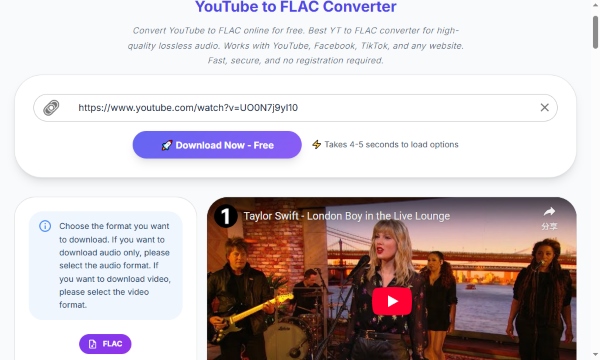
View also: How to Download YouTube to FLAC
Before converting or downloading YouTube content to M4A, make sure you have the necessary rights or permission to use the content. Please always respect copyright laws and YouTube's Terms of Service. These downloaded M4A files should be used only for lawful personal purposes, and you should not distribute, share, or commercially use copyrighted material without authorization.
Part 2. How to Convert YouTube to M4A Online for Free
If you don't want to install additional software, an online YouTube to M4A converter is a convenient option. Most online tools work directly in a browser: copy a supported video link, paste it into the converter, select M4A (if available), and process the file. Here are three of the best online tools for converting YouTube videos to M4A.
Method 1. Convert YouTube to M4A Free with AM4A
Site: https://am4a.cc/
AM4A is an online M4A converter designed specifically for YouTube audio. It offers M4A output and lets you adjust audio quality and trim the duration before processing. It also has options for playlist conversion and trimming individual audio files, making it useful when you want more control than a basic one-click converter.
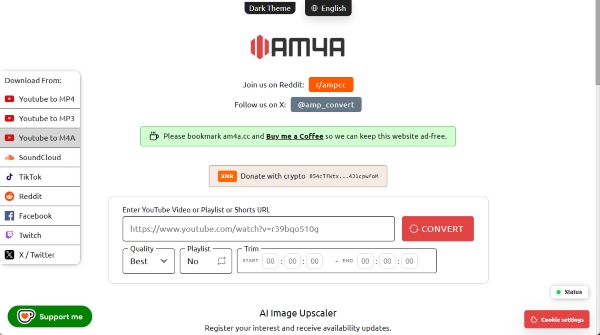
However, having more customization options doesn't necessarily translate into a better user experience. In our assessment, AM4A falls short when it comes to actual processing performance. Even analyzing a single YouTube video takes noticeably longer than the other two online converters reviewed below, while playlist conversion can be even more time-consuming.
More importantly, the tool frequently fails when processing multiple videos at once, making batch conversion unreliable. If you simply want a fast and straightforward way to convert YouTube videos to M4A, these limitations may outweigh the benefits of its extra customization features.
If you need to convert YouTube playlists in batches, consider using the professional desktop software introduced in Part 3. It offers greater flexibility in output formats and settings, more stable performance, faster processing speeds, and reliable batch conversion while preserving the original audio quality.
How to Convert YouTube to M4A Online with AM4A
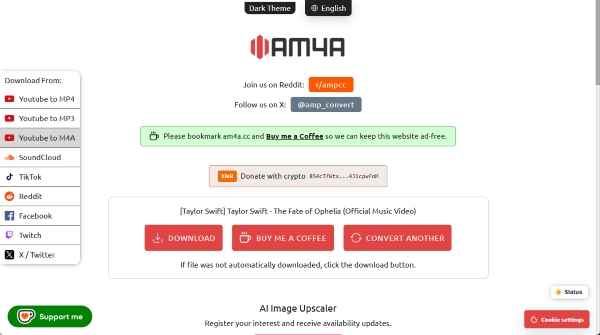
- Step 1. Open YouTube and find the video containing the audio you want to convert. Copy its URL from the address bar or Share menu.
- Step 2. Visit the AM4A website and paste the copied link into the input box.
- Step 3. Select your preferred M4A quality. If you want to process a supported playlist, enable the playlist option.
- Step 4. Click Convert and wait for the audio processing to finish.
- Step 5. Click Download if the file doesn't download automatically.
No desktop installation or account registration is required;
Offers adjustable M4A quality settings;
Includes playlist and audio-trimming options;
Accessible through a web browser without complicated setup;
No ads
Playlist conversion has a 240-minute processing limit;
You need an internet connection throughout the process;
Available output formats and quality settings may vary;
Some links may fail to process;
The free online YouTube to M4A converters are unreliable and may abruptly go offline at any time
Method 2. Convert YouTube to M4A Online with CutYT
Site: https://www.cutyt.com/yt-m4a
CutYT is another browser-based option for converting YouTube videos or music into different audio and video formats. In addition to M4A, it supports formats such as MP3, AAC, FLAC, and WAV. This makes it useful if you haven't decided which audio format best suits your device or playback needs.
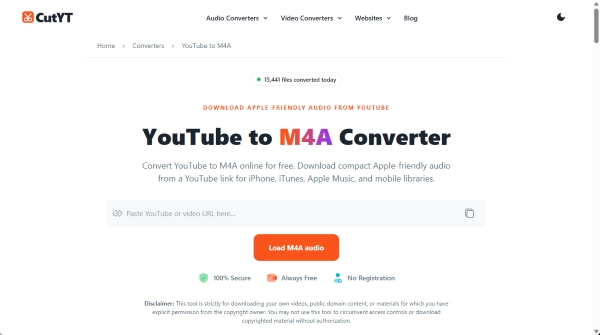
During our testing, this tool performed impressively in both link analysis and download speed. Downloading the same YouTube song took only about one-third of the time required by AM4A, making it a much faster option overall. However, it has one notable drawback: it doesn't preserve any metadata in the downloaded files. In comparison, AM4A can retain at least some metadata, such as album artwork.
How to Download YouTube to M4A Using CutYT
- Step 1. Copy the URL of the YouTube video or YouTube Music song you want to process.
- Step 2. Open the CutYT website and paste the link into its input field.
- Step 3. Choose the available audio conversion option and select M4A if supported.
- Step 4. Click Convert and wait for the online tool to process the link.
- Step 5. Click Download M4A to save the M4A file to your computer or mobile device.
Fast link analysis and download speed;
Convenient for occasional conversions;
Supports multiple audio and video formats;
Works in modern desktop and mobile browsers;
No software installation or account registration is required;
The latest update also includes an audio trim feature;
Limited output customization options;
Processing speed depends on the website and network conditions;
Supports individual YouTube videos rather than full playlists;
Videos longer than 120 minutes are currently restricted;
Expect occasional server downtime when the tool is busy;
Third-party ads or redirects may affect the user experience
Method 3. Convert YouTube Video to M4A with SaveAs
Site: https://saveas.top/youtube-to-m4a/
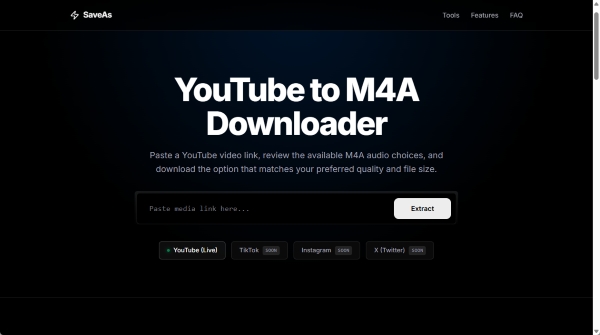
SaveAs is another online service for downloading YouTube videos to M4A. Like other browser-based converters above, it aims to simplify the process by allowing users to work with online content without installing a dedicated program.
It supports both MP4 and M4A output formats. In addition to YouTube, you can also extract and save audio or video from platforms like Instagram, TikTok, and X (formerly Twitter). However, unlike AM4A and CutYT, it doesn't offer an audio trimming feature. Its download speed falls somewhere in between the two: faster than AM4A but slower than CutYT. It also fails to preserve metadata, and occasional ads may interrupt the experience. Another drawback is its audio quality, which is the lowest among the three converters we tested.
How to Get M4A Audio from YouTube Using SaveAs
- Step 1. Find the YouTube video you want to convert and copy its URL.
- Step 2. Open the SaveAs website and paste the link into the conversion box.
- Step 3. Choose M4A from the available output formats, if supported.
- Step 4. Start the conversion and wait for the processing to finish.
- Step 5. Click the Download option to save the resulting audio file.
Simple link-to-file process;
Browser-based workflow without desktop installation;
Convenient for occasional conversions;
Offers moderate processing and download speeds
M4A availability should be checked before starting;
Conversion speed and file restrictions may vary;
Format availability may change;
Frequent ads and pop-up redirects often break up the downloading process;
Some videos may not be supported;
Average audio quality is capped below 128 kbps
Part 3. Best Desktop YouTube to M4A Converter for High-Quality Audio
Online converters are truly convenient for occasional downloads, but they aren't always the best choice if you regularly convert music or want to build a large, well-organized music library. You may run into server errors, limited output settings, or restrictions on the number and length of videos you can process. These limitations can quickly become frustrating when handling larger collections.
A desktop converter generally offers a more stable and streamlined workflow once installed, especially when you need to process multiple tracks, customize audio settings, or organize converted files in one place. Among the available options, AudFree YouTube Music Converter is a desktop solution worth considering if you want greater control over YouTube Music audio conversion.
Unlike the basic online converters reviewed above, AudFree provides a more comprehensive environment for handling music downloads. It supports batch processing, lossless audio output, and full ID3 tag preservation, including album artwork. You can also customize various audio parameters, giving you more flexibility over the final files and making it better suited to building and maintaining a personal music collection.
AudFree Streaming Audio Recorder

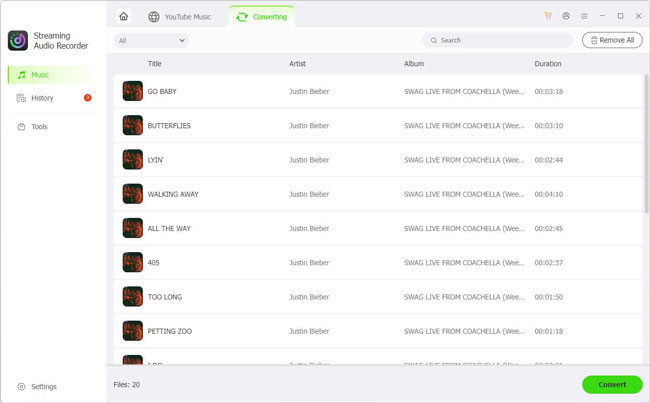
- Process multiple tracks in a conversion queue instead of handling each one individually
- Convert YouTube Music to WAV, M4A, MP3, etc. with 30X faster speed
- Customize the output parameters according to your listening and storage needs
- Keep essential track information, such as titles and artist details, to make your local library easier to organize
How to Convert YouTube Music to M4A with AudFree
YouTube Music links and regular YouTube video URLs are not interchangeable. This tool is specifically designed to process content from YouTube Music, so make sure you want to download songs from YouTube Music.
Step 1. Download and install AudFree YouTube Music Converter on your Windows or Mac computer.
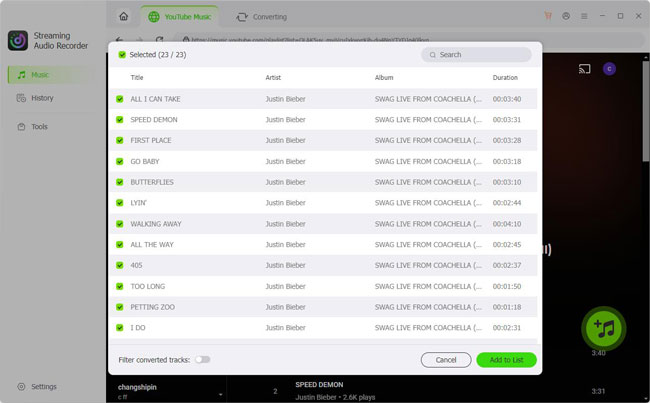
Step 2. Launch the program and access its built-in YouTube Music environment. Find the track or playlist you want to process and add the selected content to the conversion list.
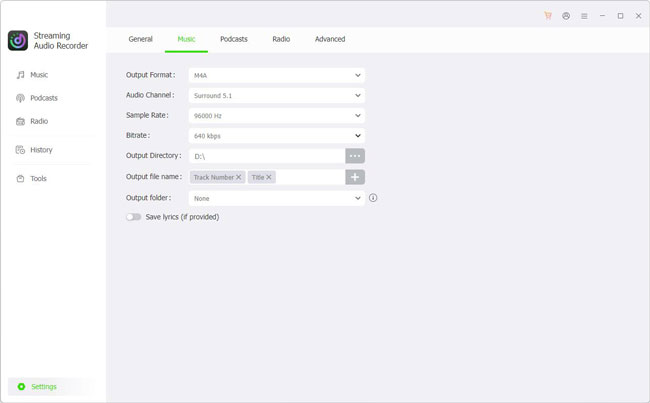
Step 3. Open the Settings and choose M4A as the target format. Adjust the available audio parameters, like bitrate, sample rate, and more, as needed. You can also select an output folder and confirm your settings.
Step 4. Start the conversion and wait for the program to finish processing. You can then locate your M4A files under the History tab or in the destination folder.
More convenient for repeated conversion tasks;
Works with YouTube Music free tier;
Lossless export across multiple output formats;
Supports batch processing and local file organization;
Offers more output customization than basic online converters;
Helps maintain essential audio metadata and album artwork
Requires installation on a computer;
Cannot download directly from the YouTube website;
Full conversion capabilities may require a paid license
Part 4. Desktop vs Online YouTube to M4A Converters: Full Comparison
Both desktop and online YouTube to M4A converters can help you obtain audio files, but they serve different purposes. Here's a quick comparison of the tools discussed above.
| Feature | AudFree YouTube Music Converter | AM4A | CutYT | SaveAs |
|---|---|---|---|---|
| Platform | Windows/Mac | Online | Online | Online |
| M4A Output | ✅ | ✅ | ✅ | ✅ |
| Supported Output Format |
M4A, MP3, AIFF, WAV, FLAC, M4B |
M4A | M4A, MP4, MP3, AAC, WAV, FLAC, OPUS, ALAC | M4A, MP4 |
| Audio Quality | Up to Lossless | 256 kbps | 256 kbps | Lower than 128 kbps |
| Installation | ✅ | ❌ | ❌ | ❌ |
| YouTube Premium Required | ❌ | ❌ | ❌ | ❌ |
| Batch Processing | ✅ | ✅ | ❌ | ❌ |
| Conversion Speed | 30X | 2X | 10X | 5X |
| Customize Output Quality | ✅ | ✅ (Limited) | ❌ | ❌ |
| Keep ID3 Tags | ✅ | ✅ (Limited) | ❌ | ❌ |
| Success Rate | 100% | Medium | Medium | Medium |
| Ratings | ⭐️⭐️⭐️⭐️ | ⭐️⭐️⭐️ | ⭐️⭐️⭐️ | ⭐️⭐️⭐️ |
Part 5. FAQs About YouTube to M4A Conversion
Is M4A better than MP3 for YouTube audio?
M4A with AAC encoding can offer better compression efficiency than MP3 at comparable bitrates. This means it can deliver good audio quality with a relatively small file size. However, MP3 has broader compatibility with older devices and players.
View also: How to Convert YouTube to MP3
Can I convert YouTube to M4A without losing quality?
It depends on how the audio is processed. If a tool directly copies a compatible original audio stream into an M4A container without re-encoding, it can avoid additional encoding loss. However, if it re-encodes the audio, some quality may be lost. Converting a lower-quality source into a higher-bitrate M4A file will not restore the missing audio details.
Can I convert an entire YouTube playlist to M4A?
Yes, some online converters and desktop applications support playlist processing. For example, AM4A offers a playlist option with a 240-minute limit. You can check the tool's current restrictions on its official website before processing a large collection.
Is it safe to use free online YouTube to M4A converters?
Not all online converters are equally trustworthy. Avoid websites that request unnecessary permissions, push unknown browser extensions, or redirect you to suspicious download pages. The three online YouTube-to-M4A converters featured in this article were thoroughly tested, with no suspicious installation requirements encountered. For added security, always stick to a reputable online tool.
Part 6. In Conclusion
Converting YouTube to M4A is a convenient way to create compact audio files for compatible devices and local music libraries. If you only need to convert a few videos, online tools such as AM4A and CutYT offer a simple starting point without requiring software installation. However, their conversion options, processing reliability, and available features can vary.
If you regularly convert multiple tracks or want greater control over audio quality and file organization, AudFree YouTube Music Converter is a worthwhile option to consider. Ultimately, the best tool depends on your listening habits, conversion needs, and personal preferences.

Staff Editor


