


YouTube has become the world's largest audio visual library, hosting everything from official music videos and podcasts to DJ sets, lectures, audiobooks, and royalty-free sound effects. While many users wonder, 'Can I download audio from YouTube?', the answer is no, not directly. YouTube itself does not provide a native option to download audio as standalone files such as MP3, WAV, or FLAC for flexible offline use.
This is why YouTube audio downloaders and YouTube to audio converters remain extremely popular among users who want to listen offline, edit audio tracks, burn CDs, or transfer music to MP3 players and car systems.
In this guide, we have carefully selected the 10 best YouTube audio downloaders across desktop software, free tools, online converters, and mobile apps. Whether you care about high quality output, batch downloading, lossless audio, or free online conversion, this article will help you find the best YouTube audio downloader for your needs in 2026.


Part 1. Best YouTube to Audio Converters for High Quality (Mac & Windows)
If audio quality and time efficiency are your top priorities, desktop software remains the most reliable choice. Compared with online YouTube audio downloaders and basic free tools, professional desktop applications deliver more stable performance, higher bitrates, true lossless formats, and greater control over output settings.
1. AudFree Audio Capture for Downloading Audio from YouTube and YouTube Music
AudFree Audio Capture is a professional YouTube audio downloader designed for users who want full control over output quality and format. Unlike simple YouTube to MP3 converters, this tool captures audio directly from YouTube playback and saves it as local files without any quality loss.
In addition, it offers a wide range of audio output formats like WAV, MP3, M4A, AAC, FLAC, AIFF, OGG, etc. Besides, the ID3 tags of YouTube audio will be kept. What's more, you can trim and edit audio downloads from YouTube and save them as local files.
AudFree Audio Capture for YouTube

- Record audio from YouTube and other streaming platforms
- Offer up to 16 output formats including MP3, FLAC, WAV, AAC, etc.
- Preserve original sample rate and bitrate
- Built in editor to trim, merge, and tag audio files
- Compatible with Windows and macOS
How to Download YouTube Video Audio via AudFree Audio Capture
- Step 1. Download and Launch AudFree Audio Capture

- Download and launch the best YouTube audio downloader - AudFree Audio Capture on your Mac or Windows computer. On its main interface, please click the 'Select/Add an App' button to add the software you will access on YouTube. Google Chrome is for the best.
- Step 2. Set Output Settings for Downloading YouTube Audio

- You can see a 'Format' bar at the bottom-left corner. Click it to choose a format you like. You can hit the 'Setting' icon (Gear) to set the encoder, audio channel, sample rate, and bitrate. Remember to save your choices by clicking 'Create and apply'.
- Step 3. Start Downloading Audio from YouTube Videos

- When you return to the main page, click the top 'Start' option to launch the software you added. Then go to YouTube and log in to your YouTube account. Directly play the video you want to download to audio. The AudFree Audio Capture will start capturing YouTube audio. To end the downloading process, please go to the AudFree tool and hit the top 'Stop' icon.
- Step 4. Edit and Save YouTube Audio Downloads

- You can see the downloaded file now. Click the 'Trim' icon, you can cut some unnecessary parts. Use other functions for your needs. Then, 'Save' the downloads to your computer's local folder.
Pros and Cons of AudFree Audio Capture
Offers multiple audio format, up to 16;
Supports lossless formats like WAV and FLAC;
Preserves original audio quality and metadata;
Built-in audio editor for trimming and merging;
Supports all system audio, including all major music streaming services
Requires a paid license (free trial with recording time limitations);
Requires installation on desktop
2. AudFree Streaming Audio Recorder for Downloading Audio from YouTube Music
AudFree Streaming Audio Recorder is a powerful, professional-grade YouTube audio downloader designed for high-quality output and high-efficiency batch processing. It allows you to download YouTube Music tracks, albums, and playlists in bulk at speeds of up to 30× faster - while preserving peak audio fidelity.
Beyond YouTube Music, AudFree Streaming Audio Recorder offers broad compatibility with 9+ major streaming platforms, including Spotify, Tidal, Apple Music, and more. For users who prioritize speed, stability, and sound quality, it stands out as one of the most reliable desktop solutions available. The software runs smoothly on Windows and macOS and automatically retains complete ID3 tags, including artist, album, and cover art.
AudFree Streaming Audio Recorder

- Batch convert audio from YouTube Music to MP3, WAV, FLAC, and more
- Download full YouTube Music albums or playlists losslessly at 30× speed
- Export ad-free audio with original audio quality
- Automatically retain ID3 tags and album artwork
- Available for Windows and macOS
How to Download Audio from Youtube Music via AudFree Streaming Audio Recorder
- Step 1. Set Audio Output Format of YouTube Music

- Launch AudFree Streaming Music Converter on your Mac or PC. Navigate to the 'Menu icon > Preferences > Conversion' and select your desired output format. From here, you can define the bitrate, sample rate, and audio channels to suit your needs. Finally, under the Output tab, set your preferred destination folder and ensure ID3 tag retention is enabled to keep your music library organized.
- Step 2. Add YouTube Music Audio for Conversion
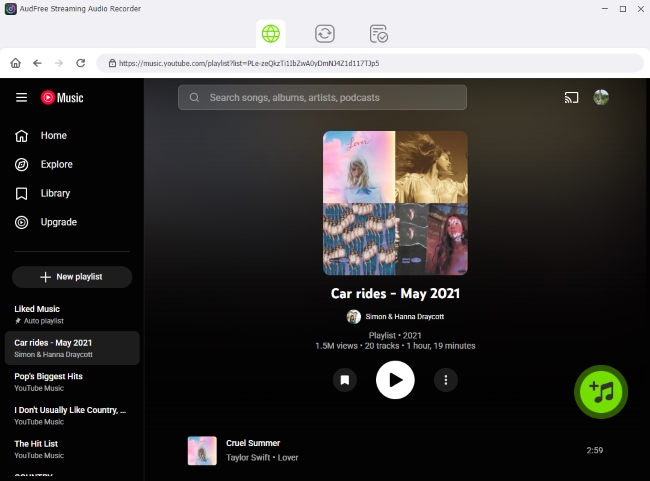
- Return to the main interface and click the YouTube Music icon to open the built-in web player. Sign in to your account, browse songs, albums, or playlists, and click the green '+' button to add them to the conversion list. You can enjoy unlimited batch processing to add as many songs, albums, or playlists as you like.
- Step 3. Start Downloading Audio From YouTube Music

- Switch to the Converting section and click 'Convert'. AudFree YouTube audio downloader will download and convert YouTube Music audio to local files in bulk. Once completed, all files will be saved to your selected output folder and accessible under the Converted tab.
Pros and Cons of AudFree Streaming Audio Recorder
Supports batch downloading of playlists and albums;
True lossless output, including FLAC, WAV, and AIFF;
Up to 30× faster conversion speed;
Automatically preserves full metadata and artwork;
Stable performance with a high success rate
Full features require a paid license;
Free version has limited conversion length
Part 2. Free YouTube Audio Downloaders (Mac & Windows)
If you're on a tight budget and prefer free solutions, there are still several desktop tools that can help you extract audio from YouTube. While these free YouTube audio downloaders can handle basic tasks, they generally come with fewer advanced features, limited format control, and less consistent performance. In some cases, they may also struggle to convert YouTube videos to audio at higher bitrates or lossless quality.
1. MediaHuman YouTube to MP3 Converter (Mac & Windows)
MediaHuman is a well-known free YouTube audio downloader available for Mac and Windows. It supports multiple audio formats and allows batch downloading of playlists and channels, making it a reliable choice for everyday YouTube audio extraction.

How to Download YouTube Video Audio via MediaHuman YouTube to MP3 Converter
Step 1. Copy the URL of the YouTube video or playlist you want to download.
Step 2. Launch MediaHuman and click 'Paste Link'. The program will automatically fetch the audio source.
Step 3. Go to 'Settings > Preferences > Audio Output' to choose your preferred format and quality.
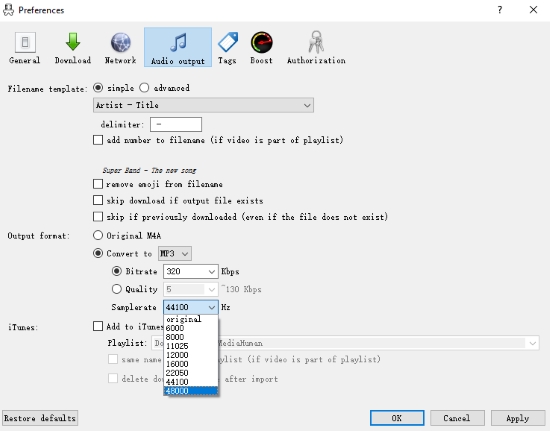
Step 4. Finally, start the download and wait for the conversion process to complete.
Pros and Cons of MediaHuman YouTube to MP3 Converter
Free and lightweight;
Supports MP3, AAC, OGG, and WAV;
Batch downloads for playlists and channels;
Automatic metadata retrieval
Limited advanced audio customization;
Slower feature updates compared to paid tools;
Prone to high conversion failure rates when processing YouTube audio
2. ClipGrab (Mac & Windows)
ClipGrab is an open-source YouTube audio downloader that can convert videos into MP3, OGG, WMV, or MPEG4 formats. Its simple interface makes it easy for beginners, and it also supports several other video platforms besides YouTube.

How to Convert YouTube to Audio Using ClipGrab
Step 1. Copy the URL of the YouTube video you want to convert.
Step 2. Launch ClipGrab and paste the link into the input box under the Downloads tab.
Step 3. Select MP3 or other formats from the 'Format' menu and choose your preferred quality.
Step 4. Click Grab this clip! to begin the conversion from YouTube to audio MP3.
Pros and Cons of ClipGrab
Completely free and open source;
Clean, beginner-friendly interface;
Supports multiple video platforms
Audio quality is capped compared to professional tools;
Occasional download failures with long or high-resolution videos
Part 3. Top 4 YouTube Audio Downloaders Online Free
Online YouTube audio converters are popular because they require no installation. However, they usually have limitations such as ads, format restrictions, or unstable performance. Here are the 4 best online free YouTube to Audio Converters for your reference.
1. Y2Mate
Y2Mate is one of the most widely used YouTube audio downloaders online. It allows for seamless MP3 audio extraction directly from YouTube URLs and is completely free across all platforms, including desktop, tablet, and mobile. Since it operates entirely within your web browser, there is no need to install additional software or apps.
Website: https://v1.y2mate.nu/

How to Download YouTube Video to Audio via Y2Mate
Step 1. Open your web browser and visit the Y2Mate website.
Step 2. Copy the URL of the YouTube video you want to convert and download. Paste the URL into the search box on Y2Mate's homepage.
Step 3. Hit the 'Convert' tab to load YouTube resources. Choose the MP3 format from the available options.
Step 4. Click the 'Download' button to start the conversion and download the MP3 file to your device.
Pros and Cons of Y2Mate
Free online YouTube to MP3 converter;
No registration required;
Works on all devices with a browser
No true lossless audio output;
Lack advanced audio customization;
Ads and pop ups may occur
2. Cnvmp3
CnvMP3 is a simple web-based YouTube to audio converter that focuses on quick MP3 conversions without requiring account registration. It is suitable for users who only need to download single tracks occasionally and prefer a lightweight, browser-only solution.
Website: https://cnvmp3.com/v51
How to Download YouTube Audio to MP3 via CnvMP3
Step 1. Open your browser and go to the CnvMP3 website.
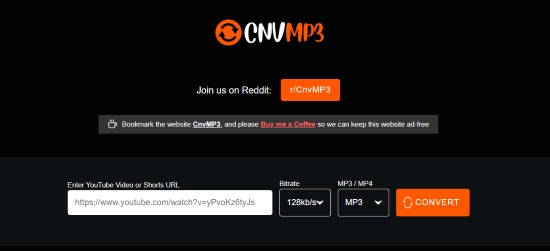
Step 2. Copy the YouTube video URL and paste it into the input field.
Step 3. Select 'MP3' as the output format. And you can adjust the audio output bitrate, up to 320 kbps.
Step 4. Click 'Convert' and download the generated audio file to your device.
Pros and Cons of Cnvmp3
Free and browser-based;
No account or installation required;
Supports 320kbps MP3 for Free;
Clean and efficent interface
Limited audio quality options;
No batch or playlist support;
Frequent pop-ups and redirects;
Platform may become inaccessible without notice
See also: CNVMP3 Review & Best Alternatives
3. YTmp3
YTMP3 is one of the most minimalist YouTube-to-audio tools available online. It focuses on speed and ease of use, making it ideal for users who want a fast MP3 download with minimal interaction.
Website: https://ytmp3.ai/

How to Download Audio from YouTube Video via YTMP3
Step 1. Visit the YTMP3 website in your browser.
Step 2. Paste the YouTube video link into the search box.
Step 3. Choose 'MP3' as the output format.
Step 4. Click 'Convert', then download the YouTube audio once processing is complete.
Pros and Cons of YTMP3
Extremely easy to use;
Fast conversion speed;
Support MP3 and MP4 output;
Works on all browsers and devices
Output quality capped (usually 128kbps);
No playlist or batch download support;
Ads and redirect links may appear;
Unreliable server stability and high risk of site deactivation
4. Clipto
Clipto is an online media downloader that supports both video and audio extraction from YouTube. It offers a cleaner interface compared to many free tools, though functionality remains basic.
Website: https://www.clipto.com/media-downloader/youtube-audio-downloader

How to Download YouTube Audio via Clipto
Step 1. Open Clipto in your web browser.
Step 2. Paste the YouTube video URL into the input box.
Step 3. Select MP3 or another available audio format, like OGG, M4A, etc.
Step 4. Click 'Download' to save the audio file to your device.
Pros and Cons of Clipto
Simple and modern interface;
No software installation required;
Supports both video and audio downloads from YouTube;
Offers a range of audio formats to suit different needs;
More reliable compared to competing online tools
No metadata retention;
Output quality can fluctuate depending on the source;
Lacks advanced audio customization (bitrate, sample rate);
Cannot download multiple tracks or playlists simultaneously
Part 4. Best YouTube Video Audio Downloaders (iOS & Android)
While desktop and online tools work well on computers, mobile users often prefer app-based solutions for downloading YouTube audio directly on their phones. Below are two reliable apps designed specifically for iOS and Android devices.
1. iDownloader (iOS)
iDownloader is a feature-rich downloader for iPhone and iPad users. It allows you to download and store YouTube audio files locally for offline playback, making it a popular choice on iOS.

How to Use iDownloader to Download YouTube Audio on iPhone/iPad
Step 1. Launch the iDownloader app on your iOS device.
Step 2. Open YouTube, find the video you want, and copy its URL.
Step 3. Return to iDownloader and paste the link into the download field.
Step 4. Choose the audio format you prefer (like MP3). Tap the 'Download' option to start conversion. After finished, you'll get the YouTube audio file on you iOS device.
Pros and Cons of iDownloader
Designed specifically for iOS;
Supports offline playback;
Built-in file manager
App Store limitations may affect features;
Some functions require in-app purchases;
Not always works for YouTube videos
2. TubeMate (Android/Windows)
TubeMate is a well-known YouTube downloader for both Android and Windows devices. It supports both video downloads and audio extraction, allowing users to save YouTube content as MP3 files directly on their phones.

How to Use TubeMate to Download YouTube Audio on Android
Step 1. Download and install TubeMate from its official website (ensure you enable "Install from Unknown Sources" on Android).
Step 2. Launch the app and use the integrated search bar to find your desired YouTube video.
Step 3. Tap the green 'Download' button and select MP3 from the list of available audio formats.
Step 4. After the process finishes, locate your file in the 'Downloads' folder of your device storage.
Pros and Cons of TubeMate
Built-in browser for YouTube and other video sites;
Supports multiple formats and resolutions;
Supports batch and playlist downloads;
Resumable downloads after connection interruptions;
Fast download speed
Not available on Google Play (APK installation carries potential security risks);
Requires an extra MP3 converter plugin for high-quality audio;
Outdated interface and user experience;
Frequent manual updates needed to stay compatible with YouTube;
Interface may include ads
Part 5. Comparison of YouTube Audio Downloaders (Desktop, Online & Mobile)
With countless YouTube to audio converters available, selecting the right tool depends on your priority - be it audio fidelity, speed, or cost. The table below compares our top recommendations across platforms to help you find the perfect match for your workflow.
| YouTube Audio Downloaders | Platform | Max Audio Quality | Output Formats | Cost | Batch/Playlist | Download Speed | Metadata Retention | Ads | Rating |
|---|---|---|---|---|---|---|---|---|---|
| AudFree Audio Capture | Windows/macOS | Lossless | MP3, FLAC, WAV, etc. (16+) | Paid | ❌ | Slow (Real-time capture) | ✅ | ❌ | ⭐⭐⭐⭐ |
| AudFree Streaming Audio Recorder | Windows/macOS | Lossless | MP3, FLAC, WAV, AIFF, etc. | Paid | ✅ | Very fast (up to 30×) | ✅ | ❌ | ⭐⭐⭐⭐ |
| MediaHuman | Windows/macOS | High (Lossy only) | MP3, AAC, OGG, WAV | Free/Paid | ✅ | Medium | ❌ | ❌ | ⭐⭐⭐ |
| ClipGrab | Windows/macOS | Medium | MP3, OGG, WMV, MPEG4 | Free | ❌ | Medium | ❌ | ❌ | ⭐⭐⭐ |
| Y2Mate | Online | Low-Medium | MP3 | Free | ❌ | Medium | ❌ | ✅ | ⭐⭐⭐ |
| CnvMP3 | Online | Medium (320kbps MP3) | MP3, MP4 | Free | ❌ | Medium | ❌ | ✅ | ⭐⭐⭐ |
| YTMP3 | Online | Low | MP3, MP4 | Free | ❌ | Fast | ❌ | ✅ | ⭐⭐⭐ |
| Clipto | Online | Medium-High | MP3, M4A, OGG, etc. | Free | ❌ | Medium | ❌ | ✅ | ⭐⭐⭐ |
| iDownloader | iOS | Medium | MP3 (limited) | Free/Paid | ❌ | Medium | ❌ | ✅ | ⭐⭐⭐ |
| TubeMate | Android/Windows | Medium-High (Lossy) | MP3, M4A, MP4, etc. | Free | ✅ | Fast | ❌ | ✅ | ⭐⭐⭐ |
Part 6. FAQs about Downloading YouTube Audio
Why can't I burn a CD of my downloaded YouTube audio files?
In most cases, the problem is file format or audio specifications. Most YouTube audio downloads are saved in compressed or non-CD-compatible formats (such as MP3 with unsupported bitrates or sample rates) or may contain incomplete metadata or DRM-related restrictions. To burn an audio CD successfully, files must be in standard CD-DA format (16-bit, 44.1 kHz PCM WAV). Converting your files to CD-compatible WAV and using proper burning software usually resolves this issue.
See also: How to Burn Music to a CD from YouTube
Download Audio from YouTube to MP3 or WAV: which is better?
It depends on your needs. MP3 is ideal for everyday listening due to its smaller file size and broad device compatibility. WAV is better for audio CDs, editing, or archiving because it is uncompressed and lossless, preserving maximum sound quality - though at the cost of much larger files.
• MP3: Smaller file size, widely compatible, ideal for portable devices
• WAV: Lossless quality, perfect for editing, archiving, or CD burning
If you care about audio quality, WAV is better. If storage space matters, MP3 at 320kbps is usually sufficient.
See also: How to Convert YouTube Music to WAV
Are there any free YouTube audio converters to FLAC available?
True FLAC output is rare among free online YouTube audio downloaders, as most web-based tools only support MP3 or M4A. While a few free options claim to offer FLAC output, such as Loader.to or AceThinker Free YouTube to FLAC Converter, they often suffer from unstable performance and very limited audio controls.
For consistent results, preserved audio quality, and efficient downloads, desktop software like AudFree Audio Capture or AudFree Streaming Audio Recorder is a far more reliable choice for generating real FLAC files.
See also: How to Convert YouTube to FLAC
Conlusion
In short, choosing the best YouTube audio downloader depends on your priorities. If you want lossless audio quality and advanced control, desktop tools like AudFree Audio Capture or AudFree Streaming Audio Recorder are unmatched. If you need a quick and free solution, online YouTube audio converters work for occasional use. For mobile users, dedicated apps provide flexibility on the go.
No matter which option you choose, always balance audio quality, convenience, and long-term usability to get the best experience when downloading audio from YouTube.

Staff Editor


