


In today's fast-paced world, streaming music has become one of the most popular ways to listen to music. However, many users want to take their favorite tunes offline, often looking for reliable and efficient ways to download music. One tool that has gained attention in recent years is Musify, a music downloader that allows users to download DRM-free music on their mobile phones.
But is Musify safe to use in 2026? Is it worth the investment? In this comprehensive review, we'll dive deep into everything you need to know about Musify, including its features, pros and cons, safety concerns, and more. We'll also compare Musify with some top alternatives like AudFree Streaming Music Converter, to help you make an informed decision.

Part 1. What Is Musify?
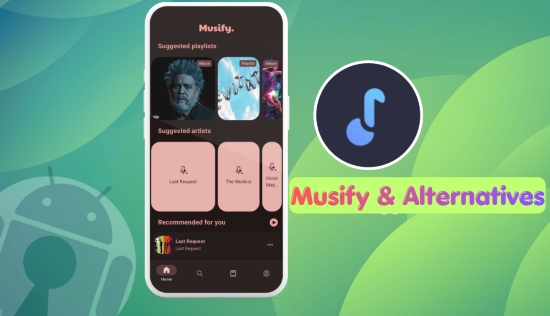
Musify is a music player and converter designed to help users download audio from popular music streaming services. Whether you're looking to download tracks, albums, or entire playlists, Musify provides a fast and easy way to save your favorite music for offline listening.
With its ad-free interface and simple workflow, Musify supports downloading music from YouTube, saving the stream as an unprotected M4A or MP3. It also allows users to stream music with over 100 million tracks without login.
Musify typically searches for the song on YouTube (via Piped or similar APIs) and downloads the audio stream from there without the need for a premium subscription.
Part 2. How to Use Musify Music Downloader (Step-by-Step Guide)
Using Musify on your Android device is remarkably straightforward. Follow this step-by-step guide to build your offline music library.
Step 1. Navigate to the official Musify GitHub repository using your mobile web browser.
Step 2. Download the latest .apk file from the "Releases" section and follow the on-screen prompts to install it on your phone.
Step 3. Open the app and use the search bar to find the specific songs or albums you wish to download.
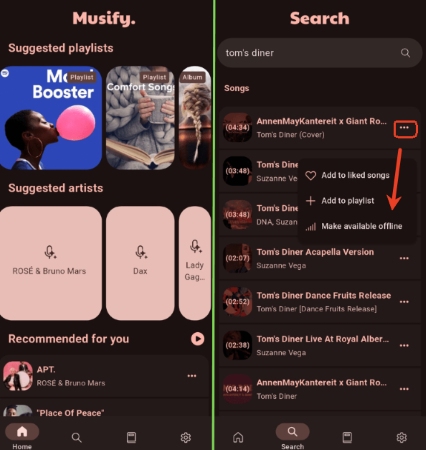
Step 4. Tap the 'three-dot' menu next to your selection and select "Make available offline" to begin the download.
Before downloading, you can customize your experience in the settings menu. You can choose between Low (~48-64 kbps), Medium (~96-128 kbps), and High (~128-160 kbps). All downloaded files are stored locally for easy access anytime.
Part 3. Pros and Cons of Musify
While Musify offers an incredibly convenient and cost-free way to enjoy music offline, there are several trade-offs to consider before making it your primary media player and manager. The first one is that it is only available for Android users.
DRM-Free Downloads: Musify allows you to download tracks from YouTube Music, Spotify, SoundCloud, and more without a premium subscription, providing files that are free from digital restrictions;
Efficient Batch Downloading: You can save entire albums or custom playlists with a single tap, significantly reducing the manual effort required to build a library;
Intuitive User Interface: Designed with a clean, Material Design 3 aesthetic, the app is accessible for beginners while remaining functional for advanced users;
Ad-Free Experience: Unlike some official app, Musify provides an uninterrupted listening experience without intrusive audio or visual advertisements;
Privacy-Focused: The open-source version requires no account login, ensuring your listening habits remain private and stored only on your device
Audio Quality Ceiling: The native maximum quality is generally capped at 160 kbps (Opus/M4A). While some forks claim 320 kbps support, this is often upscaled and may not satisfy true audiophiles seeking lossless fidelity;
Platform Limitations: While Musify boasts access to over 100 million tracks, it is primarily tied to YouTube's database and may not support niche libraries from other premium streaming services;
Variable Download Speeds: Performance can fluctuate based on YouTube's API stability and your local network, occasionally leading to slower download times compared to premium converters;
Occasional Software Glitches: As an open-source project, users may encounter minor bugs, such as metadata (ID3 tag) mismatches or temporary "playback errors" following platform API updates
Part 4. Is Musify Safe to Use?
Safety is a top priority for users seeking free alternatives to mainstream players. Because Musify is not hosted on standard app stores like Google Play, it is natural to have questions about its security. Here is an honest assessment of the risks involved:
• Security of Open-Source Code: Unlike "black box" proprietary software, Musify's source code is public on GitHub. This transparency allows the developer community to audit the code for malicious scripts. For users, this makes it significantly safer than downloading from random, ad-heavy "free MP3" websites.
• The Risk of Third-Party APKs: While the official GitHub repository is safe, you must be cautious. Malicious actors often upload modified versions of popular APKs to unofficial sites. Always download Musify directly from the official GitHub "Releases" page and consider scanning the file with a tool like VirusTotal before installation.
• Legal & Terms of Service Considerations: Technically, Musify operates in a legal "gray area". While downloading for private, offline use is common, it does violate the Terms of Service for platforms like YouTube. Users should be aware that these services may occasionally block IPs or accounts associated with automated "bot-like" download behavior.
• Device Permissions: When installing, the app will ask for permission to access your storage to save files. This is a standard requirement for any downloader, but you should always monitor app permissions in your Android settings to ensure no unnecessary data is being accessed.
In short, Musify is considered safe for those who download it from the official developer's GitHub. It is an excellent tool for personal use, provided you stay updated on the latest releases to ensure the security patches and API fixes are current.
Part 5. Best Alternative to Musify - AudFree Streaming Music Converter
If you're looking for a safer and more reliable alternative to Musify, AudFree Streaming Music Converter is an excellent choice. This versatile software allows you to download music from over 10 streaming platforms, including YouTube Music, Spotify, Tidal, and more, in high-quality formats like MP3, FLAC, WAV, AIFF, and others.
Unlike Musify, AudFree has earned praise for its ease of use, lightning-fast download speed, consistent audio quality, and reliability. It provides several key advantages that make it a standout option for music enthusiasts:
AudFree Streaming Music Converter

- Bypass Musify's 160 kbps limit with high-fidelity FLAC and WAV output
- Seamlessly supports YouTube Music, Spotify, TIDAL, and more
- Preserves all ID3 tags automatically for a tidy library
- Save time by downloading full playlists and albums at once
- No credential sharing required, users' privacy is prioritized
- Step 1. Launch and Activate AudFree Streaming Music Converter

- Install and open the AudFree program on your Windows or Mac. You will see a dashboard featuring icons for all supported services. If you have a license, click the "Register" icon to unlock the full potential of the software.
- Step 2. Set Output Format As Needed

- Click the "Menu icon > Preferences > Conversion". Here, you can select your preferred output format (e.g., MP3 or FLAC) and adjust settings such as bitrate, sample rate, and audio channels as needed. Under the "Output" tab, choose your destination folder and enable the option to retain ID3 tags.
- Step 3. Add Tracks to Conversion List

- Click any streaming service icon (e.g., YouTube Music or TIDAL) to launch the built-in player and log in. Browse for the songs, albums, or playlists you want to archive. Once you find them, simply click the "+" (plus) button to add them to the conversion queue.
- Step 4. Start Conversion Process

- Review your list in the "Converting" tab and click the "Convert" button. AudFree program will process the files at lightning-fast speed. Once finished, find your DRM-free files in the "Converted" history or your local output folder.
Pros and Cons of AudFree Streaming Music Converter
Offers ultra-fast download speeds with consistent performance;
Preserves original audio quality while converting to FLAC, MP3, WAV, and more;
Supports streaming services like YouTube Music, Spotify, Tidal, Apple Music, and more (10+);
Preserves ID3 tags, album art, and other important track details.;
Access reliable customer support whenever needed;
Account credentials remain secure;
Clean, intuitive user interface with an easy-to-follow workflow;
Ideal for downloading multiple tracks, playlists, or albums for long-term music archiving
Requires a Windows or macOS computer;
Only available on Windows and macOS;
Full features require a paid license
Part 6. Musify vs AudFree: Which One Should You Choose?
The following table provides a side-by-side technical comparison between Musify and AudFree Streaming Music Converter.
| Features | Musify Music Downloader | AudFree Streaming Music Converter |
|---|---|---|
| Platform | Android | Windows/macOS |
| Installation | Required | Required |
| Stability | Stable | Highly stable |
| Security | Potential risks | Secure local environment |
| Audio Quality | Unverifiable (128kbps in common) | High (true 24-bit/192kHz) |
| Batch Support | ✅ | ✅ |
| Ads & Pop-ups | ❌ | ❌ |
| 24/7 Customer Service | ❌ | ✅ |
| Ease to Use | ★★★★☆ | ★★★★★ |
If you prioritize security, speed, and high-quality downloads, AudFree is the better choice. However, if you're looking for a free solution, Musify may be worth considering, but use it with caution.
Part 7. FAQs About Musify Music Downloader
Is Musify legal to use for offline listening?
Musify operates in a legal 'gray area'. While it is free, open-source software, downloading content from platforms like YouTube violates their Terms of Service. It is generally considered safe for private, personal use, but redistributing downloaded files is illegal.
Is there a Musify version for Windows or macOS?
No. The official GitHub project by gokadzev is built exclusively for Android. To use it on a computer, you would need an Android emulator (like BlueStacks). For a native desktop experience, users typically turn to premium alternatives like AudFree Streaming Music Converter.
What is the maximum bitrate Musify can download?
The maximum native quality is typically '160 kbps' (using the Opus or M4A codec), as it is limited by YouTube's source streams. Any setting claiming '320 kbps' is usually upscaled and does not provide true high-resolution audio.
Are there free alternatives to the musify music downloader?
Yes. Popular free open-source alternatives for Android include ViMusic, RiMusic, ReVanced, and Harmony Music. These also scrape YouTube Music to provide an ad-free experience.
See also: YouTube Music ReVanced Review
Where does Musify store downloaded music files on my device?
By default, files are stored in the app's internal data folder: /Android/data/com.gokadzev.musify/files. However, you can usually change this in the app settings to a public folder like /Downloads or your SD card for easier access.
How do I fix 'Download Failed' or 'Playback Error' in the Musify MP3 Downloader?
These errors are usually caused by YouTube API changes. To fix them:
1. Update to the latest version from GitHub.
2. Clear the app cache in your Android settings.
3. Check your internet connection or disable any active VPNs that might be blocking the stream.
In Summary
In conclusion, Musify offers a convenient way to download music from multiple platforms, but it's not without its risks and limitations. For casual users who want a simple, free downloader, it's a decent choice. However, for those looking for a more secure, high-quality solution with fewer legal concerns, AudFree Streaming Music Converter stands out as a superior option.
Choose the tool that best meets your needs and always ensure you're adhering to copyright laws when downloading music for offline listening.

Staff Editor


