


Tidal previously offered an official app for Fire TV and Fire TV Stick for users to stream music directly. However, now Tidal no longer supports new installations on Amazon Fire TV. If you already have the Tidal app installed on your Fire TV previously, you may use Tidal on Fire TV depending on the device and app version. For users who own the new versions of Fire TV, please use the alternatives like a USB drive, mirroring, etc. to enjoy music.
In this article, we will introduce the detailed steps to play Tidal on Fire TV with or without the Tidal app. Without further ado, let's get started now!


Part 1. How to Play Tidal on Fire TV with Tidal App [For Old Models]
If you have an older Fire TV or Firestick with the Tidal app already installed, you may still use Tidal on your smart TV. Now let's see how to link Tidal to Fire TV.
Step 1. Power on your Fire TV or Firestick.
Step 2. Open Apps from the Fire TV home screen, then find and open the Tidal app.
Step 3. Log in to your existing Tidal account and find any track that you want to play on Firesticks. If you are a new user, please sign up to get a 30-days free trial of Tidal.
View also: How to Get Tidal Free Trial
Part 2. How to Play Tidal on Amazon Fire TV without the App [For All Models]
If you don't have the Tidal app on your Firestick, or the Tidal app won't work on your Fire TV, you can get local Tidal files to a USB drive for playing on your TV.
For starters, you need to find a powerful third-party tool to download HiRes FLAC song from Tidal onto computer and then import Tidal music to Firesticks. Here, we recommend AudFree Tidal Music Converter for you. Unlike other similar products, this smart tool takes full advantage of the latest converting skills, downloading and converting all genres of Tidal music to lossless FLAC, MP3, and other Firestick-enabled formats with 100% ORIGINAL Tidal audio quality.
Apart from that, full raw metadata and ID3 tags will be kept in the local file after the conversion, which enables you to reorder your local music library with ease. Most importantly, it empowers you to play Tidal on Fire TV Stick and other devices or players anytime without the Tidal app and even Tidal subscription.
AudFree Tidal Music Converter for Amazon Fire TV

- Losslessly download and convert Tidal tracks
- Support to import Tidal music to Fire Stick
- Preserve 100% original quality and raw metadata
- Work at about 37X faster speed, modify music parameters
How to Download Tidal Music for Amazon Fire TV
- Step 1. Add Tidal tracks and playlists to AudFree Tidal Music Converter

- Download and install AudFree Tidal Music Converter on your computer. After logging into your Tidal account, please search for the songs or playlists you desire to play from Tidal on Firesticks. Next, directly hit on the '+' bubble > the 'Add to list' button to import Tidal music to AudFree Tidal Music Converter.
It is totally safe and legal to install this application for individual use.
- Step 2. Change output settings for Tidal to Amazon Fire Stick

- For Mac users, please go to the 'AudFree Tidal Music Converter' tab from the system's menu bar on the Mac. For Windows users, just hit the menu icon from the upper-right corner of AudFree Tidal Music Converter's main page. Then direct to format settings through the 'Preferences > Conversion'. Now, you can modify the output settings as lossless MP3 at 320 kbps/48000 Hz, FLAC at 24-bit/192000 Hz, and more formats supported by Amazon Fire TV. Also, you can personalize the bit rate, sample rate, and other parameters for smooth Tidal music playback on Fire TV.
- Step 3. Convert Tidal tracks for Amazon Fire TV

- Simply tap on the big 'Convert' button to start converting. When the conversion is finished, an obvious red prompt will guide you to the target folder where all finished Tidal streams are saved.
To download music for use on Amazon Fire TV, you can also use AudFree Streaming Audio Recorder. It is an all-in-one music downloader that supports to download audio content from Tidal, Spotify, Apple Music, YouTube Music, Amazon Music, SoundCloud, Qobuz, Deezer, Audible, etc. for offline playback anywhere.
View also: How to Play Tidal Music on Multiple Devices Simultaneously
Now, you can access your local audio files of Tidal on Firesticks as the following steps.
How to Put Tidal Music on Fire TV for Offline Playback
Step 1. Connect your USB drive to the computer and drag all local Tidal tracks into the USB flash drive.

Step 2. Insert the USB into your Fire Stick box via the USB port.
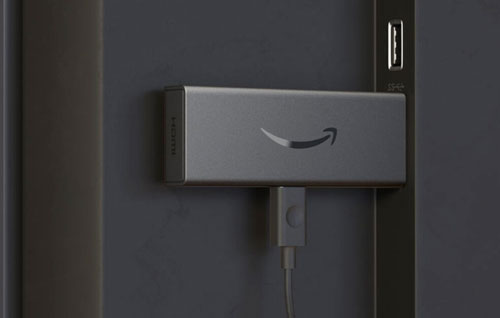
Step 3. Select and install a media player on your Fire TV for Tidal music offline playback from the USB drive.
It is recommended to transfer Tidal playlists to Amazon Music. In this way, you can use the Amazon Music app to play Tidal on Amazon Fire TV directly.
Part 3. How to Mirror Tidal to Firestick from Phone
If you don't want to get the local Tidal music files for playing on Fire TV, you can cast Tidal music from your Android or iOS mobile phone to your TV directly.
Mirror Tidal to Firestick from Android
Step 1. On your Fire TV remote, hold the Home button and choose Mirroring.
Step 2. Go to Android phone, go to the Settings app, then choose Connected Devices > Cast. Then choose your Fire TV from the list.
Step 3. Start the Tidal app on your phone, find and play any track. Later, the music will stream on your Fire TV.
Mirror Tidal to Fire TV from iPhone
For iOS users, you can't use the AirPlay function to cast Tidal music to Fire TV. Instead, you need to use a compatible screen-mirroring receiver app on Fire TV. Here you can try AirBeamTV. It supports all Amazon Fire TV models, including Fire TV Stick 4K, Fire TV Stick, Fire TV Box, Fire TV Cube, Fire TV Pendant and smart TVs with Fire TV OS.
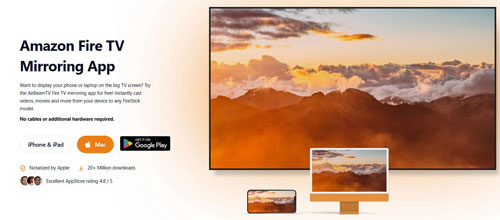
Step 1. Install Firestick Remote & Cast FireTV by AirBeamTV on your iPhone.
Step 2. Install the required Mirror Receiver for Fire TV on your Fire TV.
Step 3. Connect your iPhone and Fire TV to the exact same WiFi network.
Step 4. Open AirBeamTV on your iPhone, choose your Fire TV and start mirroring.
Step 3. Launch the Tidal app on your iPhone, play any music and the audio will be mirrored to your Fire TV.
Part 4. How to Fix Tidal Not Working on Fire TV
While using Tidal on Fire TV, you may get some issues. Now, this part will show some common problems between them and the fixes to each issue.
Issue 1: Tidal Won't Open on Fire TV
Fix: Go to "Settings" on your Fire TV, select "Applications", and then select "Manage Installed Applications". Next, scroll down to find Tidal, select "Force Stop", and then select "Clear Cache". Finally, relaunch the Tidal app from the home screen.
Issue 2: Tidal Keeps Buffering on Fire TV
Fix: Try to restart your router, then reconnect Fire TV to a 5GHz WiFi band. Also, restart Fire TV and reopen the Tidal app to see if the issue is fixed.
Issue 3: Tidal Has No Sound on Fire TV
Fix: Go to your Fire TV Settings, choose 'Display & Audio', then click 'Audio'. Under 'Surround Sound', change the setting from 'Best Available' to 'PCM'.
Part 5. FAQs about Tidal on Firestick
Does Tidal Support Dolby Atmos on Firestick?
No. Amazon Fire TV does not support Tidal Dolby Atmos. Now, Tidal only supports Dolby Atmos on its supported devices such as Apple TV 4K, Nvidia Shield TV/TV Pro, etc.
Does Tidal on Fire TV Support Lyrics?
Yes. For supported Tidal tracks, you can view time-synced lyrics on the Fire TV's screen.
Can I Listen to Tidal through a Fire TV Soundbar?
Yes. As long as your soundbar is properly connected to your TV or Fire TV device, Tidal audio will automatically play through the soundbar.
Can I Sideload Tidal to Firestick?
While you could try sideloading an older version of the Tidal Android APK onto your Firestick, the lack of touchscreen support leads to severe interface misalignment, and the remote control does not function correctly. We strongly recommend using the AudFree Tidal Music Converter + USB drive local playback method or casting from your mobile phone.
Part 6. In Conclusion
In a word, if your Fire TV already has a Tidal app, you can directly play Tidal music with it.
If your Fire TV can't install the Tidal app, we recommend you take priority to AudFree Tidal Music Converter. This tool allows you to convert Tidal music for Fire TV and play Tidal music anytime and anywhere such as Samsung TV besides Fire Sticks. So don't hesitate anymore!

Staff Editor


