


As one of the most popular music streaming services, Spotify brings a lot of good experiences to its users. However, if you are a free user, you need to put up with annoying audio ads while listening to music, often playing two or three ads every few songs. This definitely ruins your listening experience. While with a Spotify Premium subscription, you can skip all these ads to enjoy a more seamless and uninterrupted listening experience. Here you may wonder if there is any way to get Spotify no ads for free. The answer is yes.
In this article, we will show you 12 working ways to remove ads from Spotify on Mac, PC, iOS, Android, or even a web player. After that, you'll be able to listen to Spotify songs, podcasts, etc. without ads, even with a free account.
Quick Answer to Block Spotify Ads:
Via Official Spotify Premium: Best for 100% safety and offline listening;
Via AudFree Spotify Music Converter: Best for permanent ad-removal, high-fidelity local files and no risk of ban;
Via GitHub Tools (SpotX/xManager): Best for tech-savvy users on Windows computer and Android devices;
Via Browser Extensions: Best for quick and no-install ad-blocking on desktops.


Part 1. How to Get Spotify No Ads without Premium Permanently
There are various tools to help remove ads from Spotify on the market. But most of them just 'mute' or 'skip' the ad in real time. So, here we will list a professional and reliable tool for you to block Spotify ads on Windows and Mac and ensure you never hear the ad again.
1. AudFree Spotify Music Converter
Here we have handpicked the best one - AudFree Spotify Music Downloader. It is not only a Spotify ad blocker for PC/Mac but also a Spotify music downloader and converter. It's capable of downloading Spotify music to your local drive without Spotify Premium. You can select the output format among MP3, FLAC, WAV, AIFF, Lossless, M4A, and M4B. After downloading, all the annoying ads on Spotify will be removed automatically.
More importantly, it can keep the 100% lossless audio quality of all Spotify songs. All the metadata information of the songs is fully kept. In this case, you can get the original Spotify music without ads.
Unlike scripts that require reinstallation every time the Spotify app is updated, AudFree creates a permanent offline music library that remains ad-free, regardless of any security patches Spotify may release in the future. Therefore, if you want to get Spotify no ads Mac/PC, the best choice is AudFree Spotify Music Converter.
How to Block Spotify Ads Mac/PC without Premium via AudFree Spotify Music Downloader
Below is a detailed but easy tutorial on how to get no ads on Spotify on Mac or PC for offline listening.
- Step 1. Load Spotify Songs to AudFree Spotify Converter

- Install and launch AudFree Spotify Music Converter on your Mac/PC computer. You can pick up tracks from Spotify and tap the '+ ♫' button on the main interface of AudFree program. After that, you need to click the 'Add to list' button to load files.
- Step 2. Set Output Formats for Spotify Music

- To get high output audio quality, you'd better open the settings window. To do that, please click the 'Menu' > 'Preferences' > 'Conversion' option. Then you can set the output format you need. It's able to convert Spotify music to MP3, FLAC, WAV and other common formats. In addition, you can customize the bit rate to 320kbps.
- Step 3. Remove Ads from Spotify without Premium

- Now, you need to hit the 'Convert' button in the Converting section. Then this professional tool will download Spotify music as ad-free files on your computer locally without Premium. After the conversion, you can keep Spotify songs forever and listen to Spotify music offline on all devices without ads interruptions.
If you prefer a traditional way to block ads from Spotify, you can try AudFree Audio Capture. It can capture and download any sound that is playing on your computer with just one click, such as music played by popular streaming platforms like Spotify.
Besides, if you want to remove ads from not only Spotify but also other music services, you can use AudFree Streaming Audio Recorder. It supports YouTube Music, Amazon Music, Tidal, Apple Music, SoundCloud and so on.
Part 2. How to Get Spotify No Ads iOS
The above tool only works on Windows and Mac computers. If you wonder how to remove ads from Spotify without premium on iPhone, iPad or other iOS devices, check below. After careful research and selection, we found 2 completely free tools for you.
1. Mutify (iOS/Android)
Mutify can help you automatically turn down the volume of ads. So, it won't interfere with your Spotify app either, and you can sit back and enjoy your favorite music. It doesn't ask for any permissions and only works in the background. In the meantime, the simple and clean user interface brings great convenience in the process of using it. But when the screen is switched off, it will play the advert until the screen is activated.
View also: How to Play Spotify in the Background
How to Block Spotify Ads on iPhone/iPad via Mutify

Step 1. Install Mutify on your phone from the app store.
Step 2. Then launch the Spotify app and click the gear-shaped 'Settings' icon at the top-right of the window.
Step 3. Scroll down in the settings window and toggle the slider next to the 'Device Broadcast Status' option.
Step 4. Close the Spotify app, open your phone settings, and find 'Battery Optimization' on your phone.
Step 5. Tap the 'Unoptimized' option, and then click 'Mutify' in the 'All apps' list.
Step 6. Select the 'Don't optimize' button and tap 'Done', which disables battery optimization for Mutify.
Step 7. Open the Mutify software and tap the 'I have enabled' option to enable 'Device Broadcast Status'.
Step 8. Toggle the slider next to 'Mute Ads', in turn, Mutify will immediately block Spotify ads on iPhone or other iOS devices.
2. StopAd (iOS/Android/Mac/Windows)
StopAd is an application dedicated to stopping ads. It can be used to remove pop-up ads on all types of web pages. The biggest benefit of StopAd is the increased privacy and security when surfing the web. Because the automatic removal of ads protects the user's privacy rather than automatically sharing it with unseen advertisers and potentially malicious companies.
In addition, StopAd works perfectly on almost all popular websites and web pages, effectively blocking ads and speeding up your browsing experience. Furthermore, it also works as a pop-up blocker and helps prevent certain forms of malware. Thus, if you are looking for a free and easy way to block all those pesky ads on Spotify, StopAd is undoubtedly one of the best Spotify ad blockers.
How to Get Spotify without Ads iOS Using StopAd

Step 1. Install StopAd on your iPhone, then navigate to 'Settings' on the StopAd main window.
Step 2. Please simply touch the 'Applications' button and select 'Search app' to type Spotify to enter the Spotify app.
Step 3. Select the checkbox next to Spotify and click on the 'Add to filtering' option.
Step 4. Then you can run the Spotify app to listen to music with Spotify ads blocked without any hassle.
Also, tools like Eevee Spotify can help block ads on iOS.
Part 3. How to Get Spotify No Ads Mac
To play Spotify without ads Mac, besides the ways we introduced above, you can also try other ways. Please read on and follow the steps below to get rid of ads on Spotify Mac.
1. Host File (Mac/Windows)
This is a way to remove Spotify ads by modifying the host file for Mac or Windows computers. It's completely free and does not require anything to be installed on your computer. You just need to make use of Spotify ad URLs and block these links in the computer system host files. But, by modifying the Hosts file to block ads is becoming increasingly unreliable, as Spotify now serves many of its advertisements directly through the same domains used for its music files.
How to Block Spotify Ads on Mac/Windows with Host File

Step 1. Please locate your host files on your computer.
For Windows users: Locate this path: C:\Windows\System32\drivers\etc\hosts. Also, refresh the DNS cache with ipconfig /flushdns after editing the file with Administrator's privileges.
For Mac users: Go to /etc/hosts and it can be edited from Terminal with sudo vim /etc/hosts or sudo nano /etc/hosts.
Step 2. Copy the list of hosts found here at the bottom of the file and paste it to cover the old file with the edited one.
Step 3. Now, please reopen the Spotify app and you can start to make Spotify block ads. It's time to listen to Spotify tracks on your computer as you want.
By using this method, the regular changes to the host file are required, there will be an impact on the computer, and Spotify application may not function properly. So, please always create a backup of your original hosts file before starting.
Part 4. How to Get Spotify No Ads PC
To get no ads Spotify on Windows 10/11/8/7 PC, you can seek help from Spotify ad blockers. Here we will show you two of them. Please check the details below.
1. SpotX (Windows)
SpotX is a widely popular GitHub-based project that remains fully functional, having successfully weathered numerous Spotify updates throughout 2026. By modifying the Spotify client, it effectively blocks all advertisements and unlocks the 'skip' feature.
How to Remove Ads from Spotify on Windows via SpotX

Step 1. Close the running Spotify app on your Windows computer completely.
Step 2. Visit SpotX GitHub page and download the latest SpotX script.
Step 3. Run the downloaded script. Then follow the on-screen prompts to select whether you want to disable 'vertical video' or 'podcasts' along with the ads.
After that, you can re-open the Spotify app and start enjoying ad-free music.
Using a modified version of the Spotify app may result in your account being temporarily suspended. Please proceed with caution.
2. EZBlocker (Windows)
EZBlocker is described as a "beautifully simple Spotify ad blocker that automatically blocks commercials". It is an easy-to-use Spotify ad remover in the web browser category. Once the ad appears, EZBlocker will prevent the ads from loading on Spotify by muting Spotify until the ad ends.
What's more, when EZBlocker removes Spotify ads, only Spotify is muted and no other sounds are affected. So it is purely an ad-blocking tool without any fancy features. Although EZBlocker has always aimed to be the most stable and reliable ad blocker for Spotify, it may not always work as expected. It will accidentally mute a Spotify song instead of an ad.
How to Get Spotify No Ads PC Using EZBlocker

Step 1. First, make sure that your computer is running Windows 7/8 or 10/11 and has .NET Framework 4.5+. This is to ensure that EZBlocker is compatible with your device's operating system.
Step 2. After that, you can download and install EZBlocker on your Windows computer.
Step 3. Once the installation is complete, permit to run as administrator and get EZBlocker running smoothly on your computer.
Step 4. Select the checkbox near Start EZBlocker and press the "Launch Spotify" button to start playing your Spotify music.
Step 5. When you enjoy your favorite songs on Spotify, EZBlocker will mute Spotify ads in the background so that you won't be disturbed by any annoying ads.
3. Shelblock (Windows/Mac)
Shelblock is a software designed to help users protect their privacy and block unwanted content while browsing the internet. It is easy to install and use, and works with all major web browsers, including Chrome, Firefox, and Edge. Once installed, users can configure the software to block specific types of content, such as Spotify ads, social media widgets, or adult content. They can also create custom filters to block specific websites or types of content.
How to Stop Ads on Spotify with Shelblock

Step 1. Install the Shelblock software on your Windows computer and launch it.
Step 2. Once the software is launched, click on the "Web" tab.
Step 3. Scroll down to find "Spotify" and toggle the switch to "On" to block ads on Spotify.
Step 4. You can also customize the settings by clicking on the gear icon next to Spotify.
Step 5. Once you have made the desired changes, click on "Save".
Step 6. You can now use Spotify without any ads.
Part 5. How to Get Spotify No Ads Android
When it comes to blocking ads on Spotify Android, we'd like to introduce two tools to you.
1. xManager Spotify APK
xManager Spotify APK allows you to enjoy Spotify Premium features on your Android devices with ease. You can then enjoy Spotify music without ads, download music for offline listening, unlimited skips and so on. Now, let's see how to use it to block Spotify ads.
How to Remove Ads from Spotify on Android via xManager

Step 1. Download and install xManager from its official website.
Step 2. Open the program and head to download Spotify xManager APK.
Step 3. After that, you can start to listen to Spotify songs without ads.
xManager contains unknown viruses and risks. Sometimes it doesn't work and it only works on Android devices
View also: How to Download and Use xManager Spotify APK
2. SpotMute
SpotMute can detect Spotify ads with the help of media notifications from Spotify's built-in device radio status feature. Similarly to Mutify, when a Spotify ad plays, it mutes the music volume and automatically restores the volume afterward. It doesn't block the ad, it can mute Spotify ads. Once the ad is over, SpotMute will unmute it so you can continue enjoying your music.
How to Block Spotify Ads Android via SpotMute

Step 1. Open Google Play Store and search for SpotMute. Download and install it on your Android device.
Step 2. Open SpotMute and go to page 2.
Step 3. Open Spotify and go to 'Settings', scroll down and enable the toggle switch next to 'Device Broadcast Status'.
Step 4. Close Spotify and launch SpotMute. When you see a large toggle switch, click it to enable it.
Step 5. Run SpotMute in the background so it can block ads on Spotify automatically.
By the way, you can use Jojoy Spotify Premium APK to remove ads from Spotify on your Android phone or tablet.
Part 6. How to Block Spotify Ads on Spotify Web Player
Many people use the Spotify web player to listen to Spotify music. But even there, they encounter annoying ads. But thankfully, we are here to provide you with a way to block ads on Spotify web player.
If you use Google Chrome, you can use SpotiAds or Spotify Ad Remover. If you are a Firefox user, you can use the Spotify Ad Blocker extension. Here we will show you how to use SpotiAds.
SpotiAds is a Chrome extension that lets you use Spotify web player without ads. This ad blocker is completely free and works directly after you install it without any further action.
How to Stop Ads on Spotify Web Player with SpotiAds Chrome Extension

Step 1. Go to the Chrome Web Store on your computer's Chrome browser.
Step 2. Search for SpotiAds from the search box.
Step 3. Click on 'SpotiAds' from the search results.
Step 4. Click on 'Add to Chrome'.
Step 5. Now, you can launch the Spotify web player and listen to no ads Spotify music.
Part 7. How to Get Rid of Spotify Ads with a VPN
When you travel abroad, you may find Spotify ads even longer. At this point, the most straightforward way is to use a VPN to access Spotify in your country and thus reduce the ads. Because a VPN encrypts your device data and changes your IP address, you can choose a country with significantly fewer audio ads one by one on your VPN.

Step 1. Find, download and install a VPN you want on your device.
Step 2. Open it and sign up for a new VPN account and then log in to it.
Step 3. Pick up a different VPN location, like Singapore or Switzerland.
Step 4. Start the Spotify app in the VPN app and sign in to your account. Then you will listen to Spotify music with fewer ads or without ads at all.
It doesn't completely block all ads from Spotify. And you may experience slower internet connections and higher data usage.
Part 8. How to Block Ads on Spotify Podcasts
Even with a Spotify Premium account, Spotify's 2026 algorithms frequently insert "host-read" ads into podcast episodes. Here is the method for dealing with this situation.
How to Remove Spotify 'Host-Read' Podcast Ads via Spot SponsorBlock (Desktop & Mobile)
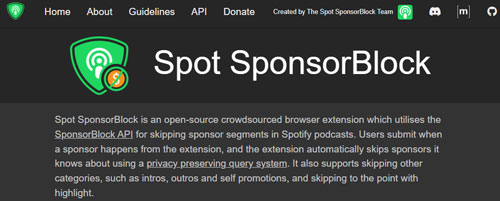
Spot SponsorBlock is a crowdsourced tool that allows users to mark ad segments, enabling the player to automatically skip them.
Step 1. Find and install the official Spot SponsorBlock extension on your Chrome or Firefox web browser. Then enable it on your browser.
Step 2. Play a podcast episode on Spotify. Then you will find the sponsor segments shown in the playing bar are highlighted in different colors.
Step 3. Now, you can hit the colored segment, the app will jump to the end of the ad automatically, giving you a seamless listening experience.
Part 9. Compare Ways to Block Spotify Ads
Above are the ways for you to remove ads from Spotify. Now, you can check the differences among them and pick up the best method to block ads.
| Feature | Via AudFree Spotify Music Converter | Via Official Premium | Via GitHub Scripts (SpotX) | Via xManager | Via Ad-Blockers | Via VPN | Via Host File |
|---|---|---|---|---|---|---|---|
| Best For | Permanent file listening | Official, cross-device stability | Tech-savvy Windows/Mac users | Android power users | Spotify app and web player users | Reducing ad frequency | OS-level blocking without apps |
| Ease of Use | Easy | Very Easy | Medium | Medium | Very easy | Easy | Hard |
| Risk Level | Lowest | None | Low | Medium | Medium | Low | Medium |
| Action Type | Remove (Converts to local files) | Remove (Server-side bypass) | Remove (Patches the app UI) | Remove (Patches client-side) | Mute.Skip (Intercepts requests) | Reduce (Changes ad inventory) | Block (DNS/IP nullification) |
| Success Rate | 100% | 100% | ~95% | ~90% | ~85% | ~40% | ~30% |
Part 10. FAQs about Blocking Spotify Ads
Why Does Spotify Play Ads After Every Song?
It's not normal for Spotify to play ads after every song. A similar issue has occurred before and Spotify's developers have addressed and fixed the issue. If you are experiencing this issue, try updating your Spotify app and logging back into your Spotify account, or clearing the Spotify app's cache.
How Frequent Are Spotify Ads?
Actually, for a Spotify Free subscriber, the longest Spotify audio ad can be up to 30 seconds, usually appearing once every 15 minutes. Under normal conditions, you'll hear an irritating ad every few songs.
View also: Top Longest Song on Spotify
Is It Legal to Block Ads on Spotify?
Although blocking ads violates Spotify's Terms of Service, for individual users, it is legal. However, Spotify reserves the right to suspend or ban accounts detected using 'unauthorized' ad-blocking software.
Why Does Spotify Have So Many Ads?
Spotify offers a basic free plan for users to enjoy, but it needs to make money. So, while free users are listening to their favorite songs, you inevitably hear an advert every few songs.
Can I Block Spotify Ads on a Smart TV or Gaming Console?
Blocking ads on devices such as the PS5, Xbox, or Roku is significantly more difficult. For these devices, the optimal solution is to configure AdGuard DNS at the router level, thereby filtering traffic for all devices within your home network.
Why Am I Still Hearing Ads on Spotify Premium?
Spotify promises that Premium subscribers won't listen to music with ads. Yet, it won't remove all ads, users can still hear ads on podcasts as Spotify allows podcast creators to add dynamic ads to their content. Moreover, these ads can't be skipped even with a subscription and you can't mute or block them. By the way, you can check your premium status, log out and log in back your account, or reinstall the Spotify app to solve this issue.
Part 11. In Conclusion
While Spotify offers people a free version with access to millions of songs, it requires putting up with annoying ads. You can upgrade to Spotify Premium to get rid of Spotify ads. If you want to block ads with Spotify's free service, try any of the solutions listed above for an enjoyable music listening experience.
If you also want to play Spotify music offline while removing Spotify ads, AudFree Spotify Downloader is the best way to do it. It not only downloads Spotify music without ads but also converts Spotify files to MP3, FLAC, etc. without paying. In this case, you can play Spotify music files anywhere and anytime without ads.

Chief Editor


