


For audiophiles, it is frustrating to use Bose SoundTouch speakers with Tidal's high-fidelity, lossless audio. Bose has never offered native support for Tidal or Tidal Connect. What's worse, Bose officially and permanently shut down the SoundTouch cloud servers in May 2026. This disables the app's built-in streaming features.
So, now, to play Tidal on Bose SoundTouch, you must bypass the official Bose app entirely, instead using your smartphone, computer or another hardware device as the primary audio processing hub.
Whether you prioritize the convenience of wireless playback or the pristine quality of uncompressed, studio-grade audio, the following four methods represent the best available options for streaming Tidal to Bose SoundTouch audio system today.


Part 1. How to Play Tidal on Bose SoundTouch via WiFi Streamer
If you want to stream Tidal to Bose SoundTouch with the uncompressed and high-resolution audio quality (24-bit/192kHz), you should use a third-party WiFi audio streamer for playback. Devices like WiiM Mini, WiiM Pro, Arylic S10+, etc. are small and highly affordable. They can act as a modern and high-fidelity brain for older audio equipment. They natively support Tidal Connect feature and support internet connection.
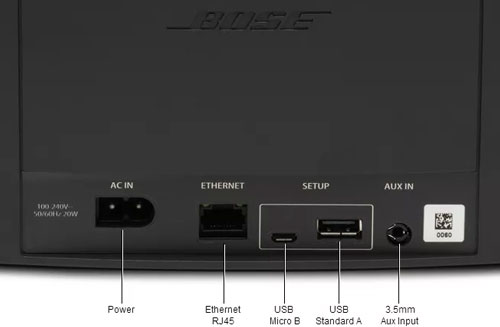
Step 1. Connect the line-out or optical output port on your WiFi streamer to the 'AUX IN' or optical port on the back of your Bose SoundTouch speaker.
Step 2. Plug the streamer into a wall outlet and connect it to your home WiFi network with its companion smartphone app.
Step 3. Power on your Bose SoundTouch speaker and press the 'AUX' button on the physical remote or speaker panel to change the audio source.
Step 4. Launch the Tidal app on your mobile phone, play the music, tap the 'Device Output' icon on the Now Playing screen, then choose your WiFi streamer from the list.
After that, the Tidal music will stream to Bose SoundTouch with lossless audio quality.
View also: How to Play Tidal on WiiM
Part 2. How to Cast Tidal to Bose SoundTouch via AirPlay 2 / Bluetooth
If you prefer wireless streaming, you can use AirPlay or Bluetooth to connect your device to your Bose SoundTouch to play music.
1. Play Tidal on Bose SoundTouch via AirPlay 2
If you have an iPhone, iPad or Mac, you can use Apple AirPlay 2 to play Tidal music on Bose SoundTouch. Most of the modern SoundTouch models such as the Series Ⅲ speaker and the SoundTouch smart soundbars natively support Apple AirPlay 2. By using this method, you can enjoy Tidal music at CD-quality lossless audio up to 16-bit/44.1kHz on your Bose SoundTouch.
First, make sure that your iOS device and your Bose SoundTouch speaker are connected to the exact same home WiFi network. Then connect your device to your SoundTouch to play music via AirPlay.

You can use the Apple Control Center on your lock screen to alter the volume, skip tracks, or pause the music without needing to open the Tidal app again.
2. Stream Tidal on Bose SoundTouch via Bluetooth
If you don't have an external WiFi streamer and you use an Android or Windows device, you can connect Tidal to Bose SoundTouch via Bluetooth. Almost all Bose SoundTouch models, from the compact SoundTouch 10 to the massive SoundTouch 30, have a Bluetooth feature.
However, the audio quality will be compressed. Bluetooth inherently lacks the bandwidth required to transmit large, lossless audio files. Before wirelessly streaming audio, your smartphone is compelled to compress the high-fidelity signal received from Tidal; subsequently, upon receiving this signal, your Bose speaker decompresses it using either the AAC or SBC Bluetooth codec. They don't support high-res codecs like LADC or aptX HD.
This aggressive compression process strips away a portion of the audio data, resulting in a slightly flattened soundstage and diminished dynamics, thereby sacrificing the very sonic details you paid to enjoy through your Tidal subscription.

Step 1. Power your SoundTouch speaker.
Step 2. Press and hold the "Bluetooth/AUX" button until "Ready to Connect" shows (the connectivity indicator light blinks blue).
Step 3. On your Bluetooth-enabled device like your smartphone, tablet or computer, turn on Bluetooth, and proceed to connect it to your SoundTouch.
Once connected, you can open the Tidal app and start playing Tidal music on your Bluetooth-enabled device. And it will automatically stream to your Bose SoundTouch.
Part 3. How to Play Tidal on Bose SoundTouch via AudFree
If you prefer listening to Tidal music on Bose SoundTouch offline, you can import local music files to Bose SoundTouch for playback. As Tidal music files are encrypted and locked within their mobile app, you can't directly add them to a USB drive for use on Bose SoundTouch. You will need a tool like AudFree Tidal Music Converter to break the limit.
It is a professional and powerful tool for Tidal users to download and convert Tidal music to plain audio files, such as MP3, FLAC, AIFF, etc. The converted songs are 100% original and with full ID3 tags. After the conversion, you can easily move the songs to your Bose SoundTouch. Then you can play Tidal on Bose SoundTouch freely without being affected by the Bose cloud service or unstable network.
AudFree Tidal Music Converter allows you to personalize the audio parameters. In this way, you can stream Tidal music to Bose SoundTouch and other devices for offline and permanent playback. Besides, it works at a 37X faster speed to convert Tidal streams with 100% lossless HiRes FLAC quality.
However, it needs time to convert music and will take up some of your computer's local storage space.
AudFree Tidal Music Converter

- Download Tidal music files to local computer
- Convert Tidal to Bose SoundTouch-supported audio files
- Keep all ID3 tags and 100% lossless audio quality
- Play Tidal on Bose SoundTouch and other devices
How to Convert Tidal Music for Bose SoundTouch
In this part, we are going to show you the detailed steps on how to convert Tidal music for playing on Bose SoundTouch. After the conversion, you can also listen to Tidal offline on your computer or any other device you want.
- Step 1. Load Tidal music to AudFree Tidal converter

- First, please open the AudFree Tidal Music Converter on your computer. Discover the target Tidal music and playlists that you'd like to play on Bose SoundTouch. Then open the overview page of the song you find, click the "+" > "Add to list" button to import Tidal files.
- Step 2. Customize Tidal output parameters for Bose SoundTouch

- Now, you can adjust the Tidal output format and other audio parameters according to Bose SoundTouch's requirements. If you are a Windows user, please click the top-right menu at the program main interface to choose the 'Preferences' > 'Conversion' icon to open the setting window. You can set the output audio format as WAV, AIFF, M4A, M4B, etc. When you are using Mac computers, you can click the 'AudFree Tidal Music Converter' from Apple's top menu and find the 'Preferences' option. After settings, then hit on the 'OK' button to apply all the adjustments.
- Step 3. Download Tidal music for Bose SoundTouch

- Now, please go to "Converting" and touch the "Convert" button and AudFree Tidal Music Converter will start to convert Tidal music for Bose SoundTouch. You can see the real-time converting process in the above window. Once the conversion is completed, you can locate and check the converted Tidal tracks on your computer and then start to play Tidal on Bose SoundTouch offline.
Besides Tidal, if you prefer playing music from other music platforms on Bose SoundTouch, you can use AudFree Streaming Audio Recorder to download music. It supports downloading music from YouTube Music, Spotify, Apple Music, Amazon Music, Deezer Music, Qobuz, SoundCloud and so on.
How to Move Tidal Music to Bose SoundTouch
Here we would like to show you how to get Tidal music on Bose SoundTouch. Please note that only music files stored in the computer's "iTunes Music" folder (for iTunes libraries) or the "My Music" folder (for Windows Media Player libraries) will be available in the SoundTouch app. Thus, you need to stream the converted Tidal music files to this specific folder. After that, please look at the detailed steps below:

Step 1. Download and install the Bose SoundTouch app on your computer if you haven't installed it.
Step 2. Launch the SoundTouch app on your computer. Then choose the "Menu" icon in the top left corner and then select "Add Service".
Step 3. Select "Music Library on Computer" and choose the type of library to be added by choosing the blue circle next to iTunes or Windows Media Player.
Step 4. Enter a name you like for the library and select the "ADD MUSIC LIBRARY" option.
Step 5. After that, now the library will be available in the SoundTouch app by navigating to "Menu" > "Music Library". And you can play Tidal on Bose SoundTouch offline with ease.
If the SoundTouch app can't scan your converted Tidal music files, you can go to SoundTouch app's Settings > Music Services > Music Library and tap Sync to force it to scan the folder where you saved your converted Tidal files. Also, make sure your converted Tidal files are saved on your actual computer's hard drive, not a cloud-synced folder like OneDrive, etc. Besides, ensure your Tidal files are at 192kHz/24-bit to prevent playback errors as Bose struggles with sample rates above 192kHz.
Part 4. Compare Methods to Use Tidal on Bose SoundTouch
To help you choose a suitable method to listen to Tidal songs on Bose SoundTouch speaker, here is a detailed comparison of each of them.
| Features | Via WiFi Streamer | Via Apple AirPlay 2 | Via AudFree Tidal Converter | Via Bluetooth |
|---|---|---|---|---|
| Max Audio Quality | 24-bit/192kHz (Lossless) | 16-bit/44.1kHz (CD Quality) | 24-bit/192kHz (Lossless) | Compressed |
| Equipment Needed | External WiFi streamer | Apple iOS device | PC/Mac & Converter | Any phone, tablet or computer |
| Ease of Use | Moderate | Very easy | Moderate | Very easy |
| Best Use Case | Critical listening and Hi-Res audio | Casual and wireless listening for Apple users | Permanent and offline listening | Casual background music playback |
Part 5. FAQs about Tidal on Bose SoundTouch
Can I Use Chromecast to Cast Tidal to Bose SoundTouch?
No, Bose SoundTouch speakers do not natively support built-in Chromecast functionality. To cast Tidal music via Chromecast, you must connect a Google Chromecast Audio device, or a compatible third-party WiFi streaming player, directly to the speaker's AUX or optical input.
View also: How to Stream Tidal to Chromecast
Can I Play Tidal on Multiple Bose SoundTouch Speakers at the Same Time?
Yes. Even after the cloud services are discontinued in 2026, the SoundTouch app will retain its local multi-room grouping functionality. You can stream Tidal audio to a designated 'host' speaker via Bluetooth, AirPlay 2, or a wired AUX connection; then, simply open the SoundTouch app to group other speakers in your home with that host unit. The audio will play in perfect synchronization across your home network.
View also: How to Play Tidal on Multiple Devices
Can I Use Alexa or Google Assistant to Play Tidal on SoundTouch?
With the discontinuation of cloud services in 2026, native voice control functionality via the SoundTouch app will no longer be supported. However, if you utilize a third-party Wi-Fi streaming player, such as the WiiM Mini or Arylic S10+, and connect it via the AUX port, you can integrate that player into your Alexa or Google Home ecosystem. You will then be able to use voice commands to cast Tidal music to the player, thereby playing it through your Bose speakers.
Part 6. In Conclusion
Today we have shown you how to connect Bose SoundTouch to Tidal in four ways. You can choose to use WiFi streamer, AirPlay 2, Bluetooth or AudFree Tidal Converter to stream music on your SoundTouch speaker.
By the way, if you prefer permanent and offline playback, AudFree Tidal Converter is the necessary tool. It is able to download and convert Tidal music to multiple common formats. After the conversion, the original sound quality and all the ID3 tags will be preserved fully. In this way, you can enjoy high-quality Tidal music on other devices you want, even if they don't support Tidal.

Staff Editor


