


yt-dlp is a powerful command-line tool available on GitHub for downloading video and audio from supported websites. However, its flexibility and complexity can make it intimidating for beginners. Unlike a typical desktop downloader, yt-dlp requires you to install the tool, use Terminal or Command Prompt, select the appropriate output format, and, in some cases, configure additional dependencies such as FFmpeg.
In this guide, we'll show you how to get started with yt-dlp on Windows, macOS, Linux, and Android, followed by a handy reference of commonly used yt-dlp commands. If you prefer a simpler, more beginner-friendly graphical interface for downloading YouTube audio, we'll also introduce a GUI alternative later in the guide.
For iPhone and iPad users, the setup is different. The official yt-dlp documentation does not provide a standard native installation method comparable to Windows, macOS, Linux, or Android via Termux. As a result, iOS and iPadOS users may need alternative approaches rather than following the desktop or Android installation steps directly.
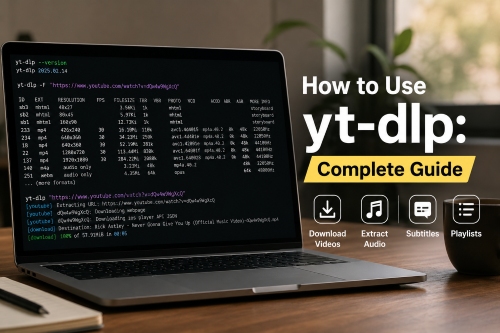

Part 1. What Is yt-dlp?
yt-dlp is a highly flexible and feature-rich command-line audio/video downloader based on youtube-dl. It supports thousands of websites and provides extensive controls for selecting formats, downloading playlists, handling subtitles, embedding metadata, and processing media files.
Unlike a typical desktop downloader, yt-dlp doesn't provide a traditional graphical interface. You normally enter commands in Command Prompt, PowerShell, Terminal, or another shell. As a result, it comes with a noticeable learning curve for new users.
If you're simply looking for a lightweight downloader for YouTube audio or YouTube Music - with an intuitive interface that lets you save albums and playlists straight from an integrated web player - you can skip ahead to Part 6, where we cover our favorite GUI alternative to yt-dlp.
For example, the basic syntax is:
yt-dlp "URL"
*Replace URL with the address of the video or other supported media page you want to process.
What Can yt-dlp Do?
Its capabilities go far beyond downloading a single YouTube video. Depending on the supported site and available formats, you can use yt-dlp to:
- Download individual videos
- Extract audio
- Choose specific video or audio formats
- Download playlists
- Save subtitles and automatic captions
- Download thumbnails
- Embed metadata
- Customize filenames and folders
- Process multiple URLs
- Use cookies or other authentication options when supported
- Apply post-processing through FFmpeg
- Work with many websites beyond YouTube
Does yt-dlp Support YouTube Music?
Yes. The current supported-site list includes YouTube Music search URLs as well as YouTube playlists and other YouTube-related extractors. However, support for individual sites and features can change as websites change their delivery systems, so the supported-sites list is not a permanent guarantee that every URL will work.
This makes yt-dlp useful for both general YouTube media tasks and music-oriented audio extraction, although the workflow is still command-line based.
yt-dlp vs youtube-dl
yt-dlp is a fork of youtube-dl and was built to extend and improve upon it. The yt-dlp project describes youtube-dl as inactive and positions yt-dlp as the actively developed successor in this ecosystem. If you're following an older tutorial that uses youtube-dl, many concepts will look familiar, but the commands and supported features should be checked against the current yt-dlp documentation.
Part 2. How to Install yt-dlp and Use It on Windows/macOS/Linux
yt-dlp can be installed in several ways, including through its standalone release binaries, Python's package system (pip), and various package managers. For most beginners, the standalone binary is the simplest option because it avoids setting up Python or other development tools first.
The installation method varies slightly by operating system. Below, we'll walk through the easiest setup for Windows, macOS, and Linux, then explain when you may also need FFmpeg.
Preparation Before Using yt-dlp
Before you start, make sure you have:
- A supported version of Windows, macOS, or Linux.
- A Terminal, Command Prompt, or PowerShell window.
- A supported media URL to test with.
- Python only if you plan to install yt-dlp through pip. It is not required when using the standalone release binary.
- FFmpeg and ffprobe if you need advanced post-processing, such as extracting audio, converting formats, or merging separate video and audio streams.
For the easiest setup, download yt-dlp from its official GitHub release page and choose the file appropriate for your operating system.
1. How to Use yt-dlp on Windows
For Windows users, the standalone yt-dlp.exe is usually the easiest option.
Step 1. Download yt-dlp
Download the current yt-dlp.exe release and place it in a dedicated folder, for example, C:\yt-dlp. The yt-dlp project provides a standalone Windows executable, so you do not need to install Python just to run this version.
Step 2. Install FFmpeg
For basic downloads, yt-dlp may work without additional software. However, FFmpeg and FFprobe are recommended when you need to merge separate video and audio streams, extract audio, or convert formats.
Step 3. Open Command Prompt or PowerShell
Open the folder containing yt-dlp.exe. You can then launch a terminal (press Win + R and enter cmd) from that location. If Windows does not recognize yt-dlp as a command, you can run the executable directly:
.\yt-dlp.exe --version
If a version number is displayed, the basic installation is working.
Step 4. Download a Video
.\yt-dlp.exe "URL"
Replace URL with the supported video or media page you want to download.
For more convenient use, you can add C:\yt-dlp to your Windows PATH. Once this is configured, you can run yt-dlp from other directories without typing .\yt-dlp.exe or navigating back to the installation folder.
Step 5. Check Available Formats
To see the available video and audio formats:
yt-dlp -F "URL"
And then you can then choose a suitable format from the results.
Alternative: Install yt-dlp with WinGet
If you already use Windows Package Manager, the official installation wiki lists:
winget install yt-dlp
To update an existing installation:
winget upgrade yt-dlp
The yt-dlp installation documentation also lists Scoop and Chocolatey as Windows package-manager options.
2. How to Use yt-dlp on macOS
macOS users can install yt-dlp through Homebrew or use the official standalone executable. The official project currently provides yt-dlp_macos as a universal macOS executable.
Option 1. Install yt-dlp with Homebrew
If Homebrew is already installed, open Terminal (press Command ⌘ + Space and enter Terminal) and run:
brew install yt-dlp
To update yt-dlp later:
brew upgrade yt-dlp
This is often the most convenient option for Mac users who already use Homebrew.
Option 2. Use the Standalone Binary
You can also download the current macOS standalone executable, yt-dlp_macos, from the official release page.
One convenient approach is to place the executable in a directory included in your PATH, such as ~/.local/bin.
Create the directory if necessary:
mkdir -p ~/.local/bin
After placing the yt-dlp_macos executable there, rename it to yt-dlp and make it executable:
chmod a+rx ~/.local/bin/yt-dlp
Then verify the installation:
yt-dlp --version
If Terminal returns a version number, yt-dlp is ready to use.
If yt-dlp is not recognized afterward, make sure ~/.local/bin is included in your PATH, or use the full path to the executable.
3. How to Use yt-dlp on Linux
Linux gives you several choices depending on your distribution. For example, Debian/Ubuntu-based systems can install yt-dlp through available package repositories, while Homebrew, Snap, and other package managers are also documented by the project.
Option 1. Use the Standalone Binary
For beginners, the official standalone binary is the most straightforward option because it avoids version conflicts with distribution-specific packages. From here, the overall workflow is identical to the macOS standalone binary steps we outlined above.
Option 2. Use a Package Manager
yt-dlp is also available through package managers on supported Linux distributions. For example, users who have Homebrew installed can run:
brew install yt-dlp
Other options documented by the yt-dlp project include APT for certain Debian-based distributions, pacman for Arch Linux, and other distribution-specific package managers. Because package availability and versions can vary, check the current instructions for your particular Linux distribution before installing yt-dlp this way.
Do You Need FFmpeg for yt-dlp?
Not always. yt-dlp can download supported media without FFmpeg in many situations. However, FFmpeg becomes important when you need post-processing, such as extracting audio, converting formats, or merging separate video and audio streams. For example:
yt-dlp -x --audio-format mp3 "URL"
The -x option tells yt-dlp to extract audio and the --audio-format mp3 option requests MP3 output. This type of post-processing generally requires FFmpeg.
FFmpeg and yt-dlp serve different purposes:
| Tool | Main Role |
|---|---|
| yt-dlp | Finds and downloads supported media streams |
| FFmpeg | Processes, merges, extracts, and converts media |
| ffprobe | Inspects media streams and technical information |
You may also need FFmpeg when yt-dlp downloads separate video and audio streams and needs to merge them into a single file.
On Windows, yt-dlp can find FFmpeg if the FFmpeg executable is in the same working directory or in a directory included in your system PATH.
If a command fails with an FFmpeg-related message, installing or correctly configuring FFmpeg is one of the first things to check.
Quick Setup Summary
| Platform | Beginner-friendly option | Python required? | FFmpeg |
|---|---|---|---|
| Windows | yt-dlp.exe | ❌ | Only for relevant post-processing |
| macOS | Homebrew or yt-dlp_macos | ❌ | Only for relevant post-processing |
| ffprobe | Standalone binary or package manager | ❌ | Only for relevant post-processing |
Part 3. How to Use yt-dlp on Android with Termux
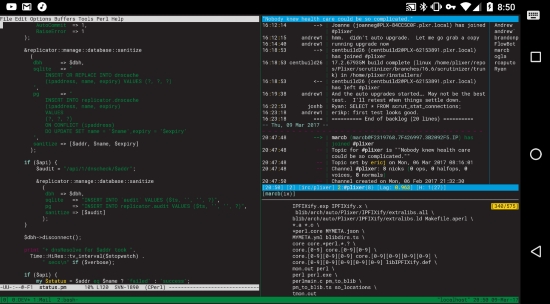
yt-dlp does not provide a conventional Android app like a typical mobile downloader. However, the official yt-dlp Installation Wiki documents a way to run yt-dlp on Android through Termux, a terminal environment for Android.
Termux provides a command-line environment on Android, allowing you to install Python, yt-dlp, and optionally FFmpeg.
Step 1. First, install Termux and open it. Then allow Termux to access the phone's storage:
termux-setup-storage
Step 2. Update the Termux packages:
pkg update && pkg upgrade
Step 3. Then you need to install Python and pip:
pkg install python python-pip
Step 4. Next, install yt-dlp:
pip install -U "yt-dlp[default]"
Step 5. If you need features such as audio extraction or media format conversion, install FFmpeg as well:
pkg install ffmpeg
The official instructions mark FFmpeg as optional during the basic Android installation, depending on what you intend to do with yt-dlp.
Step 6. Then you can use the same basic yt-dlp commands covered above.
yt-dlp "URL"
The main difference is that you're entering these commands in the Termux environment rather than Windows Command Prompt, macOS Terminal, or a Linux shell.
Part 4. Essential yt-dlp Commands for Downloading Videos and Audio
Once yt-dlp is installed, most everyday tasks can be handled with a relatively small set of commands. The following table is designed as a quick reference:
| Task | Command |
|---|---|
| Download a video | yt-dlp "URL" |
| Download a specific format | yt-dlp -f "FORMAT" "URL" |
| Best video + audio | yt-dlp -f "bv+ba" "URL" |
| Extract MP3 | yt-dlp -x --audio-format mp3 "URL" |
| Extract FLAC | yt-dlp -x --audio-format flac "URL" |
| Extract WAV | yt-dlp -x --audio-format wav "URL" |
| Download subtitles | yt-dlp --write-subs "URL" |
| Download automatic subtitles | yt-dlp --write-auto-subs "URL" |
| Download thumbnail | yt-dlp --write-thumbnail "URL" |
| Download a playlist | yt-dlp "PLAYLIST_URL" |
| Specify output directory | yt-dlp -P "PATH" "URL" |
| Customize filename | yt-dlp -o "%(title)s.%(ext)s" "URL" |
| Check version | yt-dlp --version |
| Update release binary | yt-dlp -U |
Part 5. Pros and Cons of yt-dlp
The biggest advantage of yt-dlp is its powerful feature set, flexibility, cross-platform support, and automation capabilities. However, the same command-line design that makes it powerful can also make it less approachable for casual users.
Free to use, openly developed, and requires no paid subscription;
Supports numerous websites through extractors, extending far beyond YouTube;
Lets you inspect available formats and select specific video or audio streams;
Handles playlists and multiple URLs efficiently with flexible output templates;
Offers extensive control over filenames, metadata, subtitles, authentication, and post-processing;
Command-line operation makes yt-dlp well suited to scripts and automated workflows
Requires familiarity with command-line tools, syntax, and various yt-dlp options;
Some audio extraction and media merging tasks require FFmpeg for post-processing;
Fixing extraction or authentication issues may require technical knowledge and configuration;
Supported features and formats can change when websites update their systems;
Command-line operation may feel less convenient than traditional point-and-click software
One-line Verdict:
yt-dlp = A highly flexible and feature-rich command-line downloader with a noticeable learning curve.
It is particularly well suited to technically experienced users, automation, and workflows that involve different websites or highly customized media processing.
Part 6. Looking for a GUI Alternative to yt-dlp for YouTube Audio?
yt-dlp is extremely flexible, but not everyone wants to work with command-line tools. If your primary goal is to manage YouTube Music audio rather than download videos from a wide range of websites, a dedicated graphical application can provide a simpler workflow.
AudFree YouTube Music Converter: A More Straightforward Option
AudFree YouTube Music Converter is designed specifically around YouTube Music audio. Instead of entering individual yt-dlp commands and configuring command-line options, you can work through a graphical interface and adjust audio output settings visually.
This can be useful if you mainly want to:
✅ Work with YouTube Music rather than many different websites
✅ Process multiple music tracks or playlists
✅ Choose common output formats through a GUI
✅ Preserve available track information and metadata
✅ Avoid manually entering command-line parameters
✅ Keep music-related tasks separate from more technical video workflows
✅ Also want high-quality songs from Spotify, Tidal, and Apple Music, over 10 major music services
How to Use it:
Click the green Try It Free button above to install this powerful alternative to yt-dlp on your computer. Once installed, follow the steps below to download YouTube Music tracks in your preferred format.
- Step 1. Configure Audio Preferences
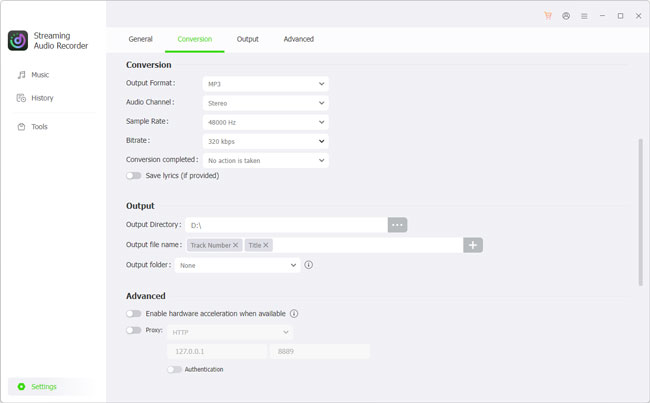
- Launch the program after installation. Click the 'Settings' button in the bottom-left corner and select 'Conversion'. Here, you can choose your preferred output format, including MP3, FLAC, WAV, M4A, AIFF, or M4B, and customize the bitrate and sample rate according to your needs.
- Step 2. Choose and Add YouTube Music to Conversion List
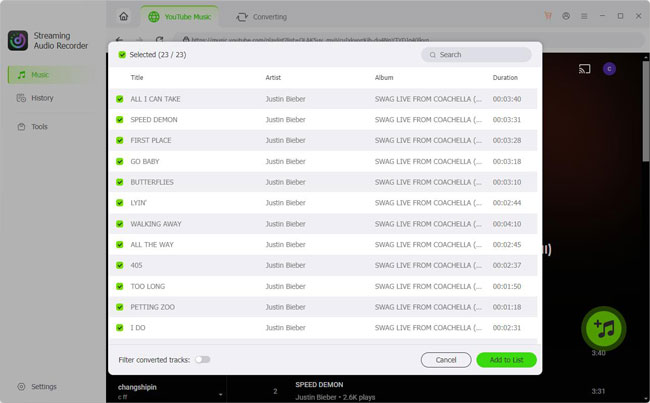
- Return to the main interface and click the YouTube Music icon to sign in to your account. Browse the service and select the songs, playlists, or albums you want to download. Then, click the green '+' button in the bottom-right corner to add your selections to the conversion list.
- Step 3. Download YouTube Music
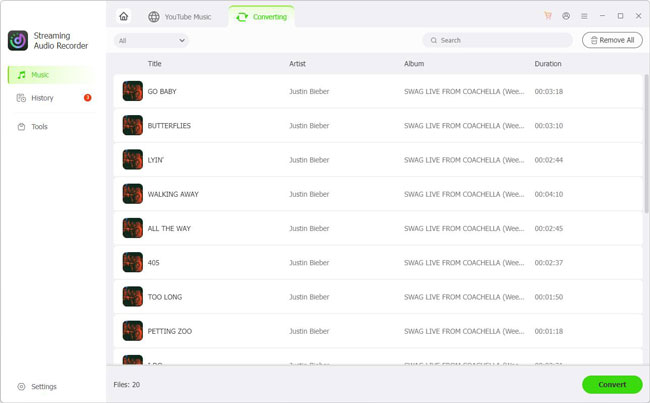
- Once your tracks are ready, click the 'Convert' button at the top center of the window to start the download and conversion process. When finished, you can find the converted YouTube Music tracks under the Converted List tab or open the selected output folder to access them directly.
Above all, the process is straightforward and requires no command-line operations, programming, or other technical skills, making it a more convenient alternative to yt-dlp for users who prefer a graphical interface.
yt-dlp vs AudFree YouTube Music Converter
| Feature | yt-dlp | AudFree YouTube Music Converter |
|---|---|---|
| Interface | Command line | Graphical interface |
| YouTube videos | ✅ | ❌ |
| YouTube audio | ✅ | ✅ |
| YouTube Music | ✅ | ✅ |
| Multiple websites | Extensive support | Music-focused |
| Format selection | Highly customizable by yourself | Preset/GUI-based options |
| Playlist processing | ✅ | ✅ |
| Advanced automation | ✅ | ✅ |
| Learning curve | Higher | Lower |
| Best for | Technical & multi-site workflows | Music-focused audio workflows (Over 10 platforms) |
See also: Best YouTube Playlist Downloaders
Which One Should You Choose?
- Choose yt-dlp if you want maximum control, support for many websites, custom format selection, scripting, automation, or video-related features.
- Choose AudFree YouTube Music Converter if you mainly work with YouTube Music audio (or other music streaming services) and prefer a graphical workflow instead of command-line operations.
This distinction is important. If you need a general-purpose command-line downloader, yt-dlp remains the more flexible tool. If your needs are focused specifically on YouTube Music audio, a dedicated GUI can be more convenient.
Regardless of the tool you use, make sure you have the necessary rights or permission to save and use the audio you process.
Part 7. yt-dlp Not Working? Common Errors & Fixes
Although yt-dlp is actively maintained, it may occasionally stop working because of website changes, an outdated version, missing dependencies, unavailable formats, or authentication issues. The error message usually gives you a useful starting point.
Below are the most common yt-dlp problems and practical ways to fix them.
1. HTTP 403 Forbidden or Access Errors
A 403 Forbidden error means yt-dlp is being denied access to the requested resource. This can happen when a supported website changes its systems, your yt-dlp version is outdated, authentication is required, or temporary access restrictions are in place. You can try these steps first:
- Update yt-dlp to the latest version.
- Retry the same URL with a basic command.
- Check whether the content requires you to be signed in.
- If the problem persists, check the current yt-dlp documentation or issue tracker for site-specific changes.
For a standalone yt-dlp installation, you can usually update it with:
yt-dlp -U
If you installed yt-dlp through pip, Homebrew, or another package manager, update it using the same method instead.
A 403 error does not necessarily mean that your URL is wrong. It may simply indicate that the website's current access or authentication requirements have changed.
2. "yt-dlp Is Not Recognized as a Command"
If Windows shows an error such as, "'yt-dlp' is not recognized as an internal or external command".
This usually means Windows cannot find the yt-dlp executable because its folder is not included in your PATH.
If yt-dlp.exe is in your current folder, try:
.\yt-dlp.exe --version
If this works, you can either continue running yt-dlp from that folder or add its location to the system PATH so you can use the command from any directory.
On macOS and Linux, make sure the yt-dlp executable is stored in a directory included in your PATH and has the required executable permissions.
3. "FFmpeg Not Found"
If yt-dlp reports that FFmpeg is missing, you may be trying to perform an operation that requires post-processing, such as extracting audio, converting formats, or merging separate audio and video streams, like
yt-dlp -x --audio-format mp3 "URL"
This type of audio extraction generally requires FFmpeg.
Keep in mind that yt-dlp and FFmpeg are separate programs. Installing or updating yt-dlp does not automatically install FFmpeg. After installing FFmpeg, make sure it is either in the same directory as yt-dlp or available through your system PATH.
4. "Requested Format Is Not Available"
If a command like this fails:
yt-dlp -f "FORMAT" "URL"
It means the specified format ID may not be available for that particular video.
First, list the formats available for the URL:
yt-dlp -F "URL"
Then select a format ID from the resulting list.
Please avoid blindly copying a format ID from another video. Available formats can vary between URLs, depending on the content, quality, and formats provided by the website.
5. "Unable to Extract" or "Unsupported URL"
If yt-dlp cannot recognize or process a URL, first make sure you are using the actual media page rather than a shortened URL, redirect, or unsupported page. Try:
- Update yt-dlp and try again.
- Check whether the current yt-dlp extractors support the website.
- Test another URL from the same website to determine whether the problem is specific to one piece of content.
- Check the current yt-dlp documentation or issue tracker if the website has recently changed its systems.
If the site has introduced a new access method or changed its media delivery system, an updated yt-dlp version may be required before extraction works again.
6. YouTube or YouTube Music Suddenly Stops Working
YouTube and YouTube Music may change how media is delivered, accessed, or authenticated. As a result, a command that worked previously can suddenly fail without any changes on your side.
When this happens, troubleshoot in this order:
- Update yt-dlp to the latest version.
- Check whether FFmpeg is installed if your command requires post-processing.
- Test the URL with a basic yt-dlp command.
- Run yt-dlp -F "URL" to see whether formats can still be retrieved.
- Check the latest yt-dlp documentation for YouTube-specific changes.
- Search the project's current issue tracker for similar reports.
What About PO Token Errors?
You may also see references to PO Tokens when troubleshooting YouTube extraction. These tokens are related to changes in YouTube's request and access mechanisms and are mainly relevant to more advanced extraction scenarios.
For most beginners, there is no need to start by configuring PO Tokens. Update yt-dlp first and follow the project's current YouTube guidance rather than copying an old PO Token setup from a third-party tutorial.
Because YouTube's extraction requirements can change, instructions that work today may become outdated later. When you encounter a PO Token or similar site-specific error, the latest yt-dlp documentation and issue tracker are generally the best places to check for an up-to-date solution.
Conclusion
yt-dlp is a powerful and flexible tool for downloading videos and audio from YouTube, YouTube Music, and many other supported websites. Its command-line interface gives experienced users extensive control over formats, playlists, subtitles, filenames, and media processing, but it also requires more technical knowledge. Installation, FFmpeg configuration, format selection, and issues such as 403 errors, unsupported URLs, and changing YouTube requirements can make the learning curve steeper for beginners.
If you need a highly customizable downloader for technical or automated workflows, yt-dlp remains a strong choice. However, if your main goal is to download YouTube Music audio without dealing with commands and dependencies, AudFree YouTube Music Converter provides a more straightforward graphical workflow. Ultimately, the better option depends on whether you prioritize maximum control and flexibility or ease of use and a music-focused experience.

Staff Editor


